Paycom - Required Permissions
Last updated: January 13, 2026
To connect your Paycom account to this application you must have the ability to perform certain functions in your Paycom account. Please follow the instructions below to confirm your permissions.
Alternatively, you may connect your Paycom account by generating an API token instead. You can find instructions for this process HERE.
Before you start
The permissions required to connect differ if your Paycom account is a single-company or multi-company account.
1. Log into Paycom
2. Navigate to Payroll > Process Payroll
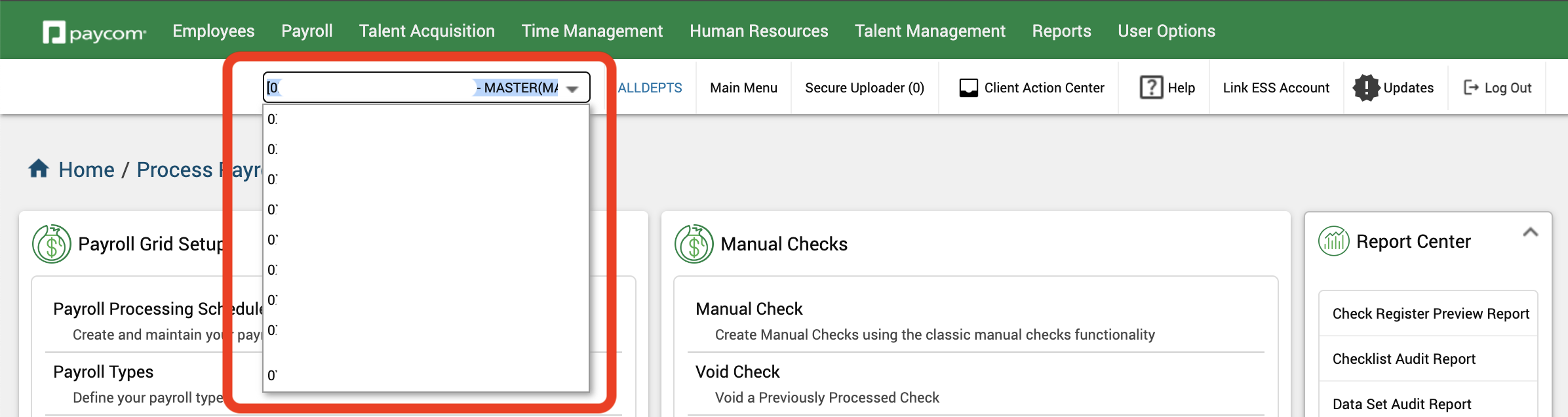
3. If you are using a multi-company account, you will see a dropdown menu that allows you to toggle between multiple Paycom company codes
Instructions (single-company account)
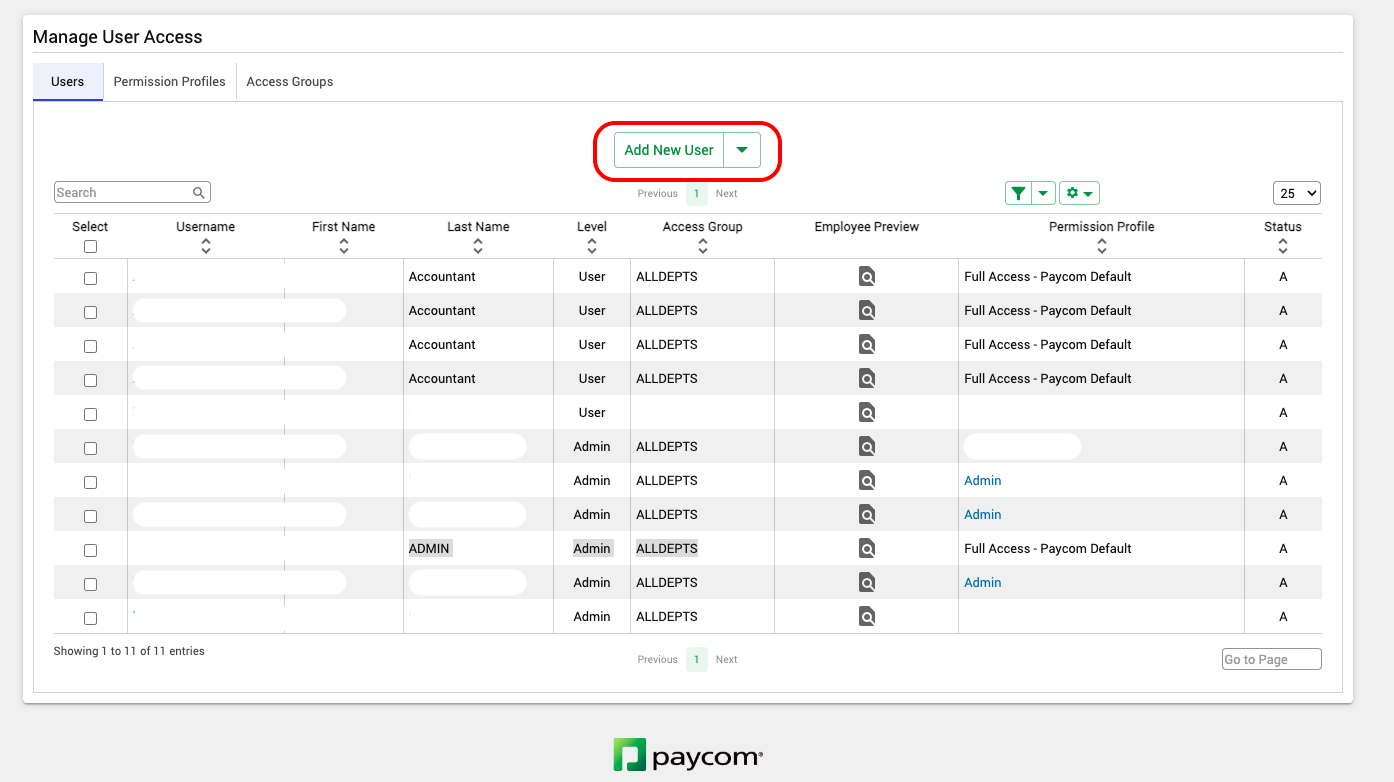
1. Navigate to User Options > User Access and Security > Manage User Access
2. Confirm you have the ability to see the Add New User button
Instructions (multi-company account)
1. Navigate to User Options > User Access and Security > Manage User Access
2. Select the first user in the list
3. Scroll to the bottom and confirm the Sync and Clone button is available
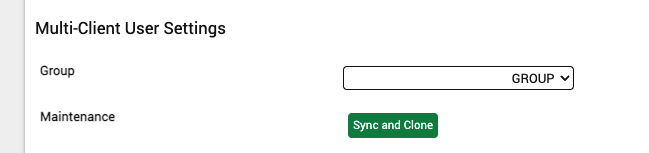
If you don't see the Sync and Clone button, reach out to your Paycom rep to add it. It is not a default feature and can be added without changing your plan.