Paycom - Add an administrator
Last updated: September 11, 2026
To connect your Paycom account to this application, you must add Finch as an administrator in the Paycom system. The steps are below.
Before you start
You may be directed to these manual instructions while attempting to connect your Paycom account in the Finch Connect modal.
Instructions
Before proceeding, confirm whether you will need to enable Sync & Clone for your user account following the instructions here: https://support.tryfinch.com/articles/1019537517-paycom-enabling-sync-and-clone
Navigate to the User Access and Security tab, click on Modify Users > Add User.
Use the information below to complete the application:
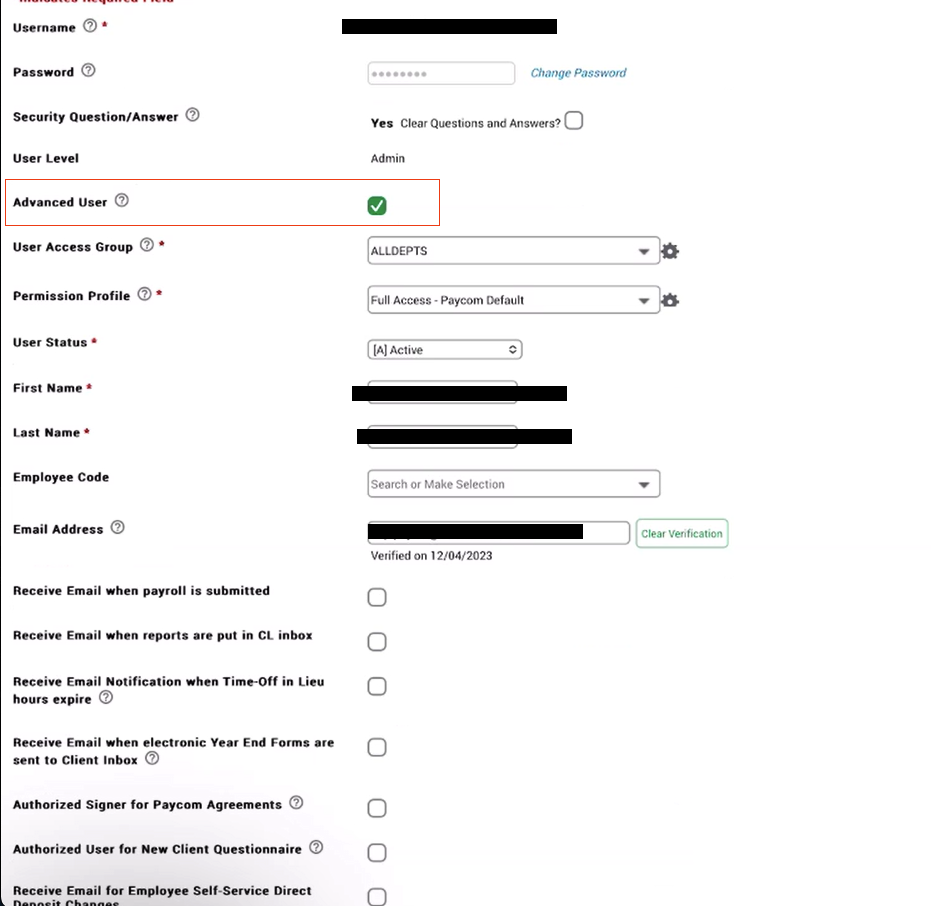
Username: Input the name of the application you are connecting to + Admin (example: Acme Admin)
Password: Set a temporary password and save it securely. You will need to provide this same password in Step 8 so Finch can log in and change it immediately upon connecting.
Access Group: All Departments
Permission Profile: Full Access - Paycom Default
User Status: Active
First Name: Enter the name provided in Finch Connect
Last Name: Support
Email Address For Admins: Enter the email provided in Finch Connect
Phone Number: 9177173974
NOTE: If you have a "Multi-Client User Settings" section available in this menu, select the available group in the Group field.
Select Advanced User with full permissions (the option is unavailable for non-admins)
IMPORTANT: Please leave the "Security Question/Answer" unchecked
Click Add to complete creating the new user.
If you had "Multi-Client User Settings" available in Step 2, navigate back to User Access and Security > Modify Users to modify the user we just created. Otherwise, skip to Step 8.
Select the user, then click the "Sync and Clone" button.
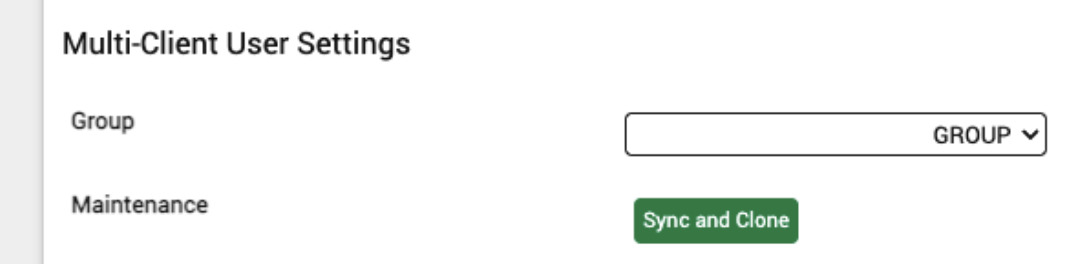
Click "Sync & Clone User to Entire Family", or click individually for all available companies if this option is not available.

8. Send an email to the email address found in Finch Connect with all of the following items:
Subject: New Connection - Paycom - [COMPANY NAME]
Your Paycom Client Code
Username (from Step 2)
Password (from Step 2)
Company Name
9. Navigate back to Finch Connect to complete the flow and follow any additional prompts.
Note: If your application requires the Benefits scope, you will only need to follow this set of instructions once to add a Paycom administrator with sufficient permissions for returning organization, payroll, and benefits data. If you are prompted to complete these instructions again in the Finch Connect modal, you may skip additional steps presented until you can successfully click Connect.
FAQs
💡 Why do I need to provide admin permissions to Finch? Set a temporary password and save it securely. You will need to provide this same password in Step 8 so Finch can log in and change it immediately upon connecting.