Step 5: STP Task Groups
Last updated: August 24, 2026
Before you begin guidance
Before you setup the STP Task Groups, make sure you have completed Relius Steps 1 - 4.
Set up the following three task groups using the details and screenshots below. They must be setup in the order listed below. For some fields there are just example values since you will need to use values specific to your instance.
The STP task group setup documentation is ordered based on the dependent data required, not the order of processing. To set up the Polling Task group, you need to have added the Payroll File Processing task group. Please note that they will run in a different order (File Transfer then Polling Task then Payroll File Processing).
We advise that you create new task groups rather than repurpose existing task groups.
For testing the first file see guidance
1. SFTP Task Group: SFTP - File Transfer
Description: This task group will run at specified time(s) each day and pull the file(s) from the SFTP site of the vendor (Finch) and move them to the specified folder in the ASP environment.
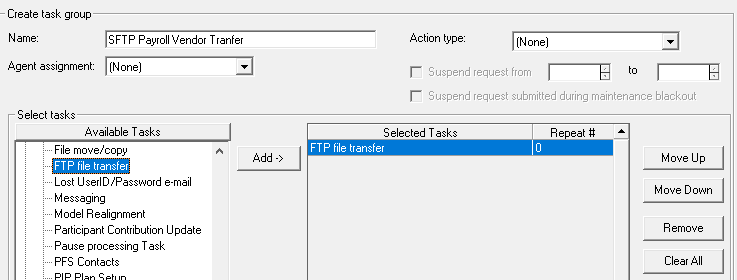
Create task group
Name: Finch - SFTP Payroll File Transfer (note you can name it however is easiest for you to find and clearly identify).
Action type: None
Selected Tasks: FTP file transfer
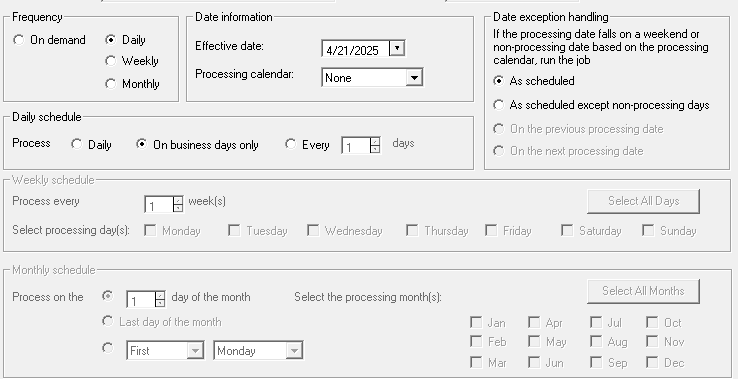
Tab 2 - Frequency
The processing calendar, date exception handling, and daily schedule should be configured based on your organization's preferences.
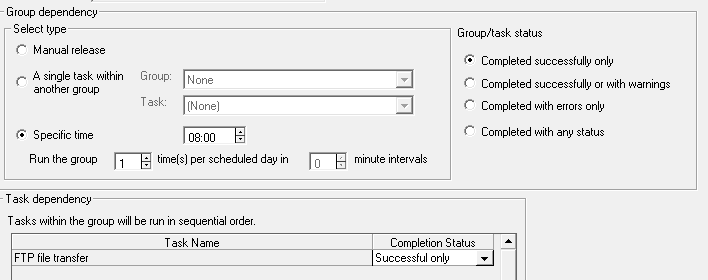
Tab 3 - Dependency
The task will start based on the time entered in the Specific time field (8 AM shown as the example in the screenshot below). The task will stop running based on the End Time entered on Tab 4 - Parameters
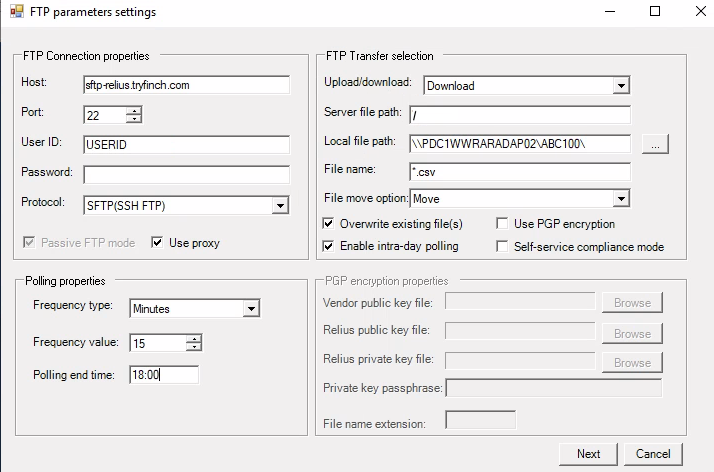
Tab 4 - Parameters
FTP Connection Properties
Host: sftp-relius.tryfinch.com
Port: 22
Server file path: / (note - a \ will not work)
User ID: provided by finch
Password : no password
Protocol: SFTP(SSH FTP)
CHECKBOX: Use Proxy
FTP Transfer Selection
The values shown in the server file path field and the local file path fields are placeholders. These will be different for every user.
Upload/download: Download
Server File path: /
Local file path: directory where the files will be stored in your system - Unique to your system
Filenname:
*.csvor*.*File move option: Move
The option to Enable intra-day polling allows the user to establish the frequency the files will be moved. It can be set to hours or minutes. The frequency is a business decision, there is no Finch technical requirement to base the frequency on.
Polling properties
Frequency type: can be set to hours or minutes.
The FTP task will start based on the Dependency Tab (3) and stop running at the Polling end time.
The Polling end time is the time the polling will stop for the day.
The start time is established in Tab 3 - Dependency
Select Next Button - you will see a new screen
Public key file: Finch will send via Secure Email
Private key file: Finch will send via Secure Email
Password: any value (Relius requires this field but Finch does not use it)
Keep a local copy of the SFTP key files used for this integration outside the ASP environment. Relius ASP automatically deletes files older than 90 days that aren't .SQL or .RPT files — including key files — so you'll need your own copy if you ever have to reload them.
Example screen
Note - your file names will be different.
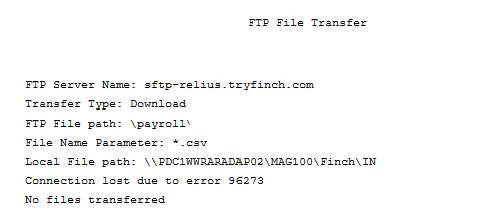
If you receive the following error, please ensure your key files were added correctly (Public/Private) and reach out to Relius support to verify that the url: sftp-relius.tryfinch.com has been allowlisted on your system:
Note - Relius may ask if Finch as white listed their IP addresses. Finch uses secure authentication instead of a blocking list so we do not have a list to add their addresses to. We have tested and confirmed that files can be successfully accessed from our SFTP server for our Relius customers.
2. Task Group: Payroll File Processing
Description: This task group will be called by the polling task. This task group will include the following tasks:
File move/copy
Import census payroll file
Post all Transactions
Create Reports - optional for use if there is a custom report you want to add to the process
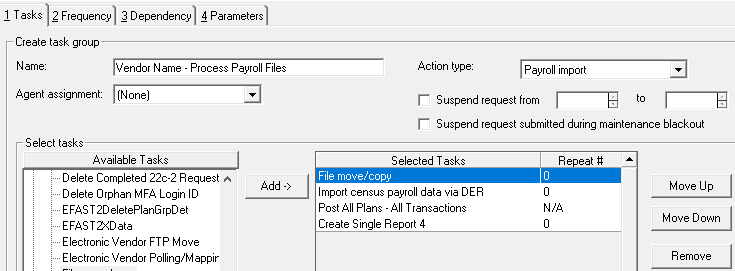
Create Task Group with:
Name: Finch - Process Payroll Files
Action Type: Payroll import
Selected Tasks:
File move/copy
Import census payroll data via DER
Post All Plans - All Transactions
Create Single Report (custom report writer) - Optional if you have a report you want to run when the file comes in.
NOTE - The task "Post All Plans" can alternatively be entered as three separate tasks if you have a specific business reason to prefer separate tasks:
Post Eligibility transaction - All employees
Post Contributions
Post Loan Payments
The Post All option will eliminate errors in the Job queue where the system attempts to post Loan Payments and there are no loans in the plan.
Tab 2 - Frequency
Set frequency to on demand
Tab 4 - Parameters
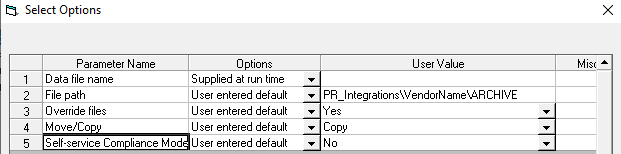
TASK - File move/copy
Data file name: passed to the task via the polling task
File Path: Archive directory
Move/Copy: this must be set to Copy as you do not want to move the file from the DataNew folder.
TASK - Import census payroll data via DER
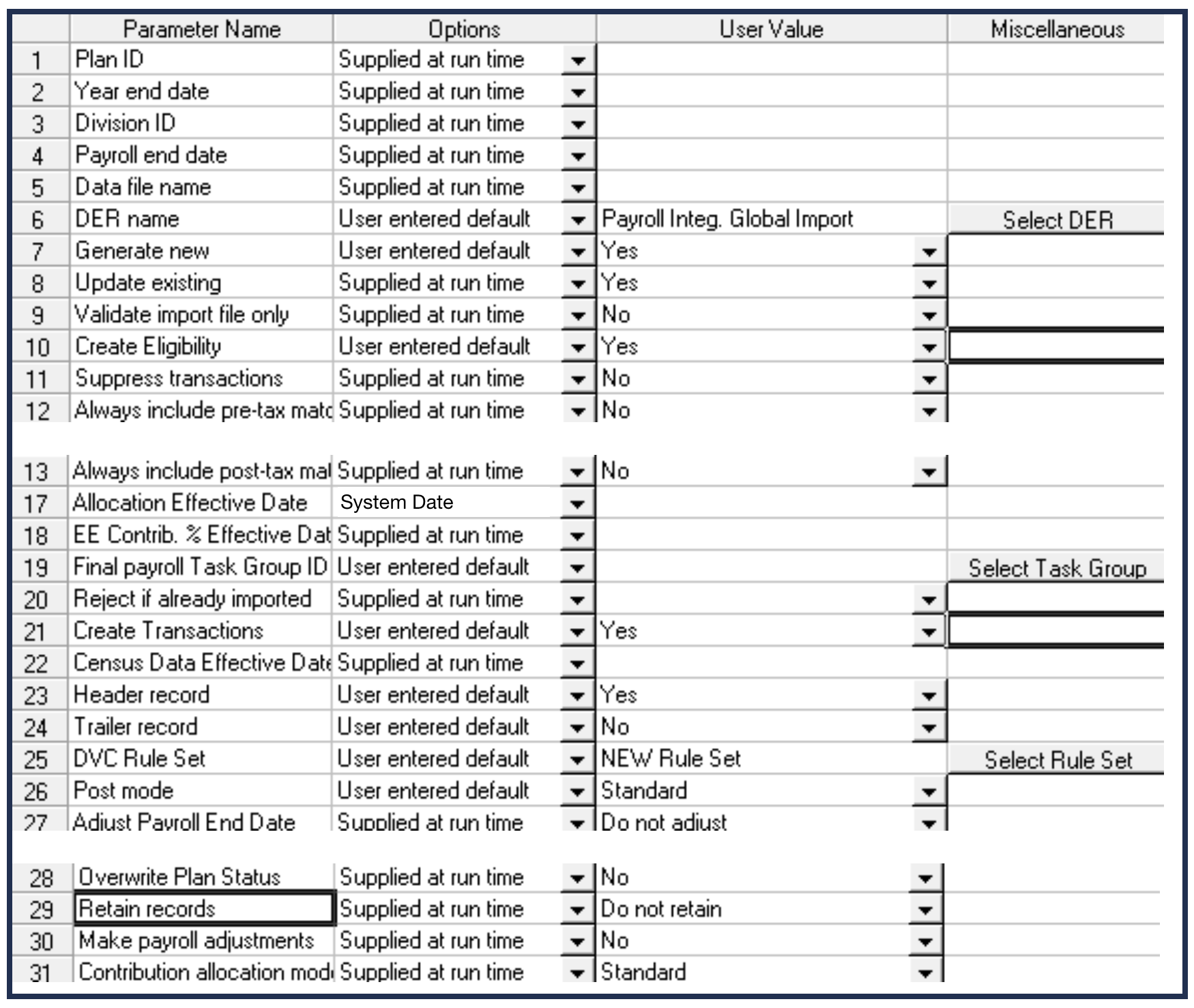
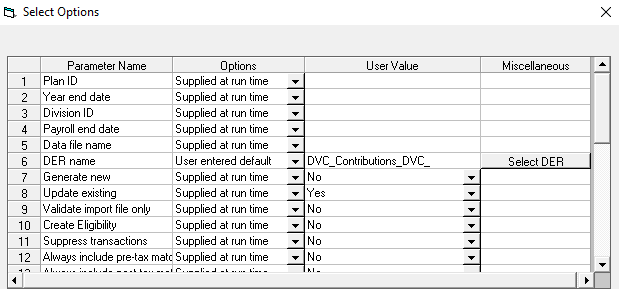
The Options should be set using the screenshot below.
The first four parameters are populated from the payroll file
The fifth parameter is set by Polling Task
DER name: The Global DER set up to match Finch
Generate new: Set to User Defined - Yes to import new employees
Final payroll task group - will recognize the final pay end date for the plan year and run a designated task group.
DVC Rule Set - not required (recommended)
Create Transactions - Creates the Contribution and Loan Payment transactions
**Reject if already imported
This is up to your team for how you want to set this up. The supplied at run time defaults to Yes. If this is causing issues, you can change it to Options - User Entered Default, User Value - No.
TASK - Post ALL Plans ALL Transactions
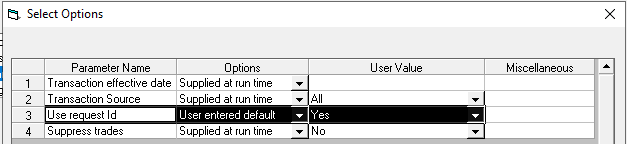
Each task will be set up using the Use request id parameter as User entered default = Yes
Regardless, Parameter Name: Use requests id will cause the system to only post of the specific payroll file.
If an existing task group is repurposed or if the task group was saved without the Action type set to Payroll Import, make sure you set the Action Type and SAVE the task group before reviewing the parameters.
If the task group is set up as a NEW group and the Action Type (Payroll Import) is set initially , the Options column in the Parameters should default to “Supplied at run time” for each task.
Modify the Use request id parameter as User entered default = Yes
If the other parameters do not default to Supplied at run time, modify these as well.
3. SFTP Task Group: Polling Task Group
Description: This task group will run for a period of time (e.g. 7 am – 2 pm) each day to “look” for files in a specified folder. When a file is found, it will automatically queue the Payroll File Processing Task Group and pass the appropriate file name to the tasks as required.
The polling task looks for a file in a designated directory. When a file is found, the task group identified in the parameters is queued automatically.
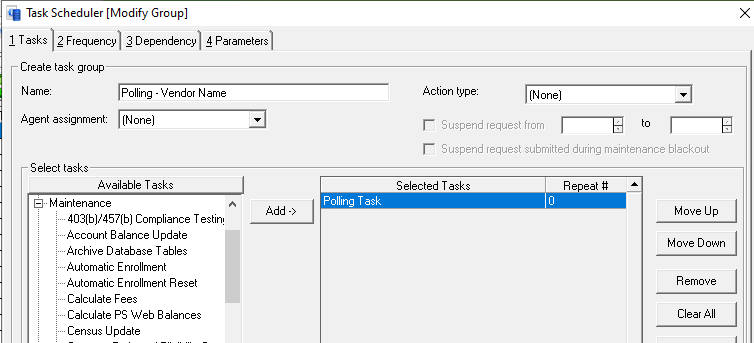
Create Task Group with:
Name: Polling - Finch
Action type: None
Selected Tasks: Polling Task
Parameters:
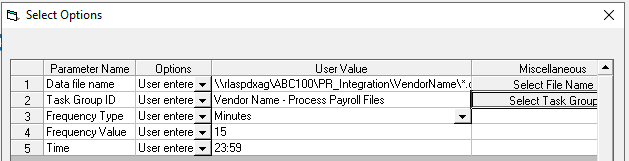
Data file name: Use the same directory that was Local File Path for the FTP File Transfer and then file name *.csv
Time: the END time
The start time will be up in the Dependency tab.
Troubleshooting
When the tasks run we don't see any files in the Archive directory.
Check the DataNew Folder