Set up the HiBob integration
Last updated: November 13, 2026
To connect employers on HiBob through Finch, you need an approved HiBob OAuth app. Once your app's credentials are in the Finch Dashboard, employers connect HiBob through Finch Connect in your application. This is a much simpler authentication process for employers; they will simply input their HiBob credentials rather than create a service user account.
Finch operates the OAuth flow — the callback, token exchange, token storage, and refresh — so there is nothing for you to build.
How HiBob authorization works through Finch
HiBob uses OAuth 2.0 for partner integrations. When an employer connects HiBob through Finch Connect, they consent to two things in the HiBob authentication window:
Scopes: the categories of data your app can read. You define these in your HiBob app.
Audience: the set of employees your app can read that data for. The employer chooses this at consent.
Finch stores the resulting tokens and refreshes them automatically.
Prerequisites for the HiBob integration
Access to your Finch Dashboard (Sandbox and production)
A landing page URL: the page in your application where employers log in and open Finch Connect
The list of Finch products you plan to use with HiBob (
company,directory,individual,employment)
Step 1 — Apply to the HiBob Technology Partner Program
OAuth apps are available only to approved HiBob technology partners. Submit the Tech Partner Application Form and wait for HiBob's review. After approval, accept HiBob's Terms & Conditions in the Partner Portal. HiBob then grants access to a HiBob demo company and the HiBob Developer Portal.
Step 2 — Create your app in the HiBob Developer Portal
In the HiBob Developer Portal, open My apps → + Create app. Complete the four pages of the Develop section in order.
Basic information
Add the app icon, name, description, and Built by. Under Installing your app, select Install from your landing page — not Bob Marketplace. For Landing page URL, enter a URL for your own application where employers log in and reach Finch Connect.
OAuth
The OAuth page holds your App ID, development credentials, production credentials, and the redirect URI. Finch operates the callback, so every developer uses the same redirect URI: https://connect.tryfinch.com/auth/bob
Scopes
Click Manage scopes and request only the scopes your Finch products require:
Finch product | Required HiBob scopes |
|---|---|
| None — Finch returns the company ID and name |
|
|
|
|
|
|
Three scopes cover full org support across directory, individual, and employment. If your connection does not ask for employment, employee_data.sensitive.history:read is not needed — request only what your products require.
Webhooks
Leave Allow event subscription disabled. Use Finch webhooks for event notifications as you do today.
Step 3 — Test in the Finch Sandbox and submit your app for review
In the Distribute section, complete Integration details with the values below. Every developer fills out Integration details the same way. Enter the values below, then select the Marketplace category relevant to your product.
Field | Value |
|---|---|
Integration type | API |
Direction of data flow | From Bob |
Sync trigger | Scheduled |
Sync frequency | Scheduled |
Region | Americas |
Marketplace category | The category relevant to your product |
Test with the HiBob development credentials, then record a demo
Copy your development
client_idandclient_secretfrom the OAuth page in the HiBob Developer Portal.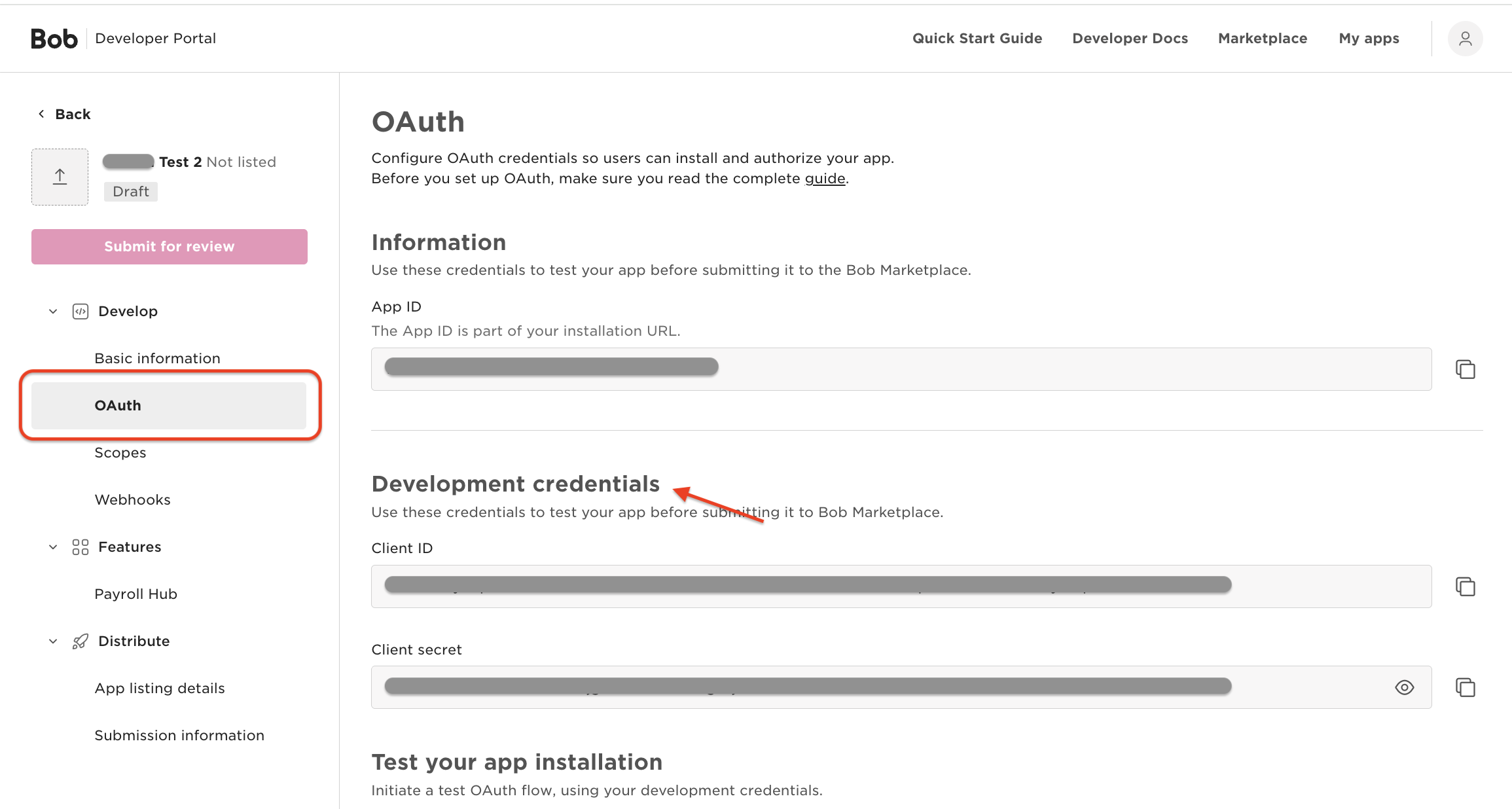
In the Finch Dashboard, switch to the Finch Sandbox, open Integrations → HiBob, and enable the OAuth integration with your development credentials.
Create a test connection in the Finch Provider Sandbox using the HiBob demo company you received, Create this connection in the Provider Sandbox and record the end-to-end OAuth connection flow and submit for review.
When HiBob approves the app, your production client_id and client_secret appear in the Developer Portal.
Step 4 — Add your production credentials to Finch
In your production environment in the Finch Dashboard, open Integrations → HiBob → Edit.
Enter your production
client_idandclient_secretunder the OAuth authentication type and save.Make OAuth the primary authentication type.
Employers can now connect HiBob through Finch Connect in your application.
How HiBob audience selection affects your data
At consent, the employer selects an audience: All company, Select by condition (for example, Site = Germany), or Select by name. Your app only sees employees in that audience. Requests for employees outside it return partial result sets, 403, or 404.
The audience is locked at authorization. To change scopes or audience, the employer uninstalls and reinstalls the app.
Tip: For full directory sync, instruct employers to select All company during HiBob authorization.