Product Migration Guide: Multi-Entity Mode
Last updated: May 18, 2026
This guide is for existing customers migrating from single-entity mode to multi-entity mode. Before taking action, please complete this form to opt-in. Once submitted, your Account Manager will walk you through the migration process, including potential impacts to connection count and billing.
What is an Entity?
An entity is a grouping of employees within a payroll system. Entities vary by provider and may be configured by the employer. For example, an entity could be defined by:
EIN (employer identification number)
Company code
Division
Location
Or any other grouping of employees defined by the payroll system
Single vs Multi-Entity Mode
Single-Entity Mode
In single-entity mode, employers can only connect one entity at a time in Finch Connect. This creates a separate Finch connection for each entity.
Multi-entity mode is the new default setting for all Finch customers. Single-entity mode will eventually be deprecated.
Multi-Entity Mode
Multi-entity mode enables employers to add multiple entities to a single connection:
Employers can connect one or many entities to a single connection
Finch issues one access token per connection, covering all selected entities
You can manage multiple entities through a single unified connection
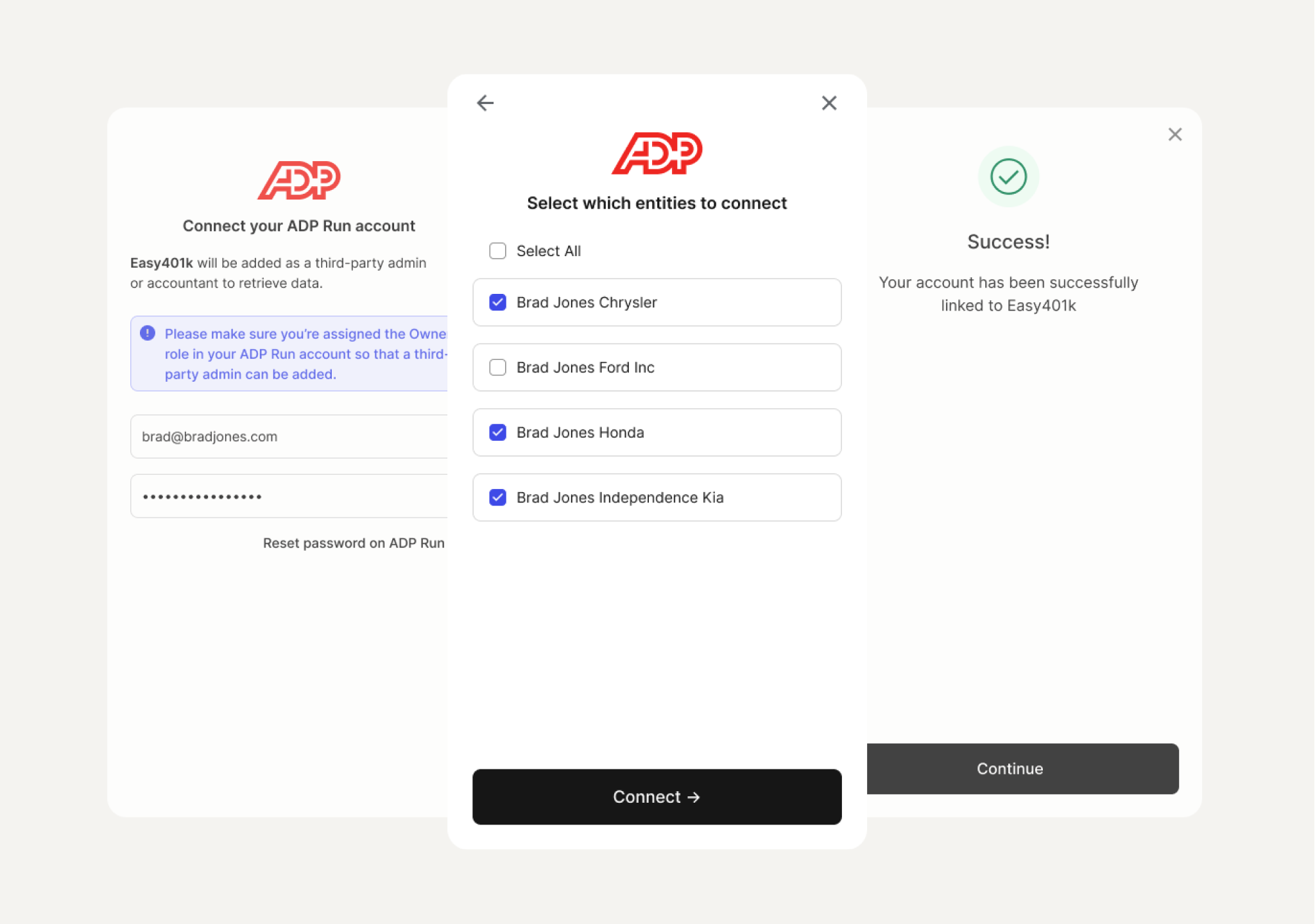
Callouts
There are a few situations where the "select entities" screen may be skipped.
If only one entity is available, the screen will be skipped, and the connection will contain only that entity.
If the integration is assisted, the screen will be skipped and all entities will be combined under a single auth token.
Benefits of Multi-Entity Mode
Multi-entity mode simplifies connection management and reduces overhead compared to single-entity mode.
Streamlined setup in Finch Connect
Employers can connect all entities within their payroll or HR system at once. In single-entity mode, Finch Connect must be completed multiple times—once per entity—which can lead to confusion or missed connections.
Clear 1:1 employer-to-connection mapping
With multi-entity mode, each employer corresponds to a single Finch connection, even if multiple entities are selected. This makes it easier to manage connections, track usage, and avoid billing discrepancies.
Fewer total connections to manage
Because multiple entities roll up under one connection, your total connection count may decrease after migrating—resulting in fewer integrations to maintain (and pay for).
How to Implement Multi-Entity Mode
Before Finch can enable multi-entity mode for your application, you'll need to first complete the changes described in the steps below:
Step 0: Reach out to Finch to begin the adoption process
Please complete this form to opt-in. Once completed, your Account Manager will reach out to explain the migration process, including potential impacts to connection count and billing.
Step 1: Retrieve entity_ids from /auth/token
After the employer authenticates, Finch will return one access token that represents all entities selected during authentication.
The /auth/token response will now include a list of entity_ids:
If the employer connects one entity, the list will include a single
entity_idIf the employer connects multiple entities, the list will return multiple
entity_ids
Sample /auth/token response (truncated)
{
  "access_token": "7e965183-9332-423c-9259-3edafb332ad2",
  "connection_id": "bc3a2af9-ce03-46c4-9142-81abe789c64d",
  "products": [
    "directory",
    "employment",
    "individual"
  ],
  "entity_ids" : [
    "be67ac3a-bbb1-476b-9131-4088f0039c30",
    "10008ab1-3dce-4cff-8cb9-6d2afc29a1be",
    "303d1671-9348-492f-9b7d-9944fb27654d"
  ],
  "provider_id": "workday"
}
Step 2: Include entity_ids in every API request
API requests must include an entity_ids query parameter, and you can only pass one entity_id at a time. If the parameter is missing, Finch will return an error.
GET /employer/directory?entity_ids[]=entity_123
Authorization: Bearer <access_token>
Example error if missing
{
  "error": "entity_id_required",
  "message": "This access token is associated with multiple entities. You must provide an entity_id as a query parameter."
}
Backwards Compatibility: For connections that include only a single entity_id, Finch will not return an error if no entity_id is provided as a query parameter. This behavior is maintained for backward compatibility.
Step 3: Retrieve per-entity information (optional)
Use /introspect to see entity-specific details from the payroll system.
Sample /introspect response (truncated)
{
  "entities": [
    {
      "id": "f952553b-cfec-4ce7-9acc-0cb3872d6481",
      "name": "Acme USA 1",
      "source_id": "A8X",
      "status": "connected"
    },
    {
      "id": "8a1e2211-ec4e-4aef-a6cb-8f8dfd8e4976",
      "name": "Acme USA 2",
      "source_id": "5J2" // nullable
      "status": "disconnected"
    }
   ]
}
You can disconnect some entities while leaving others connected. Introspect will return the historical context of all entities that have been linked to the connection. The status field will indicate whether the entity is currently connected or not.
Step 4: Read entity_id in webhooks (optional)
Read the new entity_id field from the response body of each webhook event.
Sample webhook response
{
  "company_id": "720be419-0293-4d32-a707-32179b0827ab",
  "account_id": "fa872170-b49d-4fb5-aa39-fb1515db0925",
  "connection_id": "0057d3d2-fb43-4815-9f71-01ba4862d09f",
  "entity_id": "7b63978c-0b83-45ca-8162-f5b10431e243",
  "event_type": "account.updated",
  "data": {
    "status": "connected"
    "authentication_method": "assisted"
  }
}
Step 5: Reach out to Finch to enable multi-entity mode
Once you’ve made the updates above, please reach out to Finch using the form submitted in Step 0 to enable multi-entity mode for your application.
Managing Entities After Connection
Under-selection
If an employer connects too few entities, the connection must be re-authenticated. Provide a Finch Connect re-authentication link so they can update their selection.
Over-selection
If an employer selects the wrong entity, they cannot remove entities through a re-authentication link once a connection is established. Instead, disconnect the entity using the /disconnect-entity endpoint.
Re-authentication
If any specific entity needs re-authentication, direct the employer to the re-authentication flow. They will see the multi-select screen again and can re-authenticate specific entities. They may also add new entities.
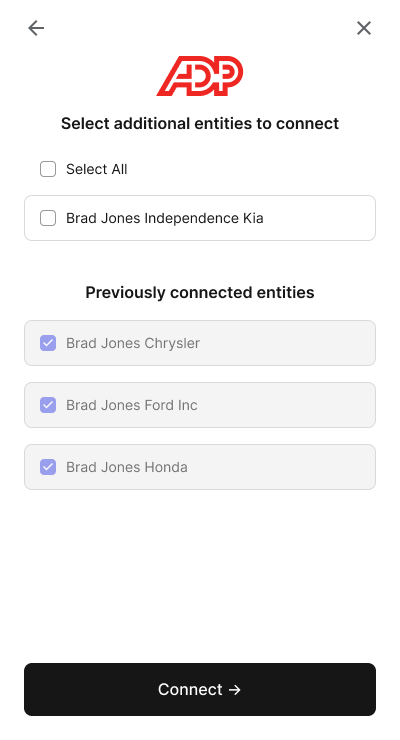
Employers cannot deselect entities during re-authentication. Disconnection must be handled by the developer directly.
FAQs
Can I disconnect a single entity?
Yes. You can disconnect some entities while leaving others connected using the /disconnect-entity endpoint.
How do I add or remove entities after a connection is established?
To add more entities: Use the re-authentication flow. Employers will see the multi-select screen again and can add entities.
To remove entities: Entities cannot be deselected through re-authentication. Use the
/disconnect-entityendpoint to remove entities.
What happens if an employer only has one entity?
The “select entities” screen is skipped automatically. Finch assumes there is only one entity to connect.
Will entities always be represented the same way within a provider?
Not necessarily. Employers control how entities are configured in their payroll system, so definitions may vary across employers—even on the same provider. Finch always reflects the payroll system’s configuration.
Can I change how an entity is defined for a specific employer?
No. Finch reflects entities as they are configured in the employer’s payroll system. We do not override or redefine how an employer has chosen to set up their entities.
How can I calculate the total number of individuals across all entities?
Make separate requests for each entity_id and combine the results in your application.
How can I tell when data across all entities has fully refreshed?
Use the finch-data-retrieved header as you do today. This value is also available per entity in the Dashboard.
Can I test multi-entity mode in the Finch Sandbox?
Yes, you can simulate the multi-entity selection screen by passing in the username good_user and password multi_entity.