UKG Ready - Add a Service User (Org + Payroll)
Last updated: January 13, 2026
Before You Start
To connect your UKG Ready account, you must create a service account in UKG Ready for the application you are connecting to.
If you need access to Deductions (benefits) data, follow the instructions below as well as the instructions listed HERE to add an administrator to support the benefits scope.
Overview: What You'll Need
You will complete three steps in UKG Ready:
Retrieve web service and company name details
Create a service profile with the necessary permissions
Create a service account; this generates a username, password, and API key for the service account
These values are created and stored in different areas of your UKG Ready system, which is why Finch collects them on separate screens during the connection flow
Step 1: Retrieve the Web Service URL and Company
Web Service URL
Log into UKG Ready
Open the lefthand menu bar
Navigate to Global Setup → Company Setup
Click on Company Info
Copy and paste the Web Service URL from your browser URL into Finch Connect

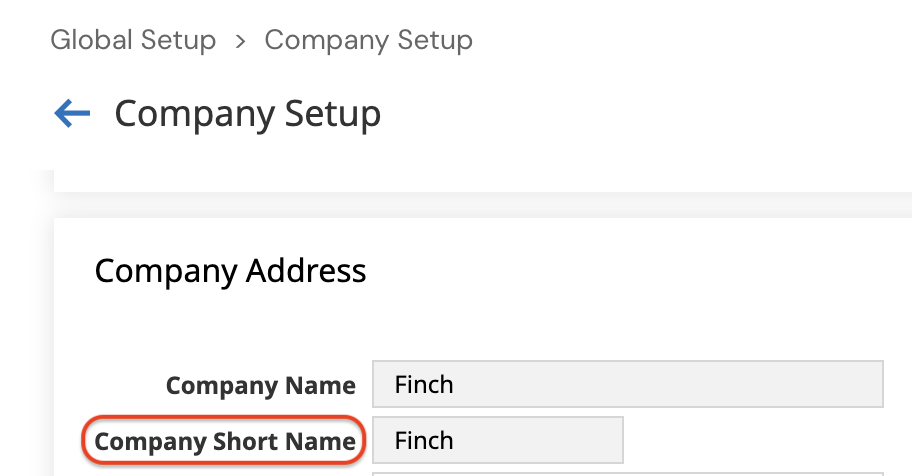
Company Short Name
On the same page, scroll down to the Company Address section
Copy the value from the Company Short Name field and paste this into Finch Connect
Step 2: Create a Security Profile
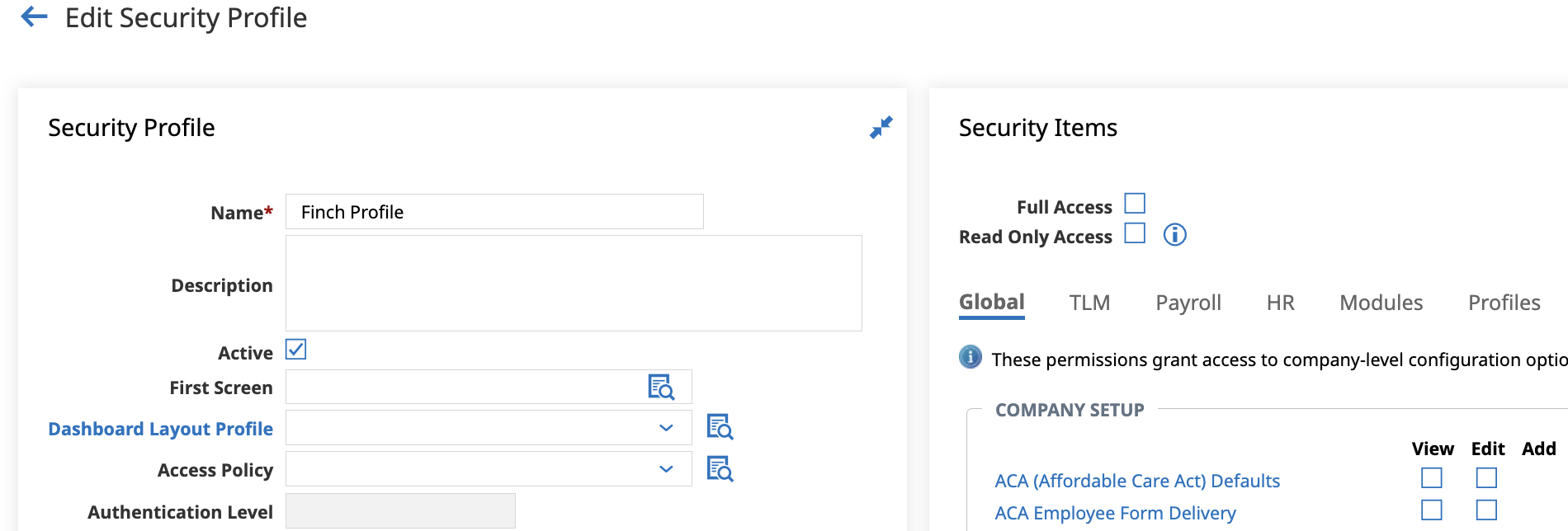
Create a Security Profile for Finch
Navigate to Settings → Profiles/Policies → Security
Click New Security Profile
Name the Security Profile: Finch Profile
Assign the Security Profile the Necessary Permissions
Immediately to the right of where you named the Security profile, you will grant the Security Profile access to the following Security Items:
Global Tab
Company Setup
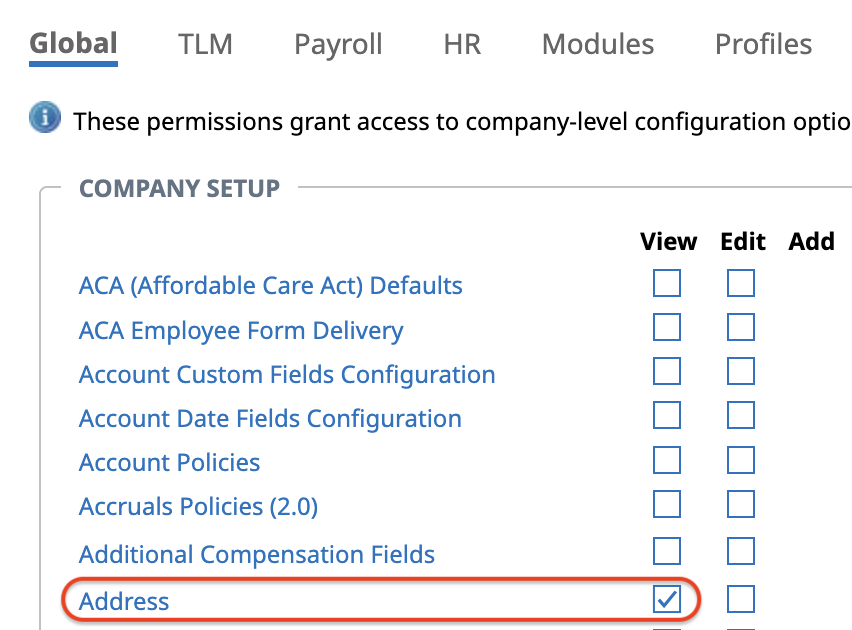
View: Address
Global Setup
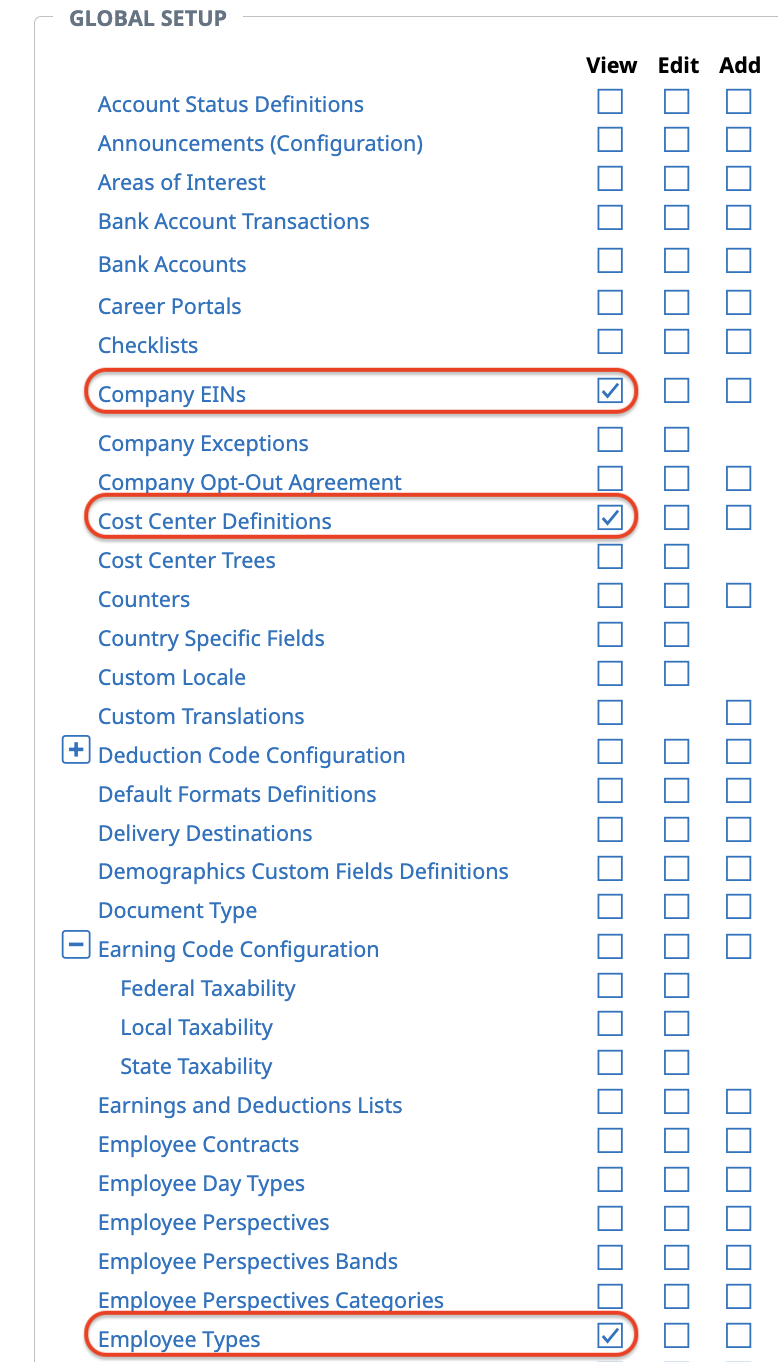
View: Company EINs
View: Cost Center Definitions
View: Employee Types
Payroll Tab
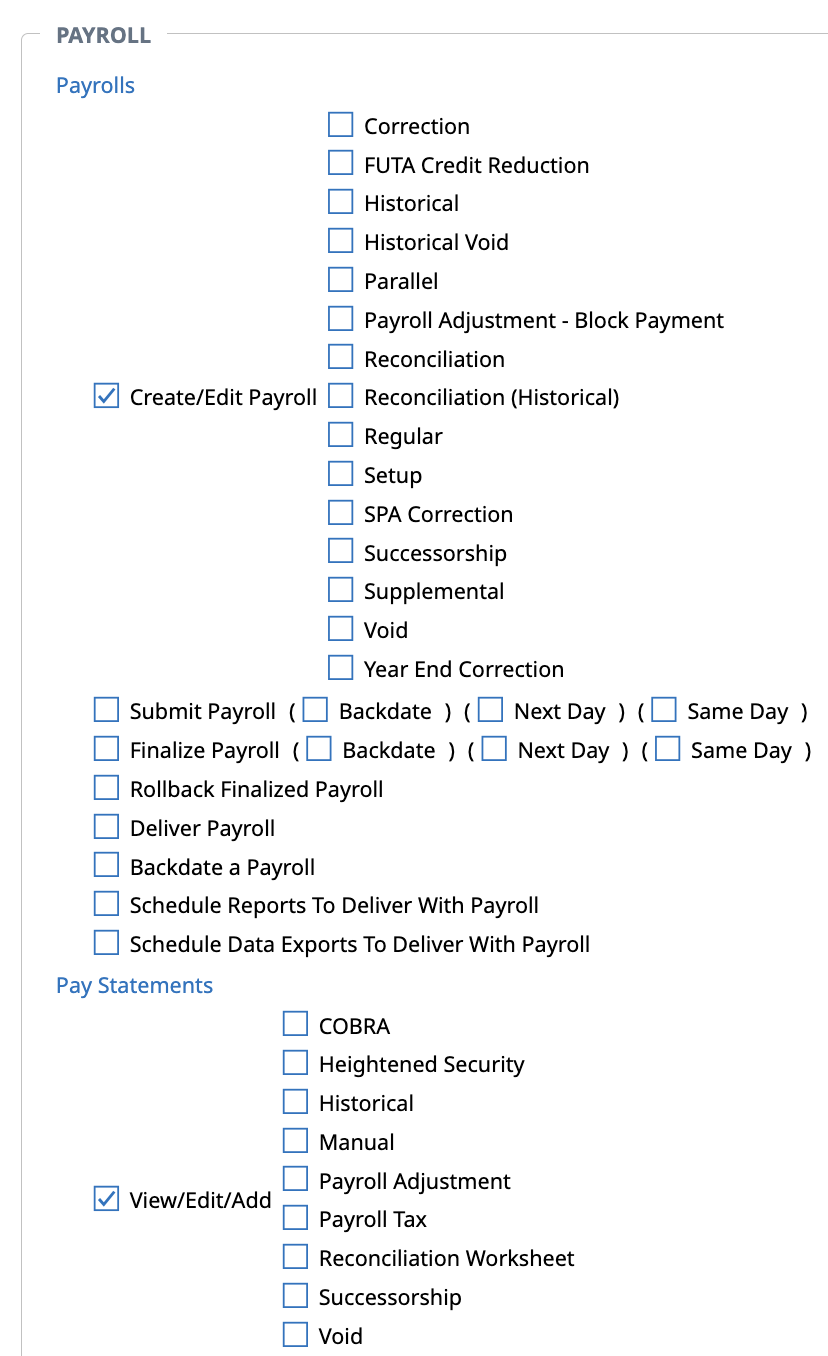
Payrolls: Create/Edit Payroll
Pay Statements: View/Edit/Add
HR Tab
Employee Management
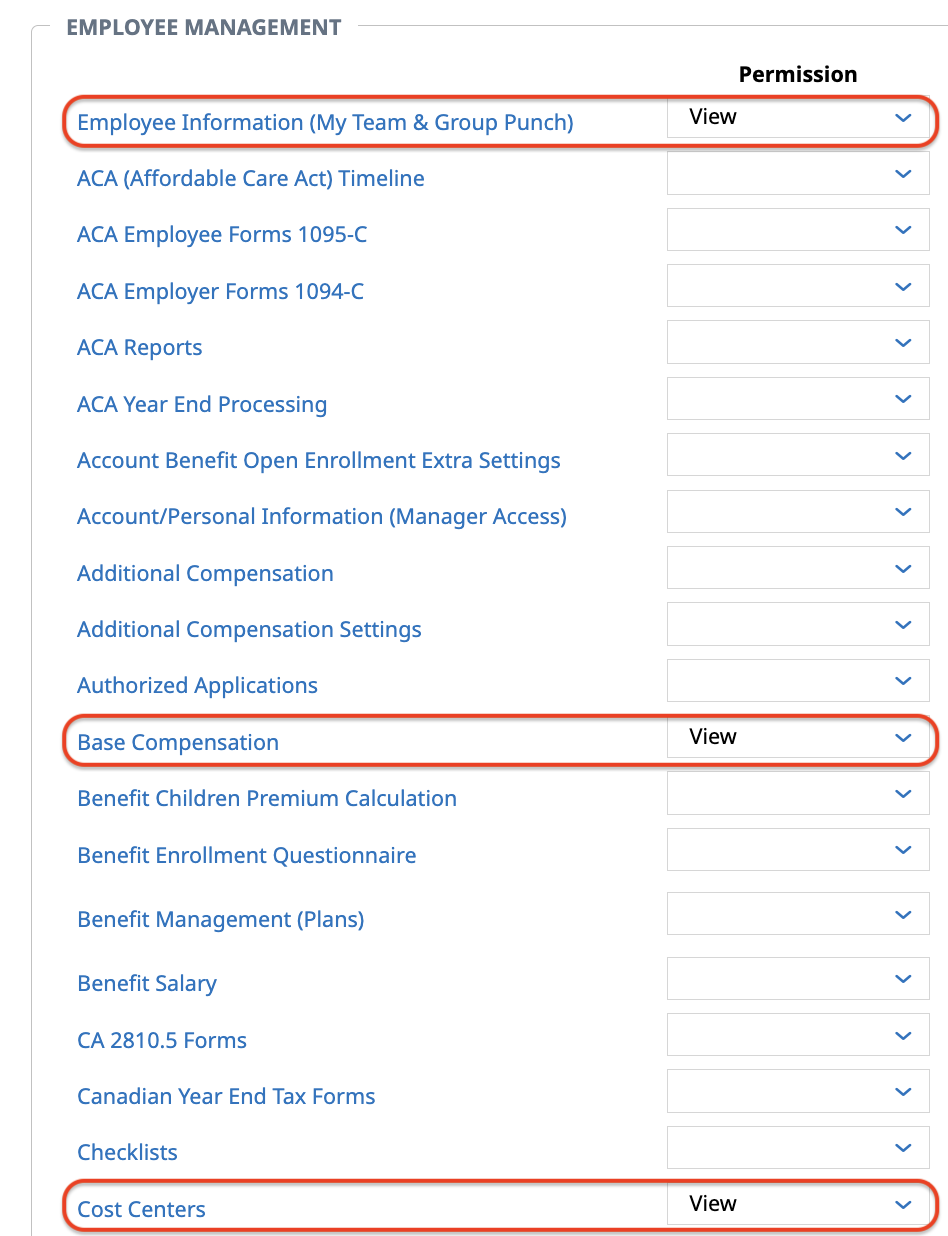
View: Employee Information
View: Base Compensation
View: Cost Centers
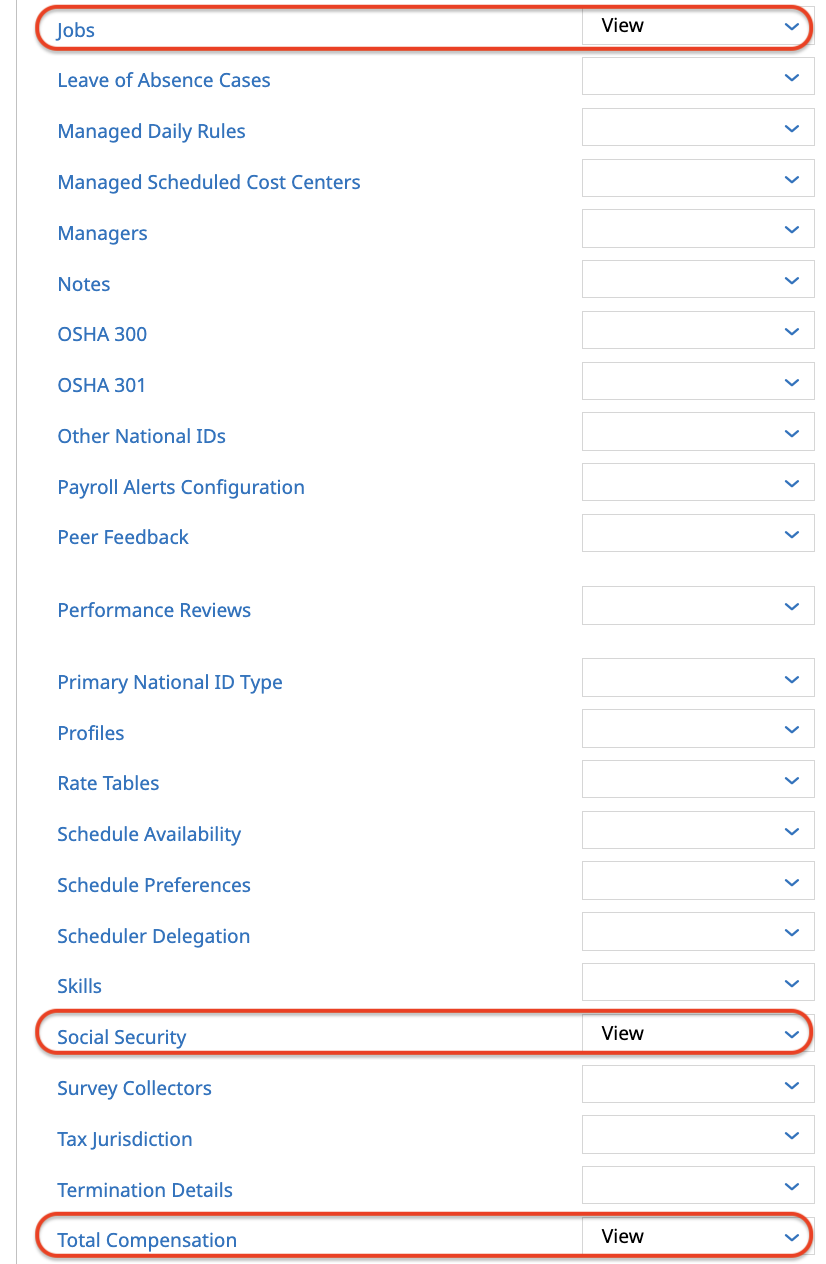
View: Jobs
View: Social Security
View: Total Compensation
Modules Tab
Rest API Resources
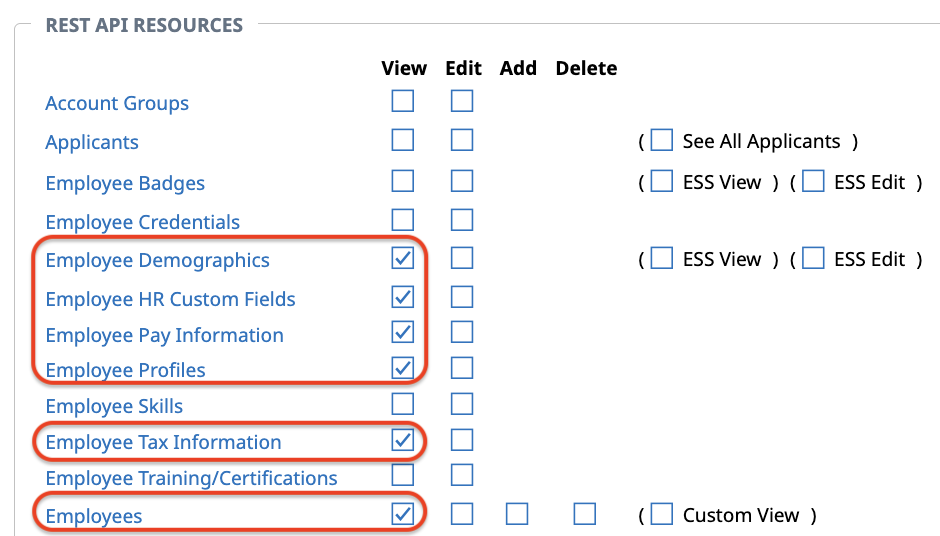
View: Employee Demographics
(If custom payroll reporting fields are needed) View: Employee HR Custom Fields
View: Employee Pay Information
View: Employee Profiles
View: Employee Tax Information
View: Employees
Reports Tab
Report
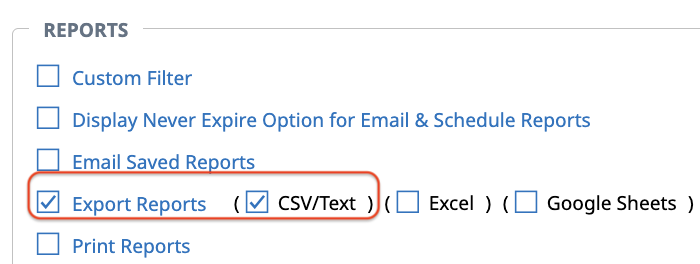
Export Reports: CSV/Text
Save the Service Profile with the Assigned Permissions
Click Save at the top of the page
You should get a successful saved notification

Enable the Service Account Login Config
Open the lefthand menu bar
Navigate to Global Setup → Company Setup
Click on Edit Tabs

Click on Login Config under My Tabs
Locate Service Accounts under Available Windows
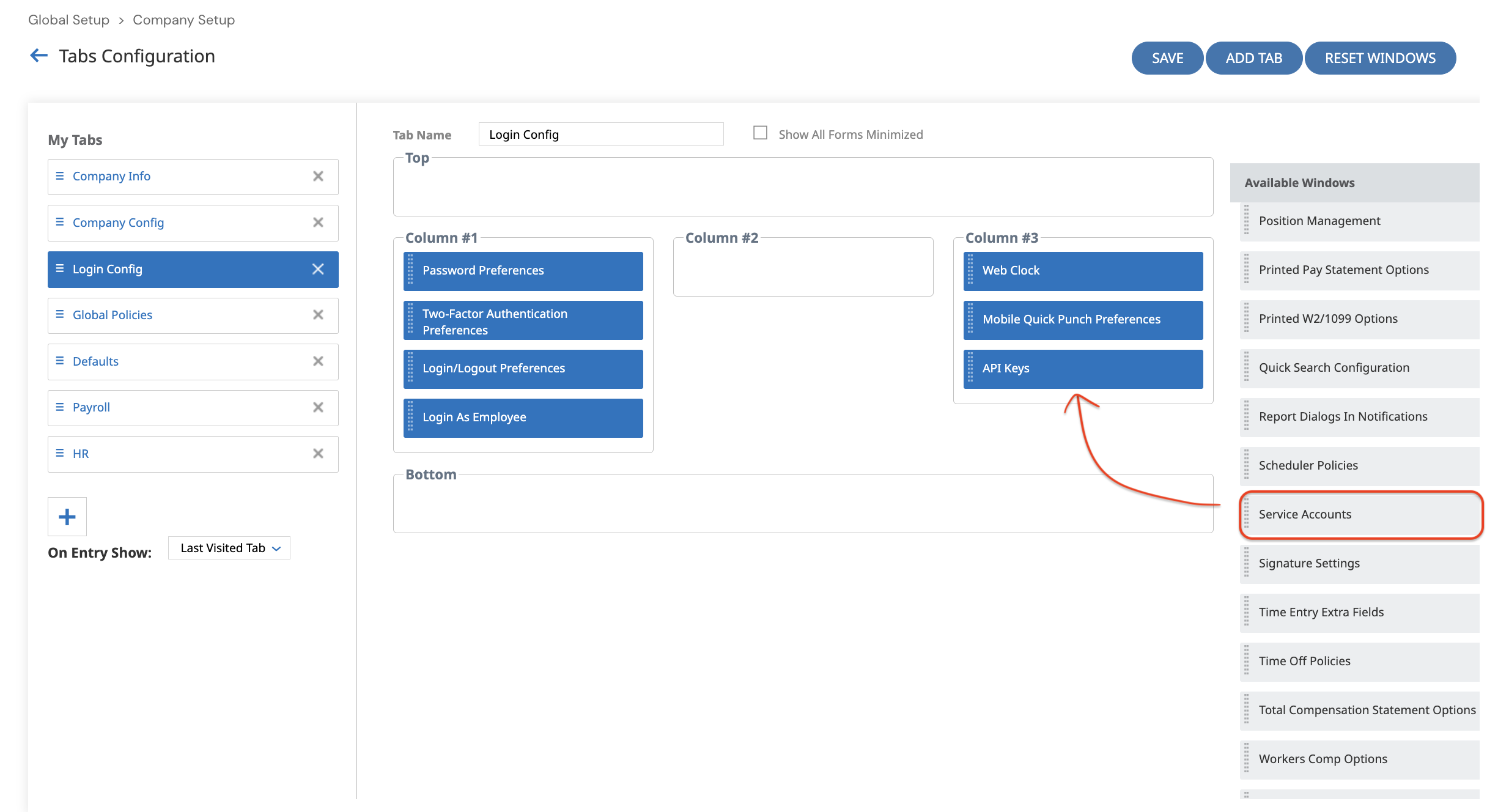
Drag Service Accounts into Column #3
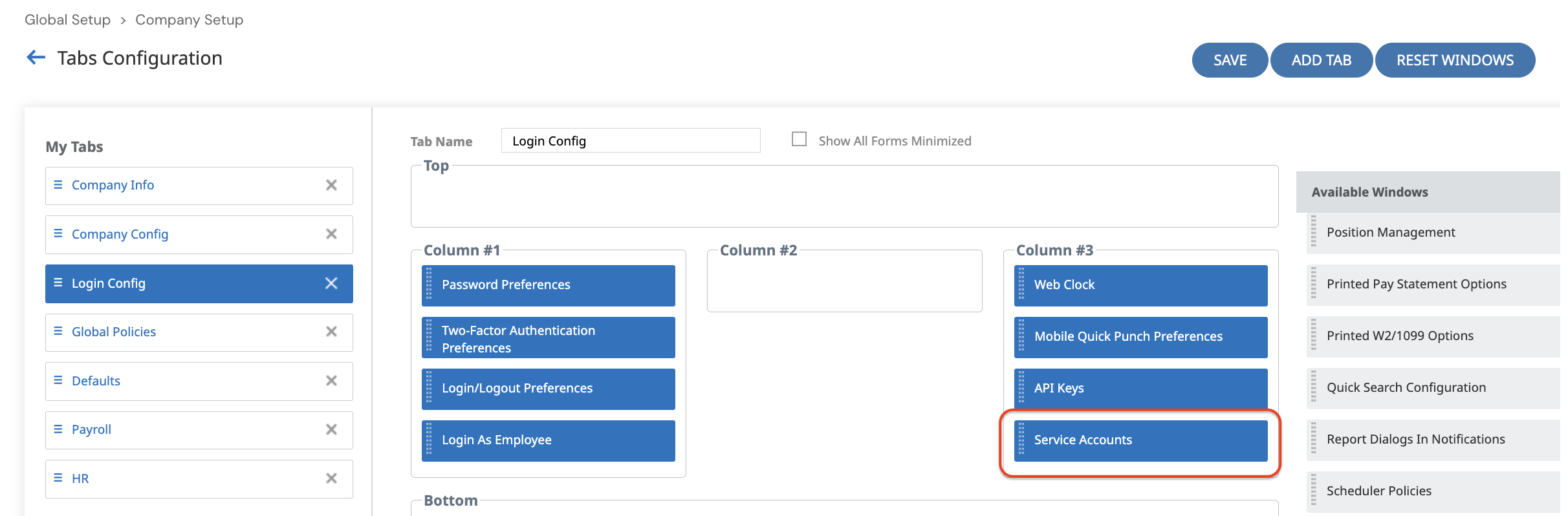
Click Save
Step 3: Create a Service Account
Create a Username and Password
Navigate back to Global Setup → Company Setup
Click on Login Confi

Scroll to the bottom of the page and click Add Service Account

Fill in the following information:
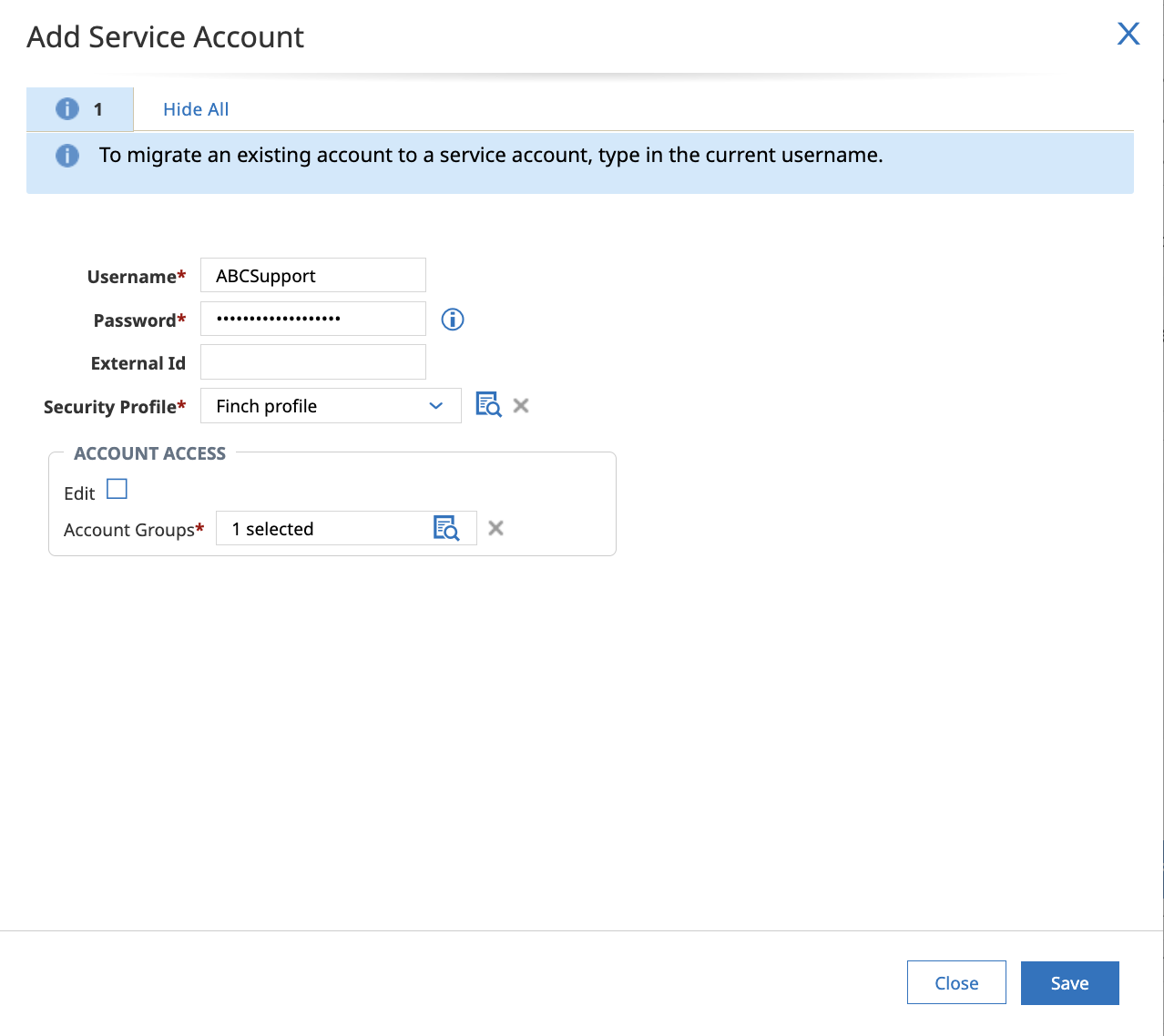
Username: This can be the first 3 letters of your company name followed by “Support” (Example: ABC Company → ABCSupport)
Copy this value into Finch Connect
Password: Create a password that meets the security requirements
Copy this value into Finch Connect
Security Profile: Select the security profile created in Step 1
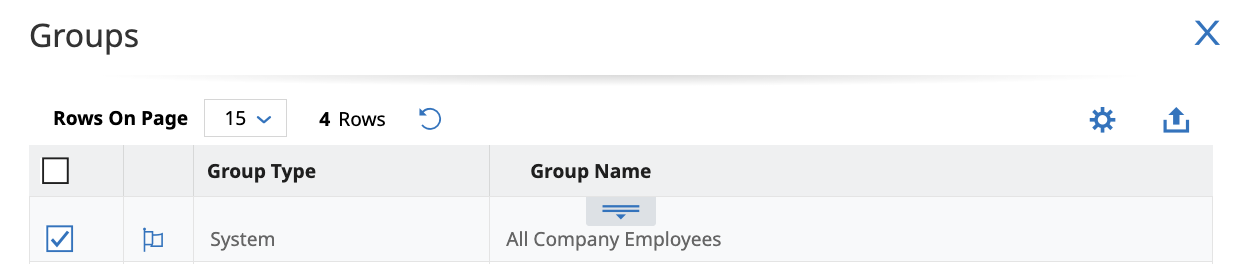
Account Groups: Select All Company Employees
Click Save
Retrieve API Keys
On the same Login Config tab, scroll down to the section API Keys
Copy the value from the REST API Key field and paste this into Finch Connect