UKG Pro - Add a Service User (Org + Payroll)
Last updated: January 13, 2026
Before you Start
To connect your UKG Pro account, you must create a service account in UKG Pro for the application you are connecting to. If you already have a service account, you may use that one.
If you need access to Benefits data, follow the instructions below as well as the instructions listed HERE to add an administrator to support the benefits scope.
Overview: What You'll Need
You will complete two steps in UKG Pro:
Create a service account with the necessary permissions; this generates a username and password for the service user
Retrieve API and web service details
These values are created and stored in different areas of your UKG Pro system, which is why Finch collects them on two separate screens during the connection flow.
Step 1: Create a Service Account with the Necessary Permissions
Create a Username and Email for the Service Account
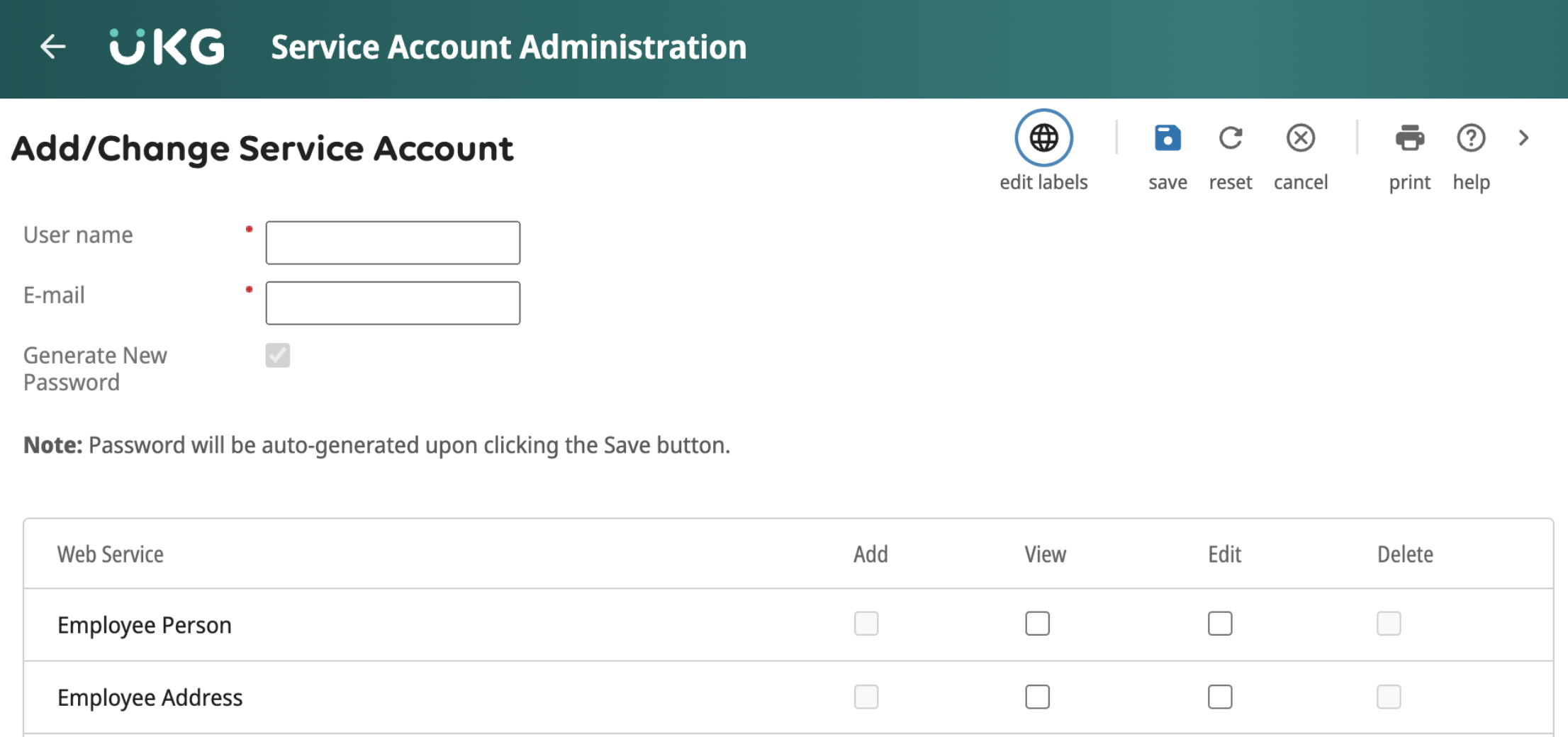
Log into UKG Pro as an administrator
Navigate to Menu > System Configuration > Security > Service Account Administration
Click Add
Enter a Username and E-mail
Username: Enter your company name in lowercase without spaces
Example: Acme Bread Co > acmebreadco
E-mail: Enter your email address; Finch will not send any correspondence to this email
Copy the Username into Finch Connect
Ensure Generate New Password is selected
Progress Check: Ensure the Username is copied into Finch Connect
Assign the Service Account the Necessary Permissions
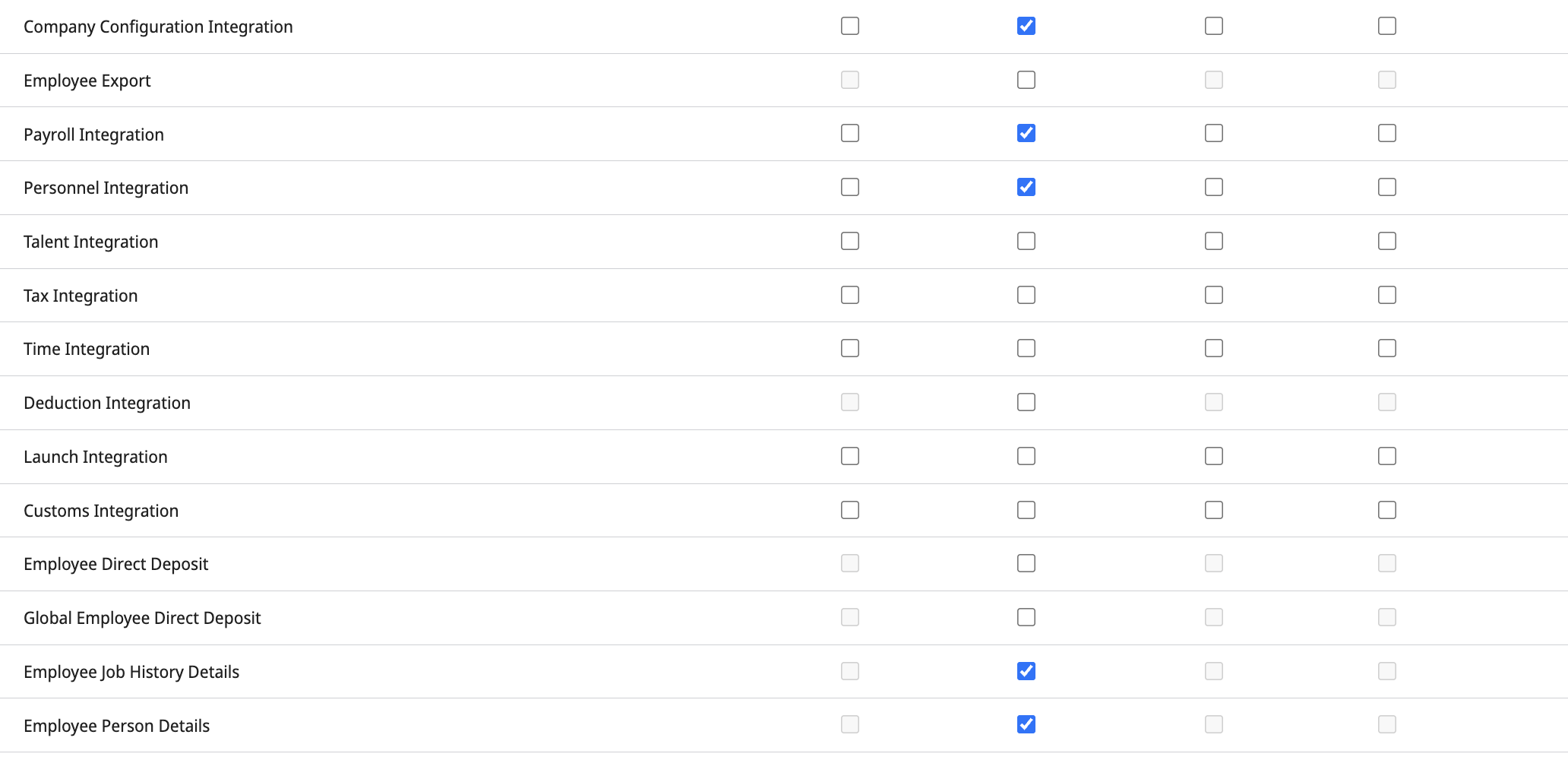
You will need to grant access to the following Web Services:
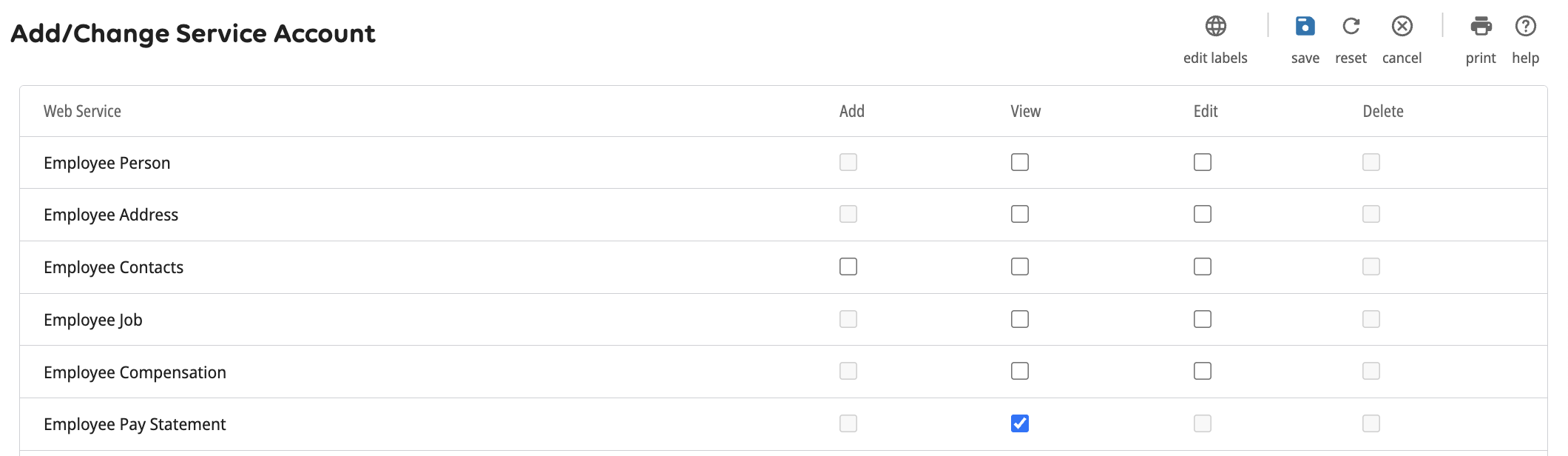
View: Employee Pay Statement
View: Company Configuration Integration
View: Payroll Integration
View: Personnel Integration
View: Employee Job History Details
View: Employee Person Details
Generate the Service Account Password
Once the required access is assigned to the service user, click save at the top of the page
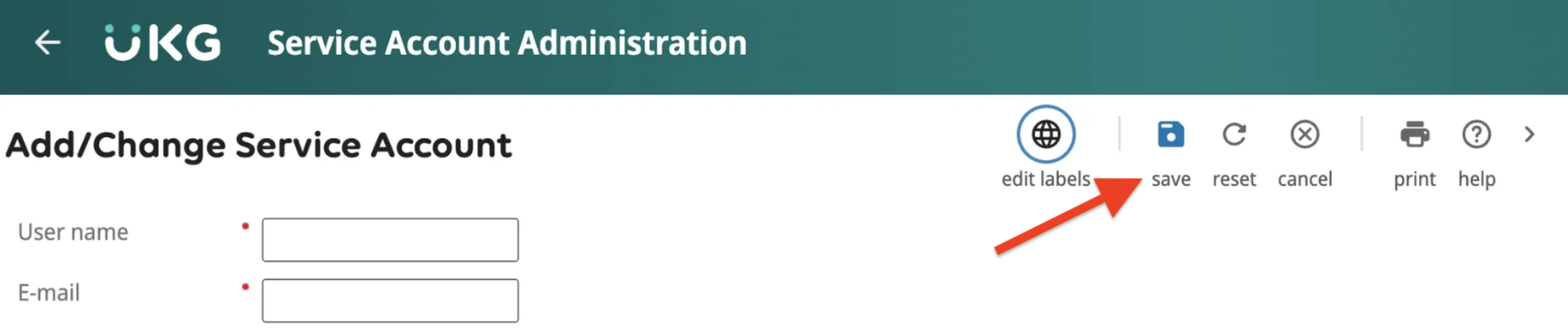
This will automatically generate a password. We suggest you save this in a secure location
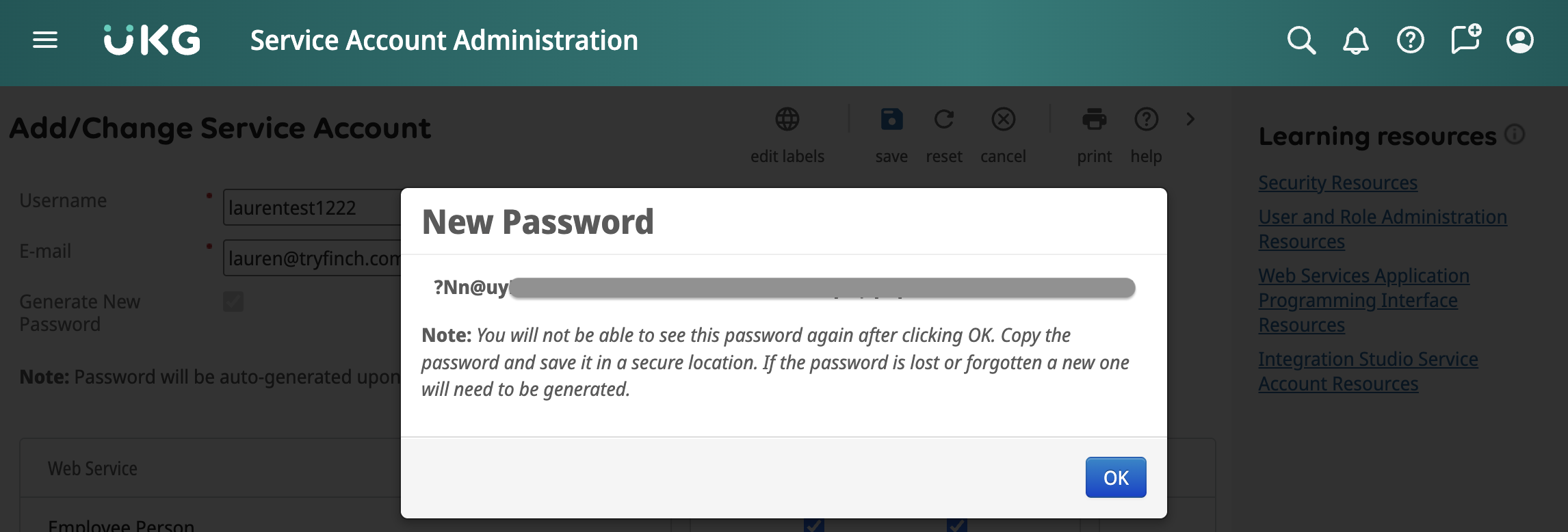
Copy the Password into Finch Connect
Click Ok in UKG
Progress Check: Ensure the Password is copied into Finch Connect. Click Next in Finch Connect
Step 2: Retrieve API Keys & Web Service URL
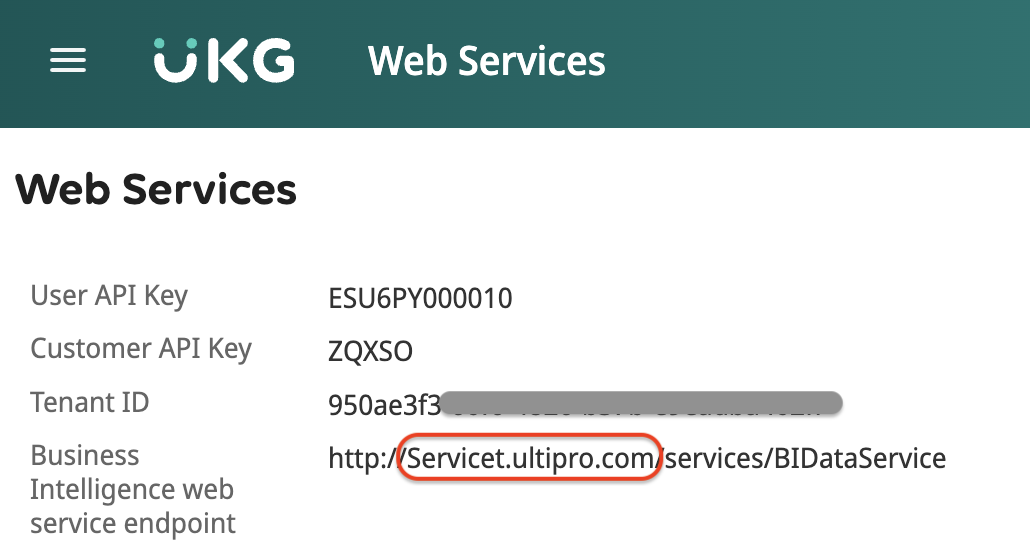
Navigate to Menu > System Configuration > Security > Web Services
Copy the User API Key into Finch Connect
Copy the Customer API Key into Finch Connect
Copy the Web Service URL into Finch Connect
This is circled in red below
If your team uses this application to update deductions and contributions
As noted above, after completing these instructions, follow the instructions listed HERE to add an administrator to support the benefits scope.