PensionPro Setup and Requirements for Finch Files
Last updated: December 16, 2025
Requirements
The following are setup requirements for Finch to send files to PensionPro.
Team or Business Bundle
EIN must be setup for each client
In PensionPro you must have the correct permissions to see the Dashboard. If you can't access, apply the correct permissions and then log out completely and then log back in.
Make sure that setting for projects allow you to make changes while the client was working on the project.
For additional guidance you can also reference PensionPro's External Payroll Census Integration article. You can find this by navigating in PensionPro to the Payroll Dashboard and clicking on the '?' icon.
Setup
Collection Fields
Finch pushes to PensionPro a standard file. The fields included in the standard file are described in PensionPro File Specifications.
You can configure which Collection fields are included in order to exclude specific fields from the standard Finch file.
The Collection Fields are setup under Maintenance > Preferences > PensionPro > PlanSponsorLink.comCollectionFields.
They are setup by plan type, so make sure to configure all applicable plan types.
Column Names
The Column Names in your project must match the column names in the Finch file. See PensionPro File Specifications or view a file on the Payroll Dashboard before import to see the Finch column name.
If you are using the Import Employees feature to import a files from your computer, the Display Name for the columns must match the column names in the file.
If you need assistance with column or display names in PensionPro, please reach out to your PensionPro representative and they can walk you through it.
FAQs
Safe Harbor (or other field) is not showing when we import. How do we view that field?
Each field name in the Finch file must exactly match a field in the project. Display names can be different and the display name is not what is matched on. If you are not seeing a field after you import into the project please check:
Before importing the file, you can download and check to see the fields and values. That will show you what Finch is sending. Once you import into your project, you will only see the Collection fields that you have set up.
The collection field is configured and included in the project.
The collection field name matches the field name in the Finch File
Please note that there are three different safe harbor columns and you must have matching column names to see all three.
The file is not showing up in our Payroll Dashboard
Is the file accessible under the Client?
When a file is imported to a project, it is removed from the Payroll Dashboard, but can still be accessed under the Client in PensionPro.
Does the EIN in PensionPro match the EIN Finch receives from the HRIS?
For security reasons, files are named with a specific format that includes your tenant id and the EIN that we we receive from the HRIS. You can only see files in the PensionPro Payroll Dashboard if the file has your tenant id and an EIN that matches one of your plans.
For multiple reasons, sometimes the EIN in the HRIS does not match the EIN in PensionPro. You can use the Finch Dashboard to check the EIN we are using from the HRIS and update the EIN in file name to resolve the issue of mismatched EINs.
On your Finch Dashboard -> Connections -> Click on the connection.
Select the Integrations tab for the connection (small tab - next to the session history)
Click on Configure Settings.
Check that the Provider EIN matches the EIN you have in PensionPro for that plan. If it does not match, use the New EIN field to update.
Send File.
Check PensionPro Payroll Dashboard
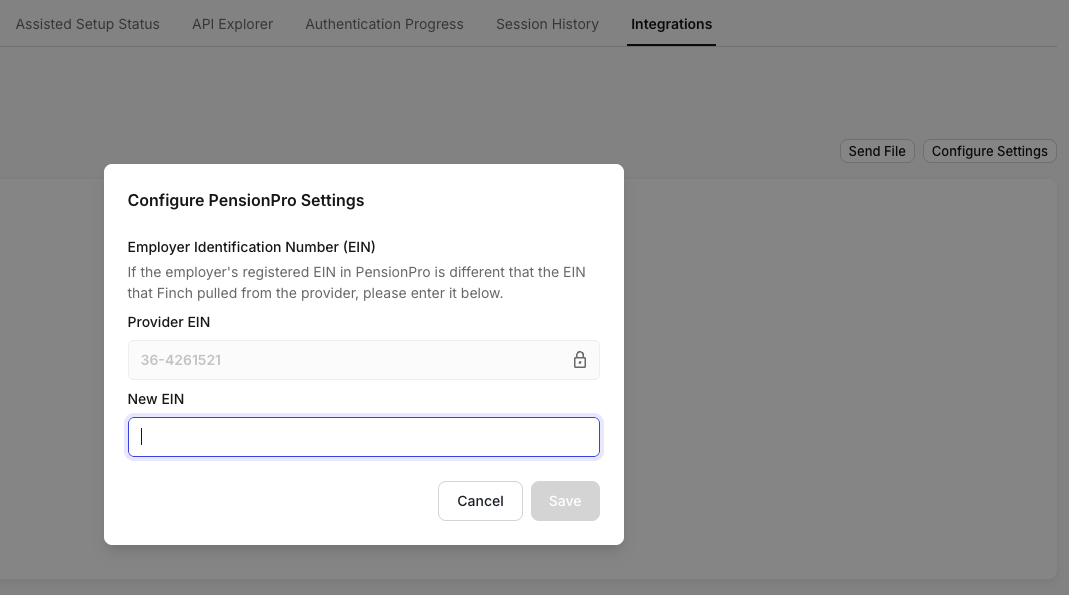
In the cases of multi-entity accounts, you will need to set the EIN for each entity. The files names will be the same and you will need to combine them in PensionPro.
📄 How to Combine Multiple Finch Files for one Plan Sponsor explains how to combine the files and then upload them.