Relius 360 Connection Setup in the Finch Dashboard
Last updated: October 2, 2026
This guide covers the Finch Dashboard steps to prepare a connection for the 360 integration. Keep the 360 integration turned off for all connections until a Finch Implementation Engineer confirms that Relius is sending a correctly configured test file.
Requirements
Contract: must include the deductions product. If you are not sure, check with your Account Manager.
Deferral Types Supported: 401k, 403B, Roth, Post Tax
Connection:
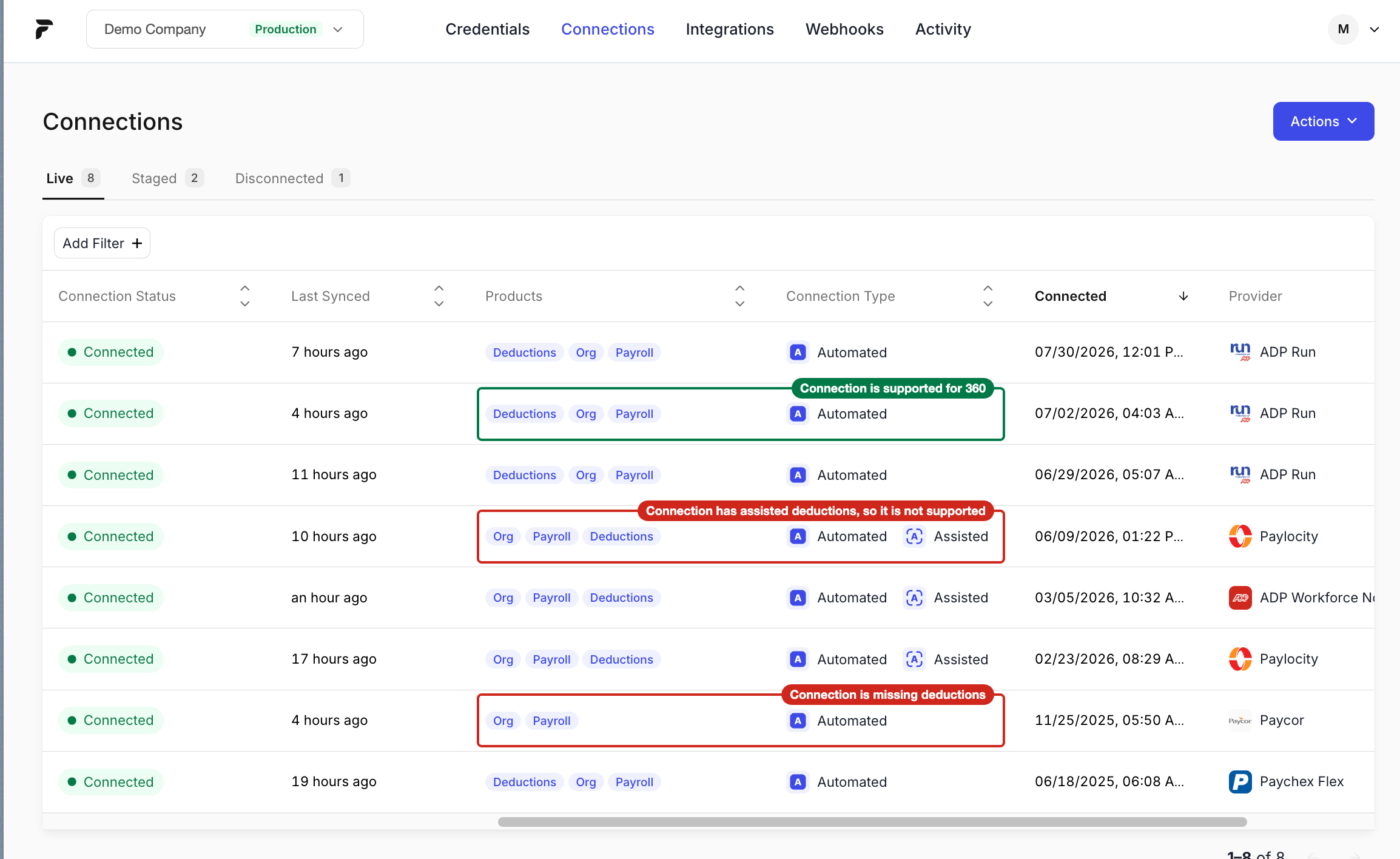
Includes the Deductions Product. Confirm this in the Finch Dashboard. If the connection does not have the deductions scope., follow the directions in Appendix B: Deductions scope.
Connection Type is Automated only for the connection. This requirement will change in early 2027; confirm the current requirement with Finch before enabling the integration.
Relius: Must be configured to send deferral change files. Follow the Relius 360 setup guide. A Finch Implementation Engineer will walk you through sending a test file and confirm that the setup is correct.
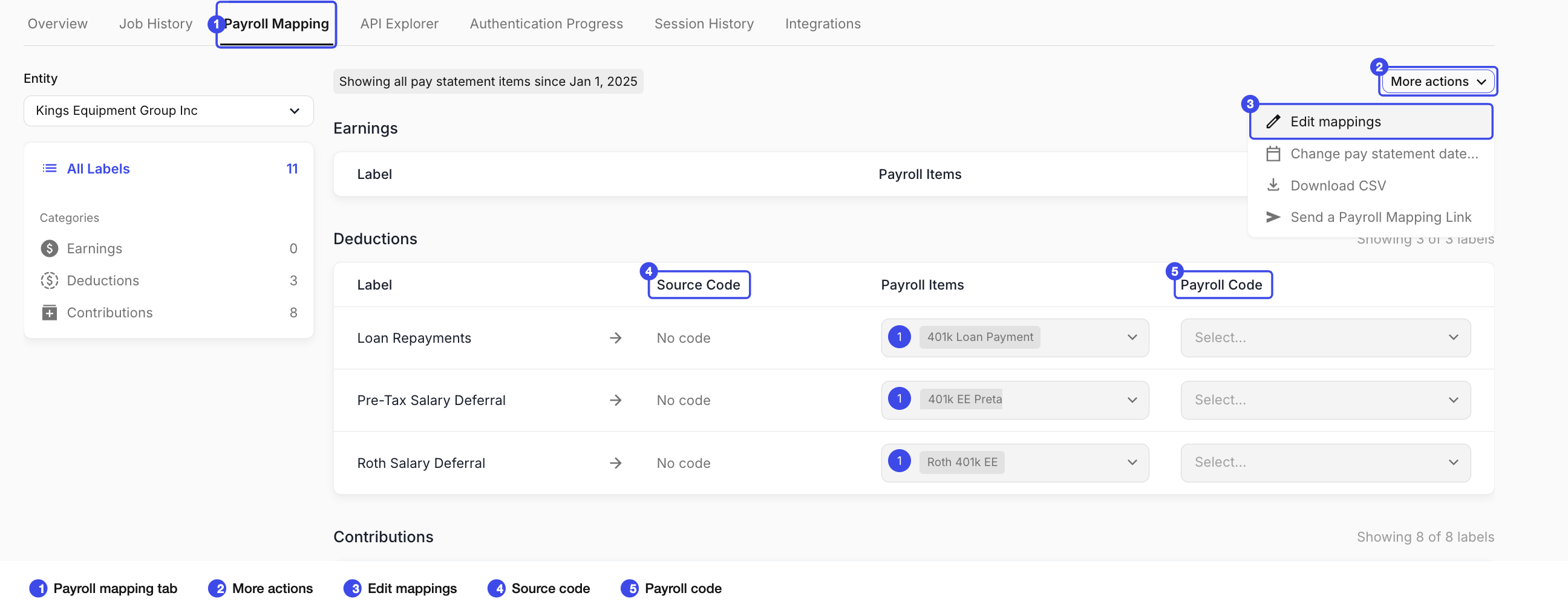
Step 1: Map deduction codes
Open the connection in the Finch Dashboard and go to the Payroll Mapping tab.
Select More Actions
Select Edit Mappings
Source Code - Enter one of the following
Source code
Deduction label
401K
Deferral/401(k)
403B
Deferral/403b
4ROTH
Deferral/ROTH
4ATNR
PostTax
Payroll Code - Map only the deduction labels that apply to the plan. If the Payroll code list is empty, see Appendix A: Populate Payroll codes.
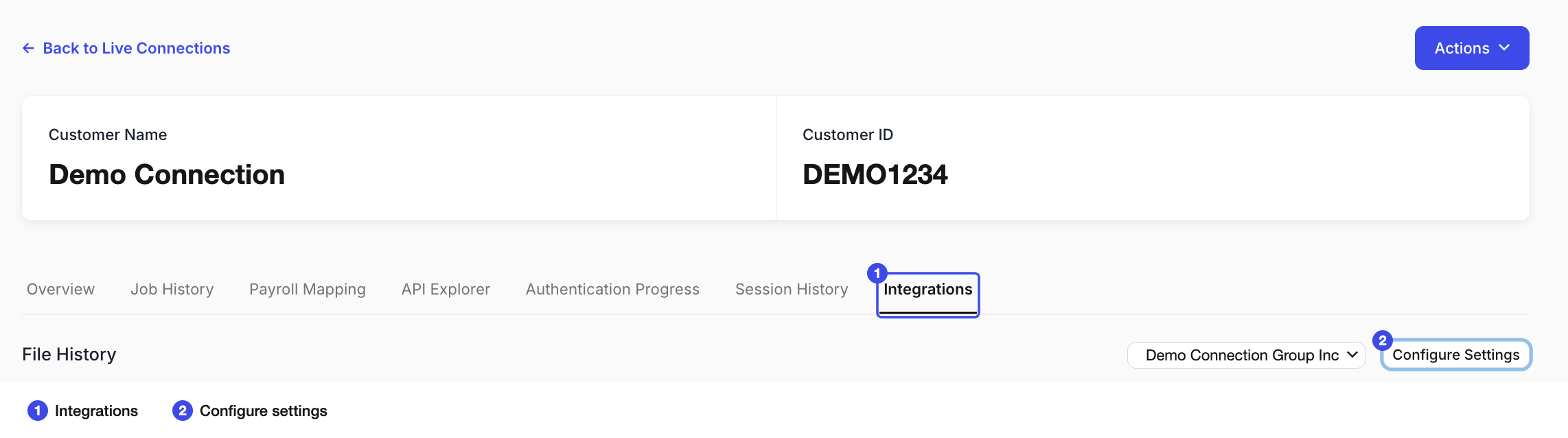
Step 2: Enable 360 for the connection
Open the connection’s Integrations tab
Select Configure settings.
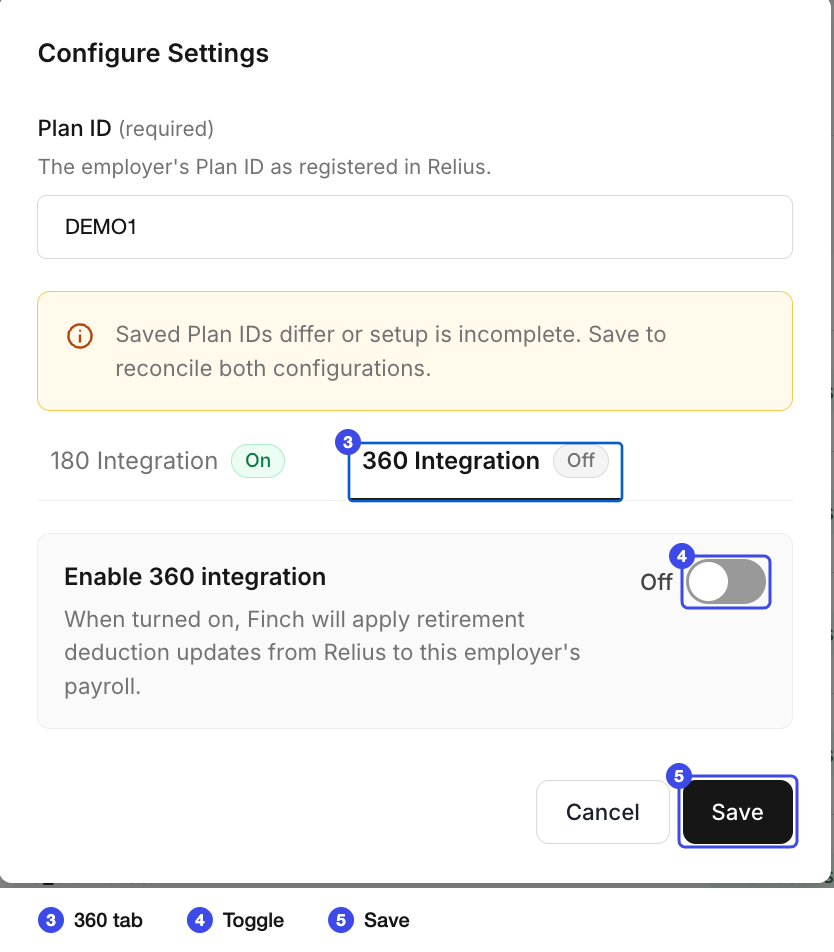
Open the 360 Integration tab
Toggle On. Note only do this after Finch has confirmed that internal tests were successful for at least one file on any connection.
Save
What the 360 setting does
On: Finch checks once per day for new files dated that day for the selected plan and processes them. If a row has a future effective date, Finch does not process that deferral change in the provider system until that date.
Off: Finch does not check for files. Files sent by Relius are not processed while the setting is off.
Appendix A: Populate Payroll codes
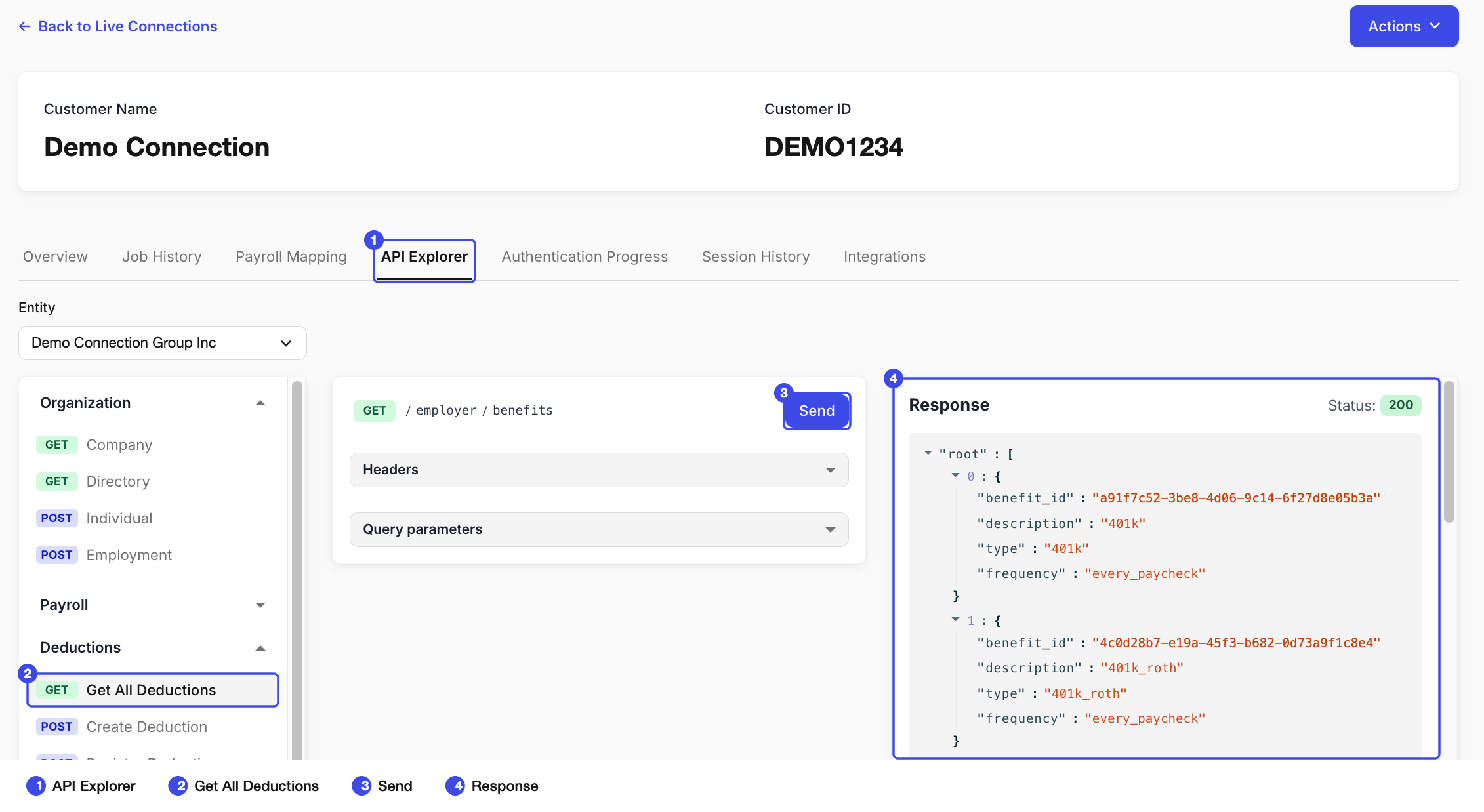
If no Payroll codes appear in the mapping dropdown, open the connection’s API Explorer tab, select Get all deductions, and send the request. Confirm data appears in the response, then return to Payroll Mapping and check the Payroll code dropdown again.
Appendix B: Deductions scope
If the Deductions scope is not present on the connection, the plan sponsor will need to provide permission to write deductions by authenticating in Finch Connect. Make sure to follow these directions to create a re-authentication link with the correct scopes. Do not create new connection.
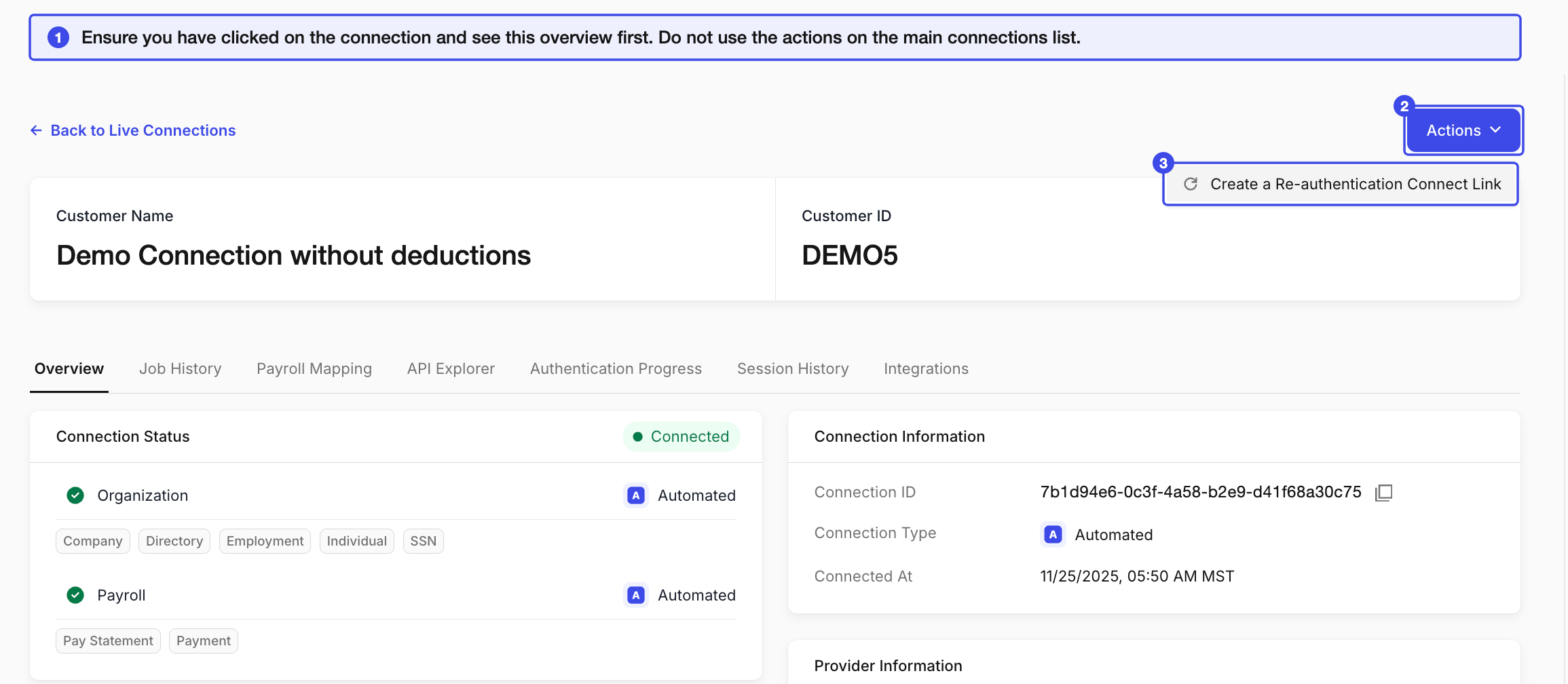
Open the connection from the Connections list so you land on its Overview page. Don't use the Actions menu on the main Connections list.
Select Actions in the top right.
Select Create a Re-authentication Connect Link.
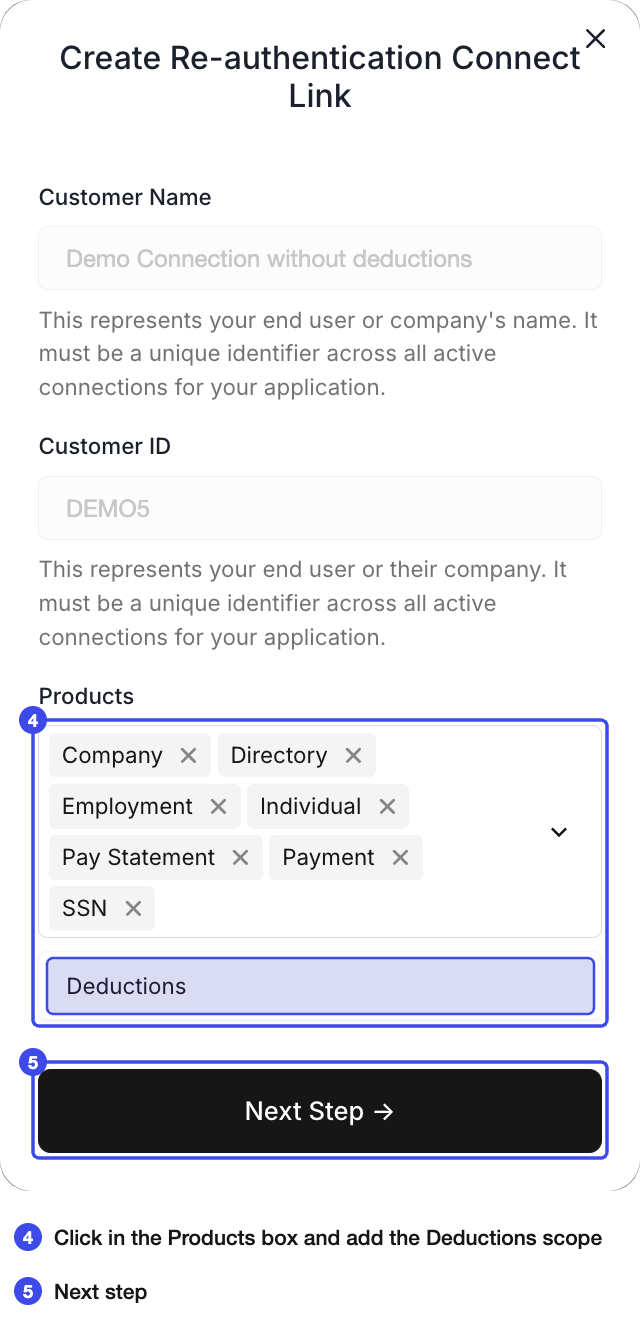
In the Products field, click inside the box and add the Deductions scope.
Select Next Step.
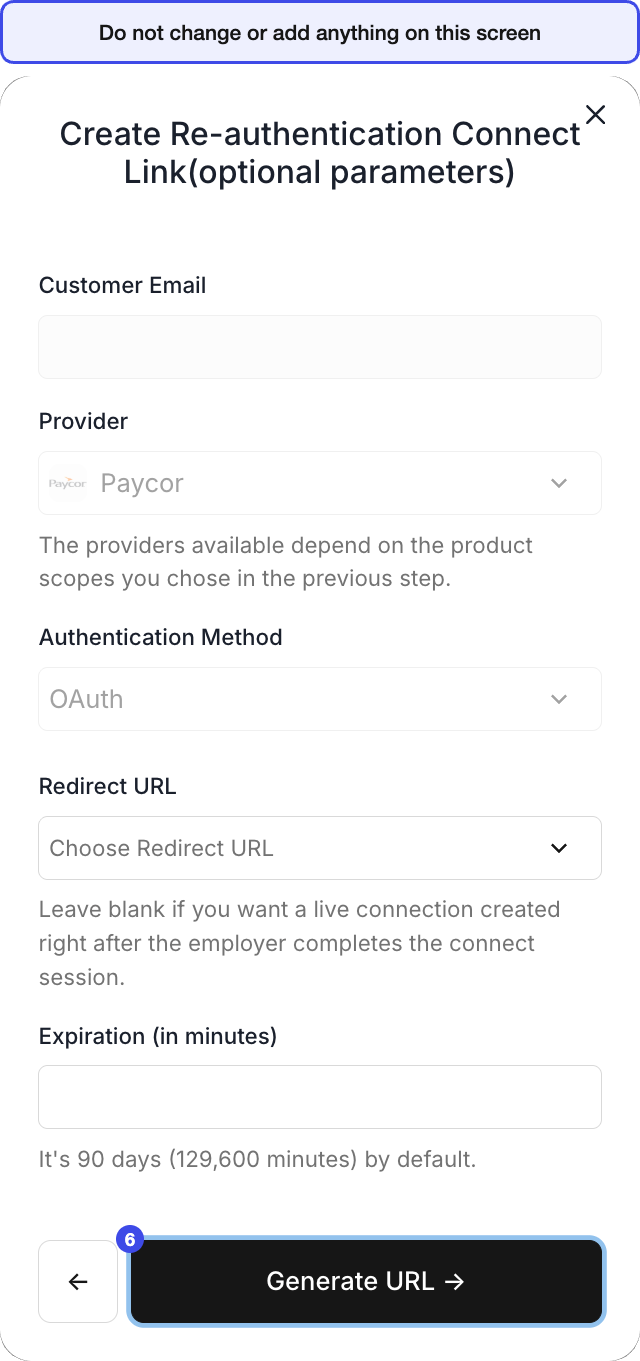
On the optional parameters screen, leave all fields unchanged and select Generate URL.
Send the link to the plan sponsor. See. below for an example email template
Sample Email Template to Add Deductions Product to a Connection
Subject: Action required: approve automatic deferral updates to your payroll system
Hi [Name],
We're making it easier to keep your 401(k) deferrals in sync. Soon, when a participant's deferral change is entered in Relius, it will be sent automatically to the payroll provider. No more manually re-entering deferral changes in payroll.
To turn this on, we need your approval to update deductions in your payroll system. This takes a few minutes and requires an admin login with permission to manage deductions.
Directions
Click this link: [Finch Connect link] and follow the directions provided. If you are using a system that required setting up a service user (such as UKG) to access org and payroll data, you do not need to create a new user, you can enter the same information that was used to set up the initial Finch Connection for the payroll files. Please reach out to us if you have any questions while you go through Finch Connect.
What this permission covers
This approval allows deferral changes entered in Relius to be applied to the corresponding 401(k) deductions in your payroll provider system.. It does not give us access to change pay, tax, or banking information.
About the connection
[Recordkeeper Name] uses Finch to securely connect with your payroll system. Finch uses bank-level encryption, complies with SOC 2 and CCPA standards, and never shares your data without your consent. You can revoke access at any time, but data will not be processed for this feature if access is changed or removed. Learn more: https://www.tryfinch.com/for-employers
Questions? Reach out to [Support Contact] at [support email].
Best,
[Your Name]
[Recordkeeper Name]