Sending Files from Finch to PensionPro
Last updated: January 13, 2026
Once your sponsors have connected their payroll systems through Finch Connect, you can send the standard formatted census files directly to PensionPro. This guide explains the process for new and returning connections, when and how to send files, and how to verify they were received.
Billing by Connection - You'll need to send one file per connection each year during the January-March filing season. You are billed by the number of live connections each contract year, not by the number of files sent. A connection is considered live and billable regardless of its status—even connections showing "Reauth" status are live and billable until you request disconnection. If you need to resend a file or send multiple files for any reason, there is no additional charge.
Benefits of Managing Your Connections with Self-Service Features
Finch's self-service features put you in control of the census collection process, eliminating time-consuming manual data collection and follow-up with plan sponsors.
✨ Control Your Timing: Send files to PensionPro when you're ready, without waiting for sponsors to compile and send data or relying on Finch to process files on your behalf.
✨ Eliminate Follow-Up: No more reminder emails to plan sponsors requesting census data or chasing down missing information.
✨ Ensure Accuracy: Review and validate payroll mappings before sending files, ensuring the data meets your plan requirements.
✨ Streamline Your Workflow: Manage all connections from one dashboard, with full visibility into sync status and data freshness.
File Sending Process: New vs. Returning Connections
New Connections (Plan Sponsor's First Year Using Finch)
Recommended Practice:
We recommend that you complete payroll mapping yourself and send the first file using the self-service tools in your Finch Dashboard. This gives you full control over how payroll items are categorized according to your plan requirements and when files are delivered to PensionPro.
To send files yourself:
Follow the steps in the "Returning/Existing Connections" section below.
If you need support with payroll mapping and sending files for the first year for a plan sponsor using Finch
If you prefer, Finch can complete standard payroll mapping and send the first file on your behalf. Contact developers@tryfinch.com to request this service if you are not already receiving it or need to confirm. Note that you should still review the mapping after the file is sent (see below). You do not need to request this for individual files. Once you request this we will follow the process below for all new connections going forward.
For TPAs that request this service, every morning, Finch automatically:
Checks for new connections that have synced data
Completes standard payroll mapping
Sends files to PensionPro via SFTP using
Important: Regardless of who completes the initial mapping, you should always review the mapping in your dashboard. If you identify any incorrect mappings:
Update the mapping in the Payroll Mapping tab
Click Send File to deliver a corrected file to PensionPro (no additional charge)
Leverage your plan sponsors: If you have questions about how specific payroll items should be mapped, you can share a link with the plan sponsor to review and provide input using the sponsor-facing payroll mapping tool. See Payroll Mapping for Sponsors for how this works.
Returning/Existing Connections (Subsequent Years)
For connections from previous plan years, you'll use Finch's self-service features to manage the annual census file process. These features give you complete control and visibility while eliminating the manual work of collecting data from sponsors.
Important context: When this product launched in January 2025, Finch sent files on behalf of TPAs while self-service features were being finalized. Now that the Send File button and connection management tools are available, you can manage returning connections independently, giving you greater control over timing and quality.
Complete these steps for each connection before sending files each year:
1. Confirm Connection Status
Review each connection to decide if you'll continue using it this year.
Value: Manage your costs effectively by only paying for connections you're actively using. You're billed by the number of live connections each contract year—disconnecting unused connections prevents unnecessary charges.
If you'll continue using this connection: Proceed to Step 2
If you won't use this connection: Email developers@tryfinch.com to request disconnection. Include the company name and connection id from the dashboard to ensure the correct connection is disconnected.
2. Address Reauthentication Requirements (If Applicable)
If a connection shows "Reauth" status in your Finch Dashboard, the plan sponsor needs to re-authenticate their payroll credentials.
Click on the connection to open the detail view
Generate a reauth link from the dashboard
Send the link to the plan sponsor
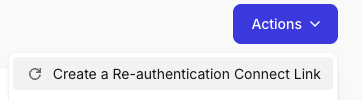
Note: Connections in "Reauth" status are still live and billable until you request disconnection. For guidance on reaching out to sponsors, see our Sponsor Email Templates & Best Practices
3. Review and Map New Payroll Items
Check for notifications about new payroll items that need mapping. This ensures your census files include all relevant compensation and deduction categories. We show notifications on the details view for each connection so you can easily catch this during the process to send a file.
Value: Accurate mapping means accurate census data—catch new bonuses, deductions, or compensation types before they're missing from your compliance testing. This reduces errors and back-and-forth corrections that delay your filing deadlines.
Click on a Live connection that has a connected status
Navigate to the Payroll Mapping tab for the connection
Review any unmapped items highlighted by the system
Map new items according to your plan requirements
See Payroll Mapping for TPAs for detailed guidance
4. Confirm Data Has Synced
Before sending the file, verify that Finch has pulled the most recent payroll data.
Navigate to the connection in your Finch Dashboard
Check that the "Last Synced" timestamp is after the final payroll run of the plan year
See "When to Send Files" below for detailed timing guidance
5. Send the File
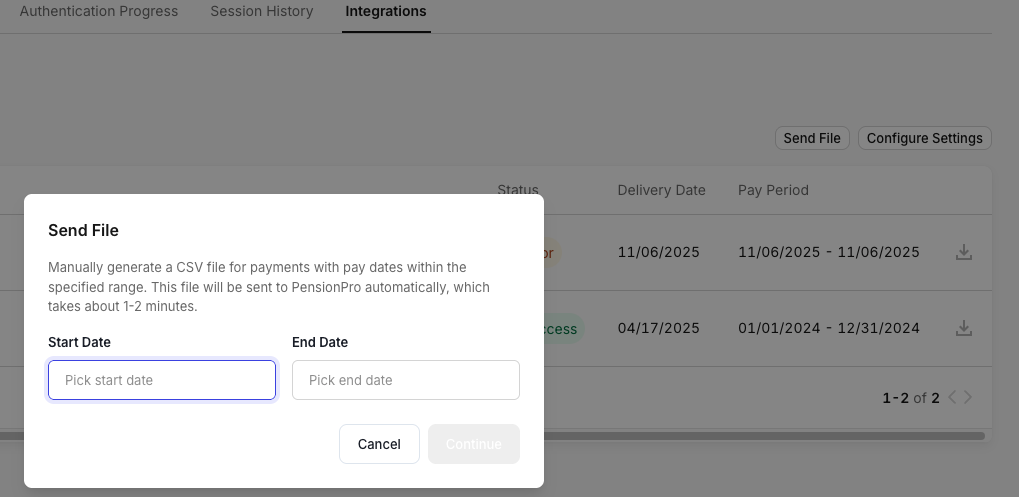
Select the Integrations tab for that connection (not the main one at the top of the screen)
Click Send File.
Add in the start and end dates for the plan year.
When to Send Files
Calendar Year Plans (12/31 year-end)
Send files in early January after the final year end payroll has been processed. This ensures you capture the complete calendar year data.
Fiscal Year Plans (any other year-end)
Send files after the final payroll of your plan year has been processed. You'll select a custom date range when sending the file.
Important: Finch pulls data based on the date range you specify, not the connection date. You can send files anytime after the plan year ends.
Verifying Files Were Received in PensionPro
If you don't see a file in PensionPro after sending:
Check the EIN matches
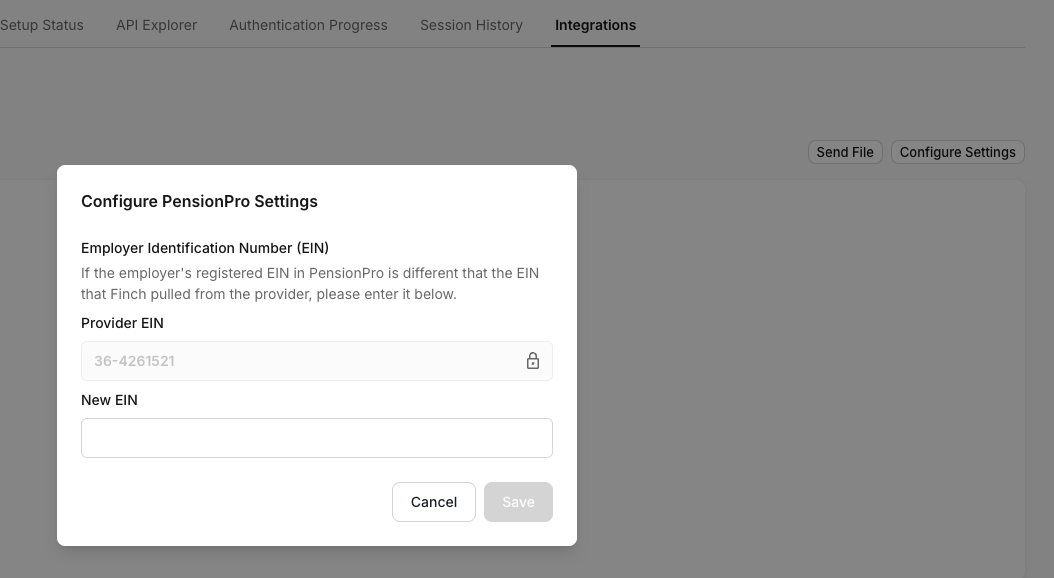
In your Finch Dashboard: Connections → click connection → Integrations -> Configure Settings.
Check that the Provider EIN shown in the Configure PensionPro Settings matches the EIN for the plan in PensionPro
The EINs must match exactly - if they do not, update the New EIN in the Configure PensionPro Settings on the Finch Dashboard in the same modal that shows you the Provider EIN.
If there are multiple entities, you will need to set the New EIN for each entity if they do not each match the EIN in PensionPro
After updating the EIN, Send File again. There is no charge to send another file.
Verify PensionPro setup
Confirm your PensionPro environment is configured correctly
Where Files Appear in PensionPro
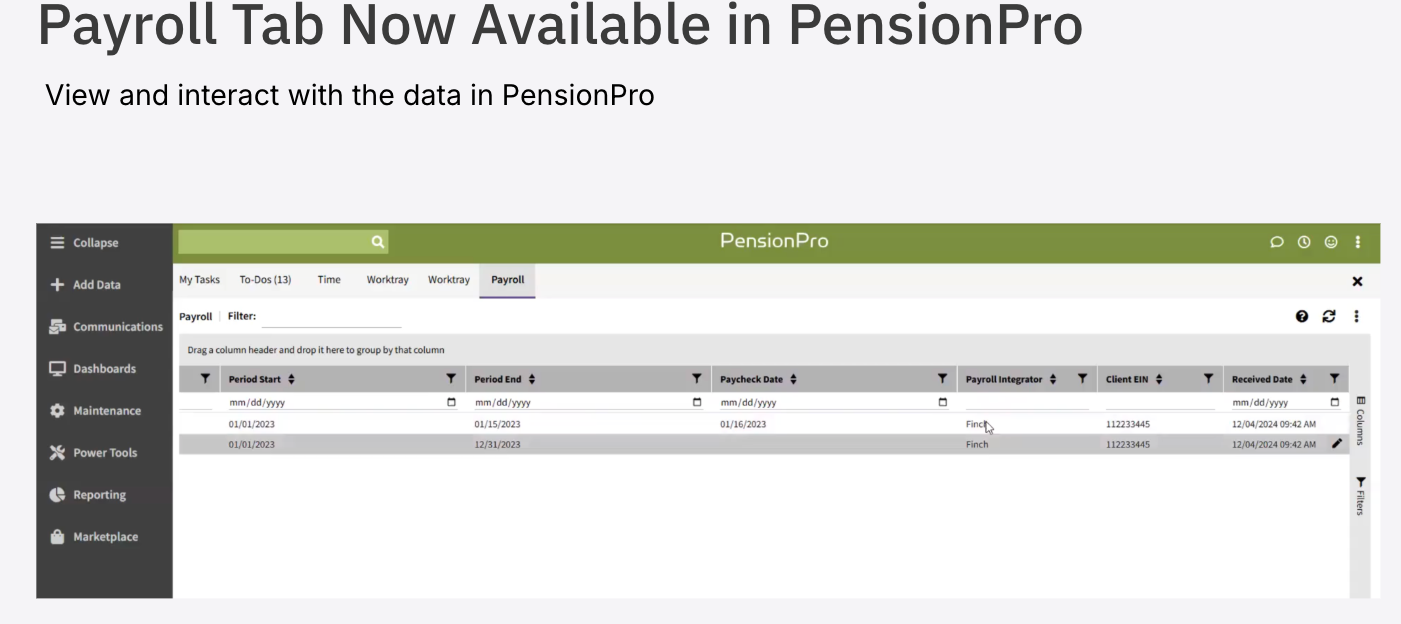
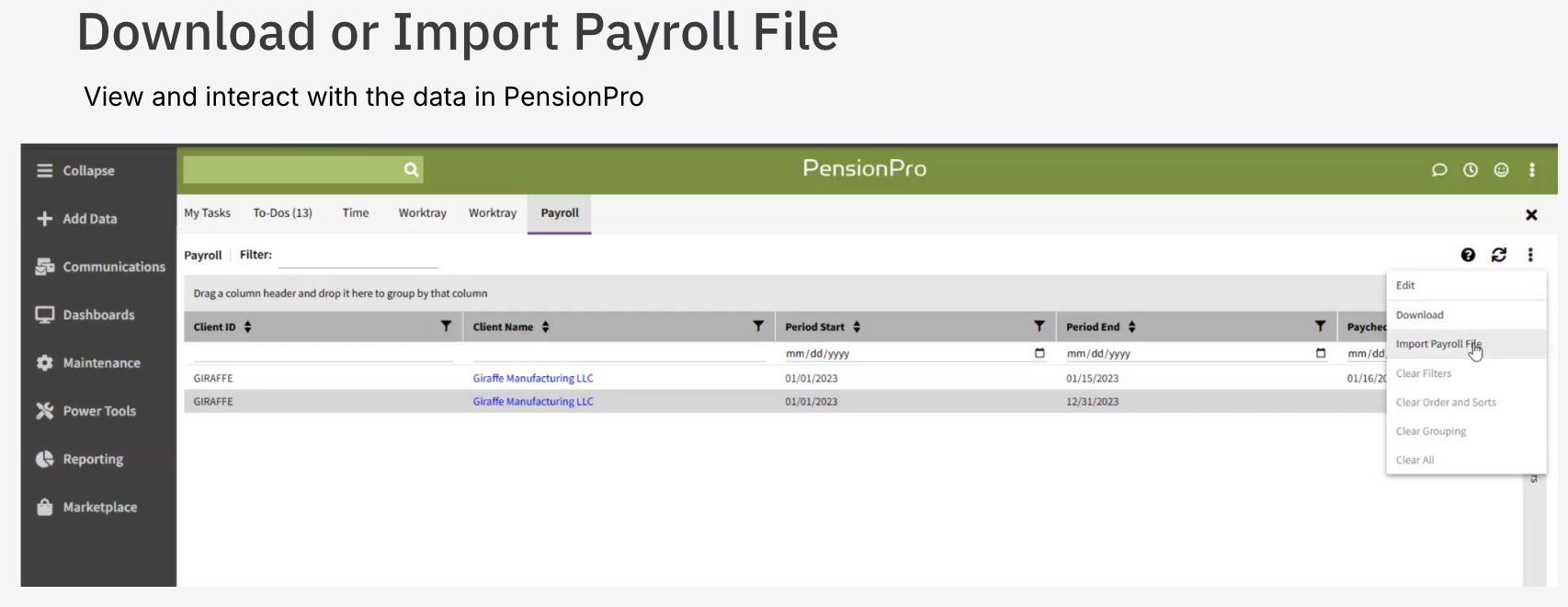
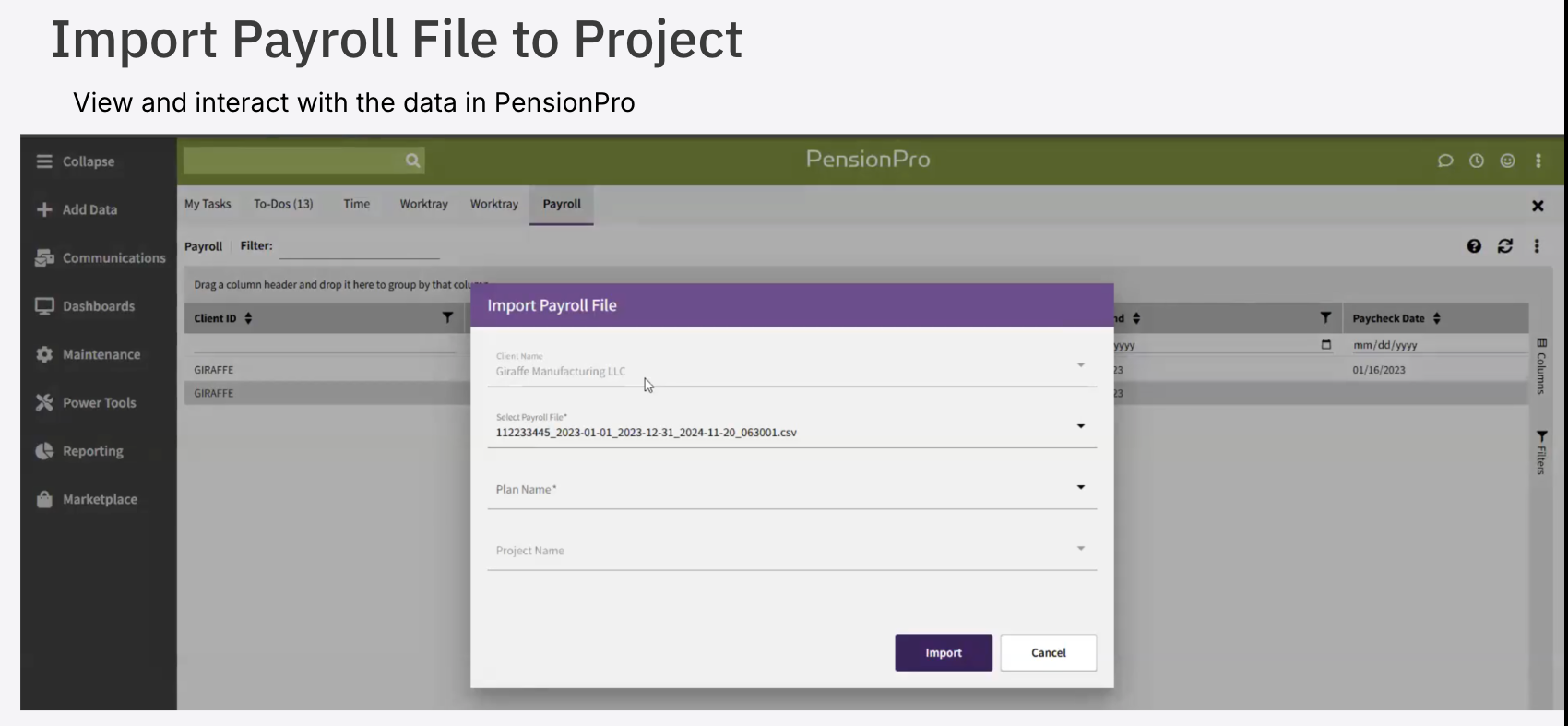
After Finch sends a file to PensionPro via SFTP, you'll import the data into your PensionPro project
You will see the files in the Payroll Tab. If you do not see the Payroll tab, reach out to PensionPro for guidance on updating your permissions to have access.
You do NOT need:
A separate "connection" configured in PensionPro (unlike some integrations)
Special spreadsheets or templates
To send emails to Finch when you're ready for files
The integration works once your PensionPro environment is set up and you have Live connections in your Finch Dashboard. The only steps you need to do are the Payroll Mapping (or review if Finch does the standard mapping) and sending files as needed.
File Format and Specifications
Finch sends files in a standard format that PensionPro recognizes automatically. The file includes 40+ data fields covering employee demographics, compensation, contributions, and more.
See complete field list
📄 PensionPro File Specifications
Troubleshooting
File didn't arrive in PensionPro
Verify EIN matches between Finch and PensionPro (see "Verifying Files Were Received" above)
Check that the connection status is "Live" in your Finch Dashboard
Note - there is no "connection" in PensionPro. The files will show on the Payroll dashboard if they have matching tenant id and EIN in the file name.
Need to resend a file
You can resend the file at anytime for no additional cost.
Follow the directions above in Manual Send (Anytime). This is a completely self-serve process, no need to reach out to Finch
Mapping looks incorrect or data is missing from columns
Confirm mapping is complete
You can correct mapping yourself and resend - no need to contact support. See above in Manual Send (Anytime) for directions. There is no charge to send another file.