Sponsor Connection Setup In Finch Dashboard
Last updated: April 28, 2026
This guide walks you through the initial setup steps after a plan sponsor connects their HRIS system through Finch Connect.
Overview
Once a plan sponsor authenticates their HRIS connection, you'll need to complete several configuration steps before data can flow smoothly into your system. The entire process typically takes a few hours to complete due to initial data synchronization.
Step 1: Verify the Connection
After the plan sponsor completes authentication through Finch Connect:
Navigate to Live Connections in your dashboard
Locate the new connection for the plan sponsor
Wait for the initial data sync to complete. This may take several hours. Confirm that the Last Data Synced field shows a timestamp value before proceeding.
Do not proceed to the next steps until you see a value in the Last Data Synced field.
Step 2: Complete Payroll Mapping
Once the initial data sync is complete (step 1):
Complete Payroll mapping
(Optional) Send the plan sponsor a link to verify or update their payroll mapping:
Step 3: Configure Connection Settings
Open the Configure Settings for the connection
Click on the Connection in the Live Connections Tab to open the connection detail page.
Navigate to the Integrations tab on the connection detail page
Click the Configure Settings button

Enable the connection by toggling the Relius Integration switch to "On" . See below for more information about what it means to enable.
Enter the Plan ID as registered in Relius - this is how Relius and Finch associate files to the same sponsor. This value will be in the file name and the first column in each file.
Select 1 Payroll Frequency. If the plan has more than one payroll frequency reach out to your Implementation or Developer Success Engineer for guidance.
Add the Sequence IDs for the pay frequency.
Add the Starting Pay Date.
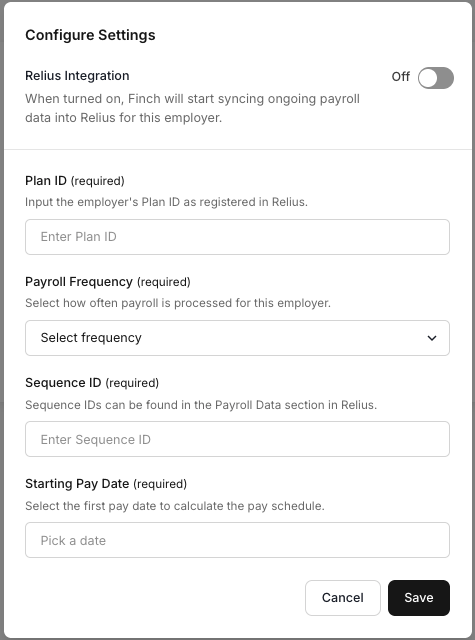
Example Configuration screen when pay frequencies ready for sequence ID mapping
What Happens When You Enable the Connection
When you enable the Relius Integration toggle, Finch will begin generating payroll files whenever the plan sponsor runs payroll. We will generate the file on the pay date. So in some cases if the payroll is run early you can expect to see the file in the SFTP on the pay date instead of the date it was processed.
Manual Review process: We are currently reviewing files before delivering them to the SFTP. During this initial review period, files may be delayed a few hours or until the next business day, depending on the time of day the payroll runs. For example, if files are generated late in the day, our team will review them the following business morning.
Automated process: Once we have concluded our manual review phase, all future files will process automatically when we run a data sync on the pay date. Note that our data syncs occur every 24 hours and may be at any time of the date..
Once processed, files will:
Appear in the File History list in your dashboard
Be available for download via SFTP
Be ready for manual import if needed
You can download files directly from the File History list to review or manually import into your system.
Add Sequence IDs
Finch automatically detects pay frequencies from the HRIS data. You'll see the available frequencies listed in the configuration interface, and you'll need to assign the appropriate sequence ID for each one.
Note: If you see the message "No pay frequency data available for this connection," you'll need to wait for the system to process the frequency data and return to complete this step later.
Example: Configuration screen when pay frequency data is not yet available
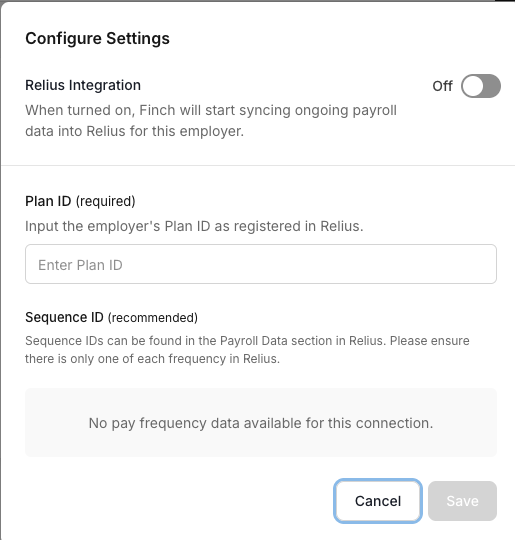
If Sequence IDs Are Missing
If you don't see all the expected sequence IDs in the interface:
Contact Support: Email developers@tryfinch.com or submit a ticket through your customer portal
Provide Details: Include the connection ID, plan sponsor name, missing frequencies, and any relevant context
Ongoing Frequency Monitoring
Our system continuously monitors for new pay frequencies. If we detect a new frequency that wasn't part of the initial configuration, we'll automatically reach out to you to confirm and help you set up the appropriate sequence ID.
Troubleshooting
Connection status is Connected But there is no data to mapp
If the connection appears in Live Connections but shows no synced data:
If the status is not connected, the system may be waiting for the employer to complete the setup for an accountant account.
Wait at least 4-6 hours for the initial sync to complete
Check back for a timestamp in the Last Data Synced field
If no data appears after 24 hours for payroll mapping, contact support
Unable to Complete Configuration
If the configuration interface prompts you to return later to set up frequencies:
This means the frequency data is still being processed
Return to the configuration page once you receive confirmation that frequencies are available
Complete the sequence ID assignment at that time
Timing for File Generation and delivery to SFTP
Finch generates and delivers files to the SFTP on the pay date, if the payroll was run by that date. In some cases, if the payroll is run after we have pulled payment data that day, the file will be generated the next day.
If a plan sponsor runs payroll before the pay date, the file will not generate until the actual pay date.
Next Steps
Once configuration is complete, data will begin flowing automatically according to the plan sponsor's payroll schedule. Our system will continue to monitor for any new pay frequencies and alert you if action is needed.
Need Help? Contact our support team at developers@tryfinch.com or through your customer portal.