Paycor - Add an administrator
Last updated: October 14, 2025
To connect your Paycor account to this application you must set up a new admin user. Please follow the instructions below.
Before you start
Make sure you have completed Authorization, Part 1 in Finch Connect before moving forward with the steps below to complete Authorization, Part 2.
Instructions
1. Log into your Paycor account
2. Click on Company > Company Settings
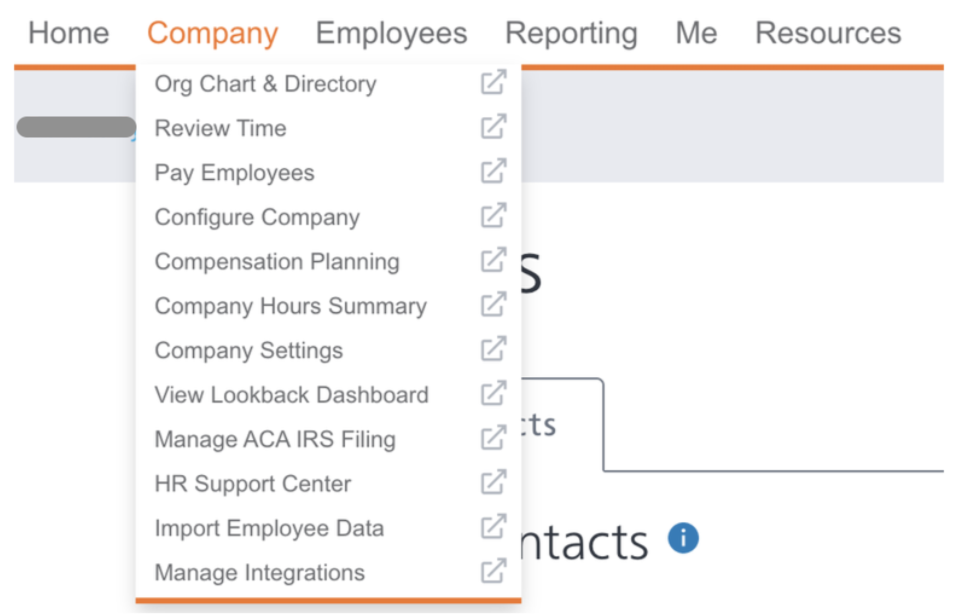
3. Click on New Contact in the top right

4. Input the following information:
First Name: (Please use the First Name provided in Finch Connect)
Last Name: Support
Email:(Please use the email provided in Finch Connect)
Work Phone Number: 917-717-3974
Contact Type: Primary
Access Level: All - Client
5. Click Save
6. Click Back to Contacts
7. Click the gear icon next to the user you just created and select Invite User
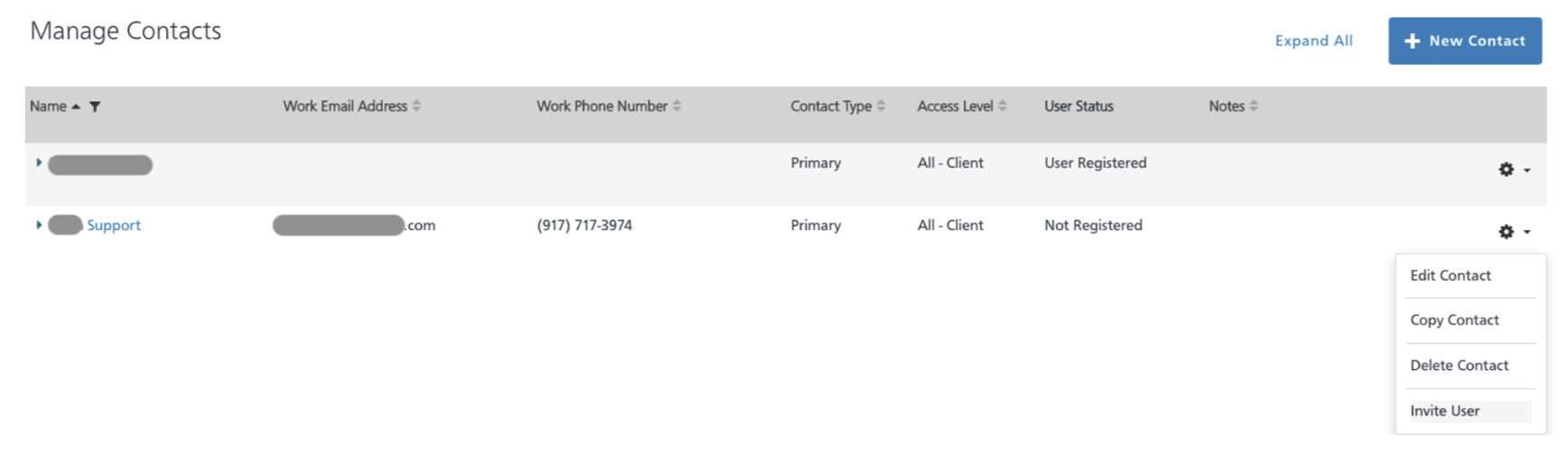
8. Once the invite has been sent, click on the same gear icon and select Manage User Access
9. On the next screen, search for the new user. Depending on whether the user has accepted the invite yet, they will either be located under the Configure Access tab or the Register/Unregistered tab

10. Once the user has been selected, navigate to the What Can I Do section and select the following:
Company Administrator
Employee Administrator
HR Administrator
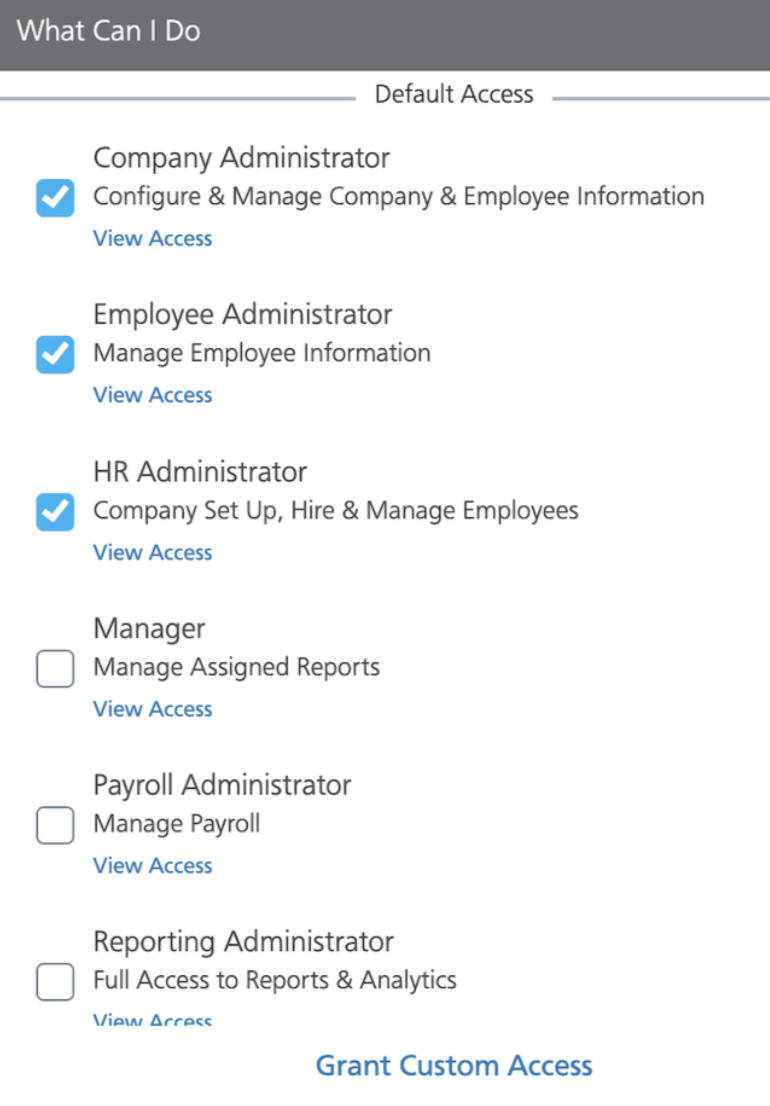
11. In addition to these checkboxes, select Grant Custom Access. Within this menu, select the following two options:
Employee Roster (Admin Report)
Full Access
12. Click Continue in the bottom right corner after permissions have been selected
13. Click Save