How to Setup Deductions in Paychex Flex
Last updated: April 15, 2026
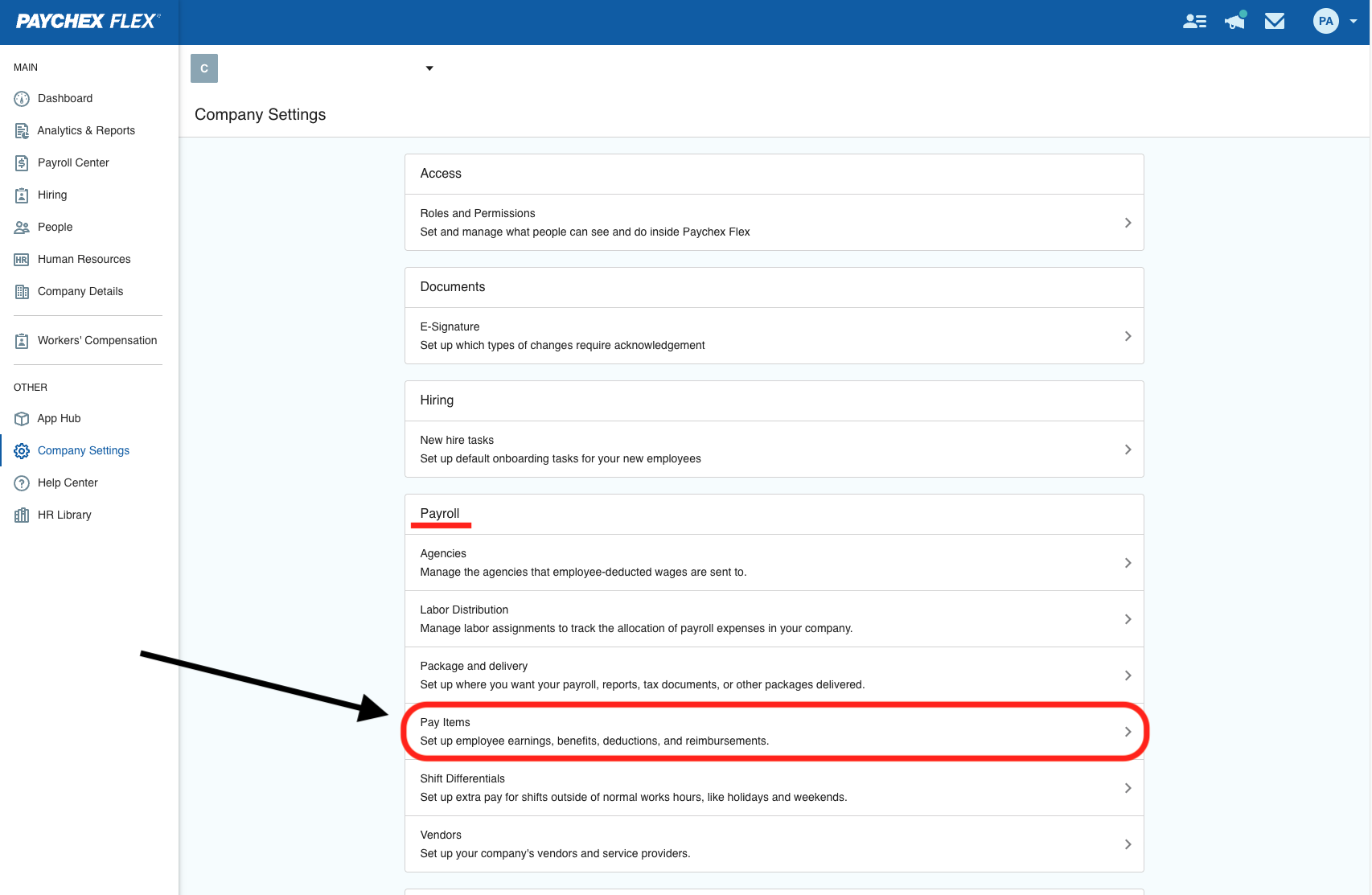
Login to Paychex Flex with a payroll administrator account and navigate to 'Company Settings' in the left-side toolbar
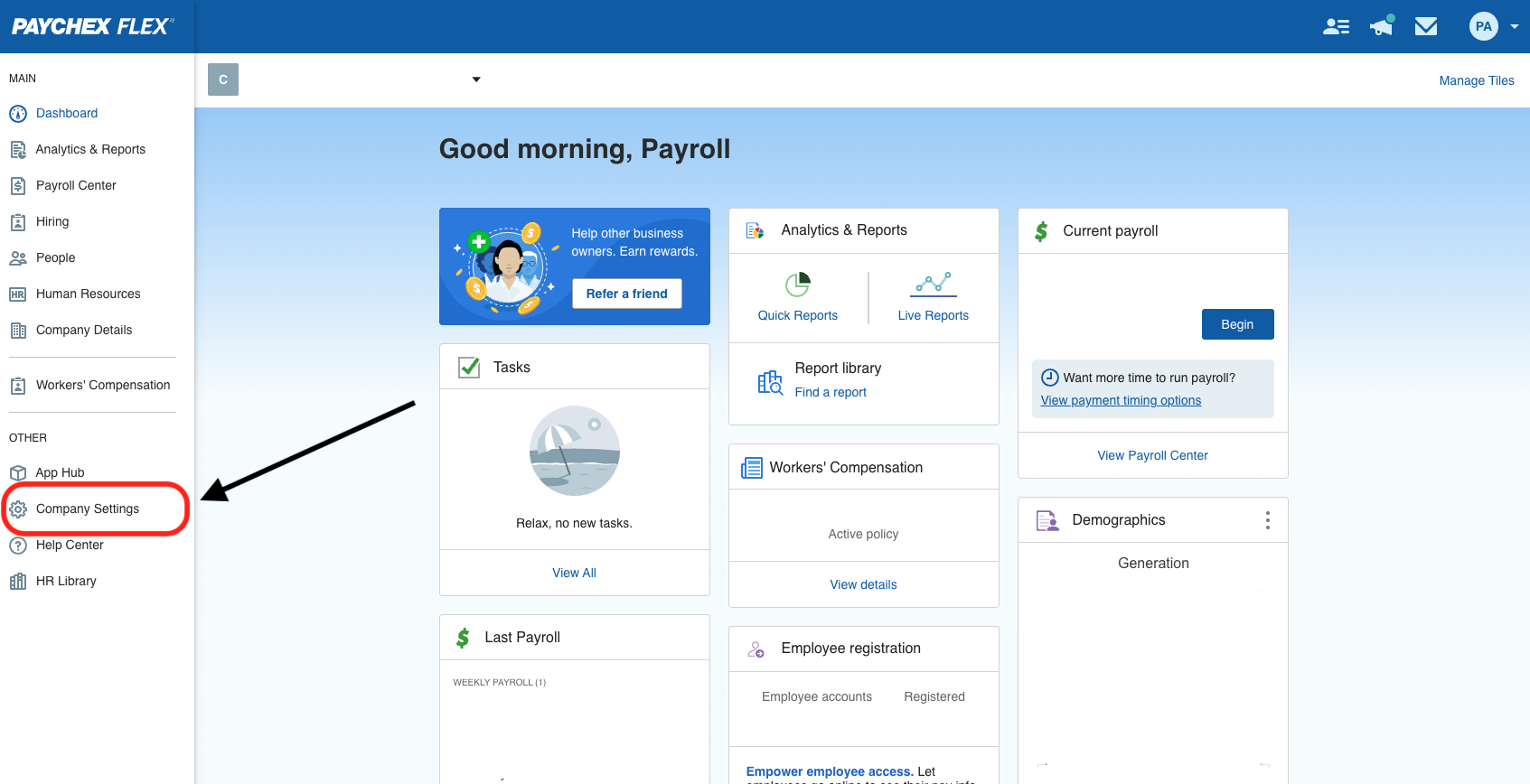
Under the 'Payroll' section, navigate to 'Pay Items'. NOTE: If you do not see this option, you likely do not have the right permissions to set company-wide deductions.
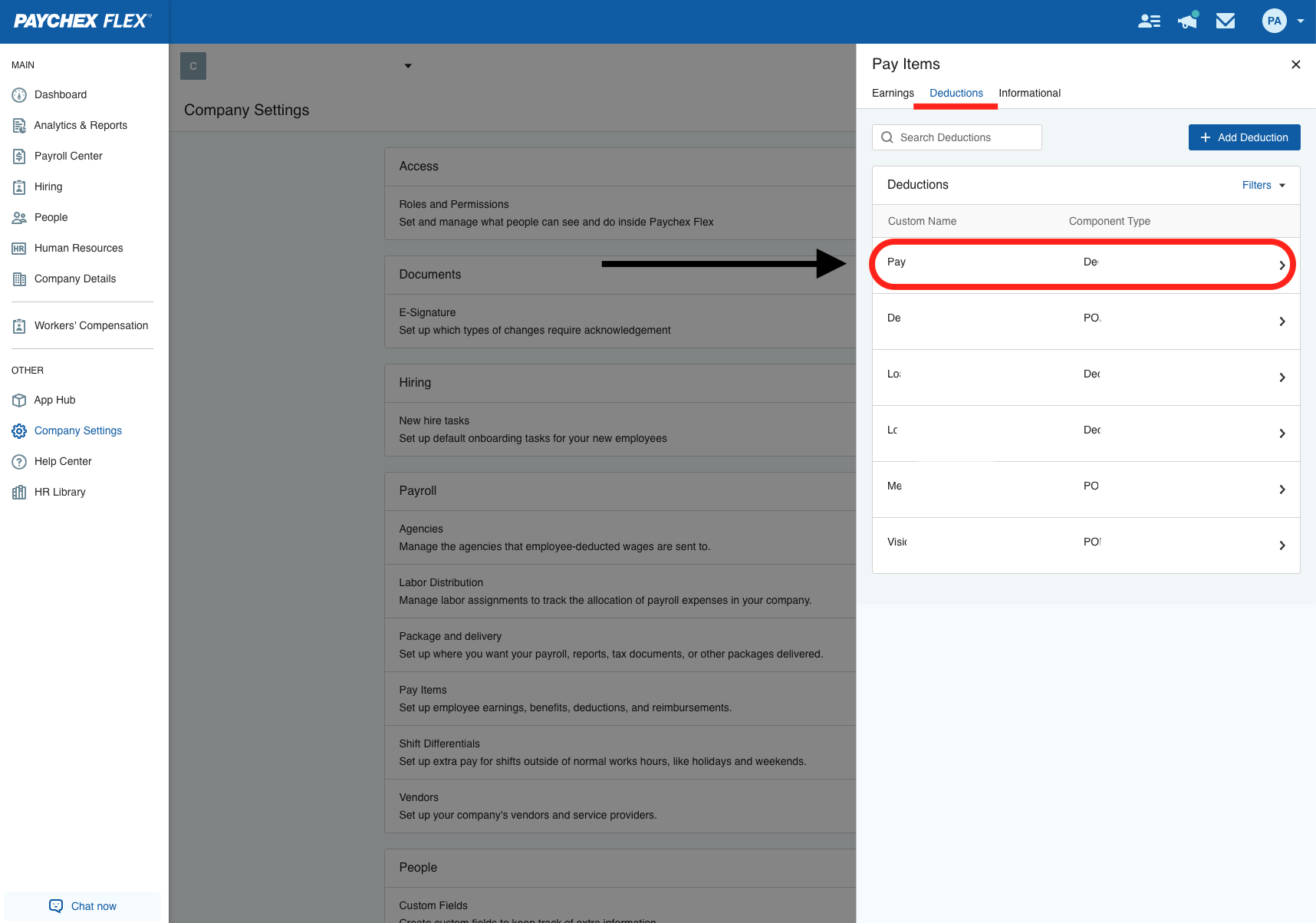
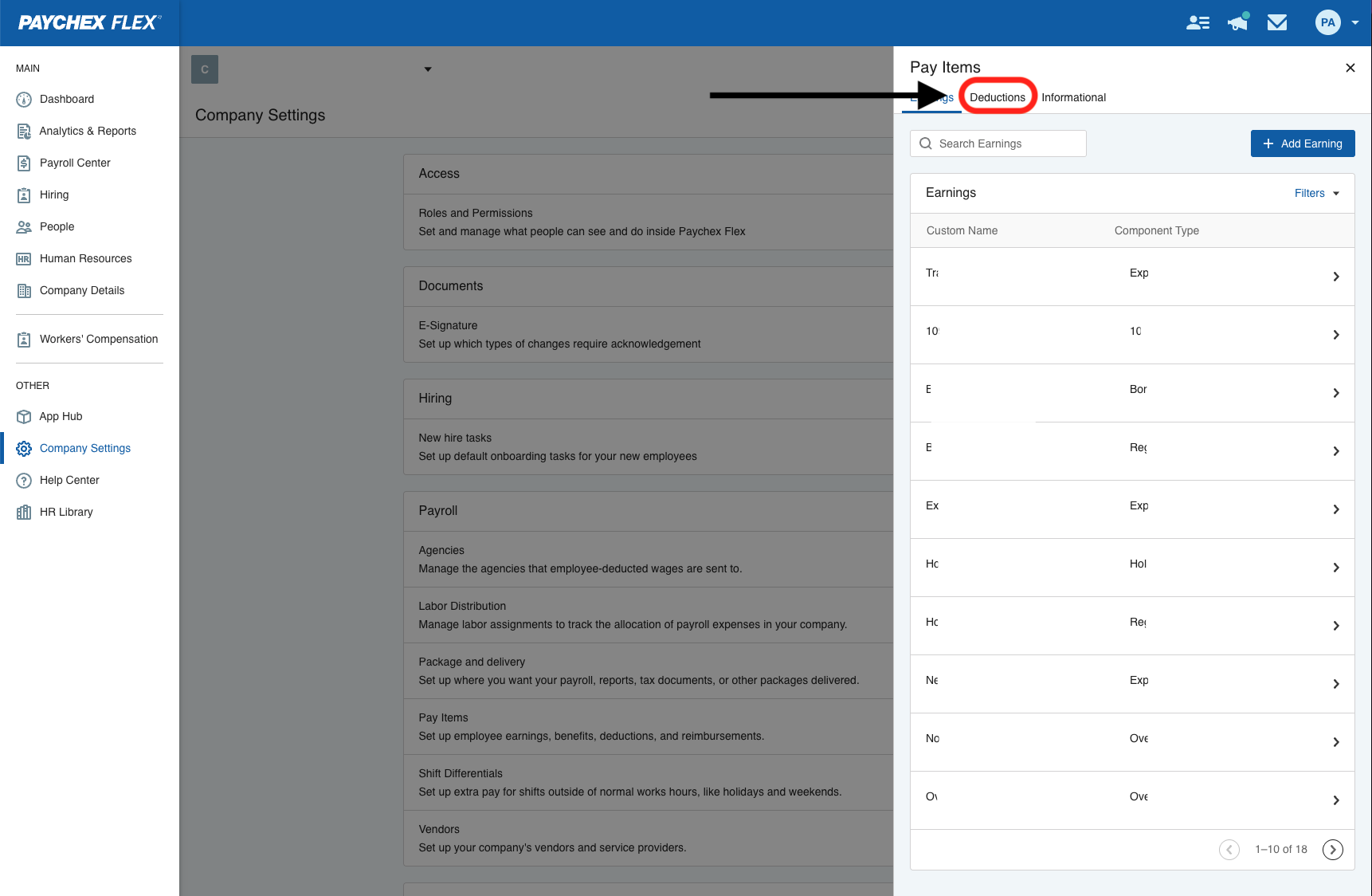
In the Pay Items window that pops up, click on the 'Deductions' tab.
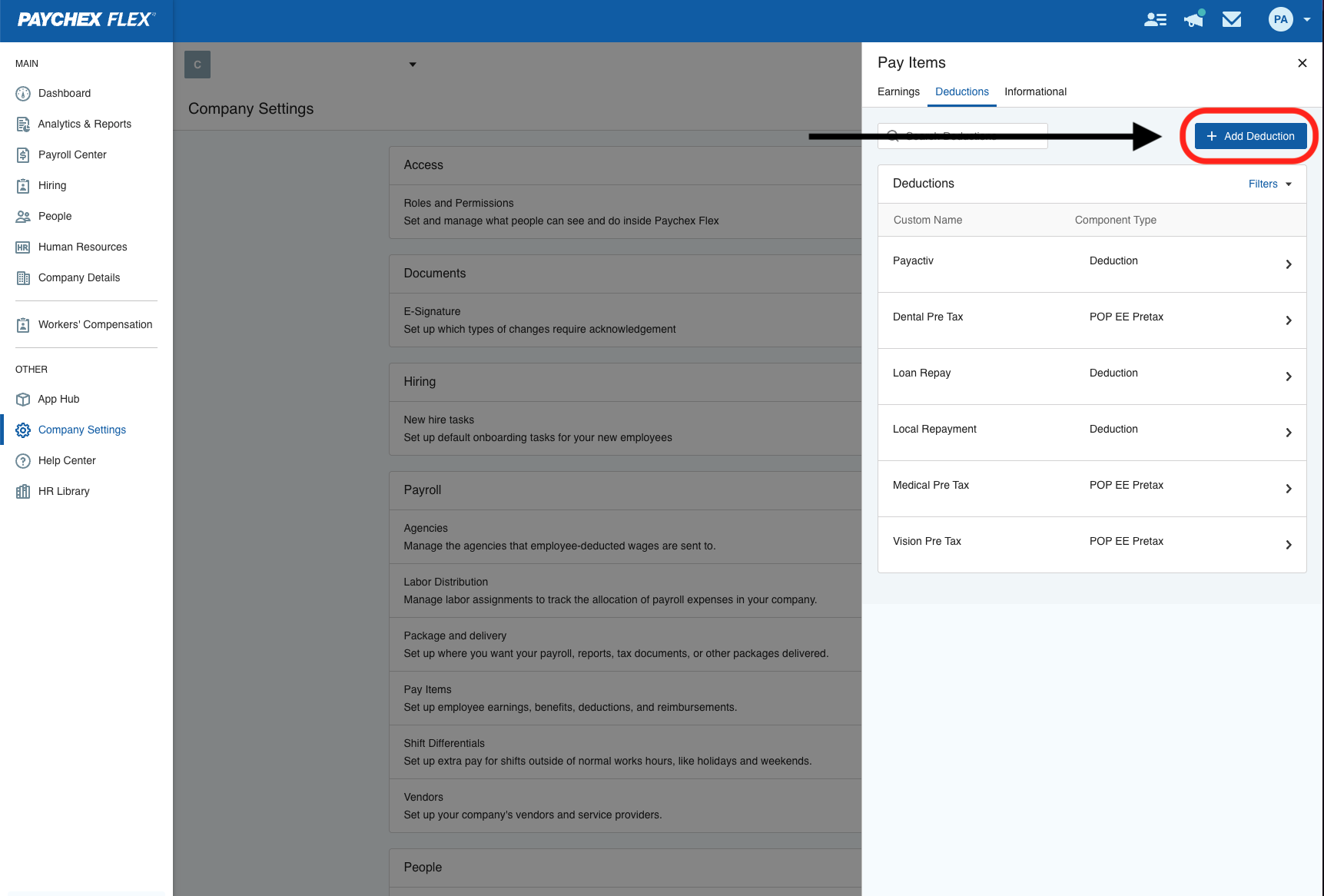
From the 'Deductions' tab view, click 'Add Deduction'
In the 'Add Deduction' window, select the top dropdown menu which lists 'Deduction' as the placeholder. This is where you will select your component type. NOTE: If you did not have any pay item deductions listed under the deductions tab, there won't be anything in this dropdown.
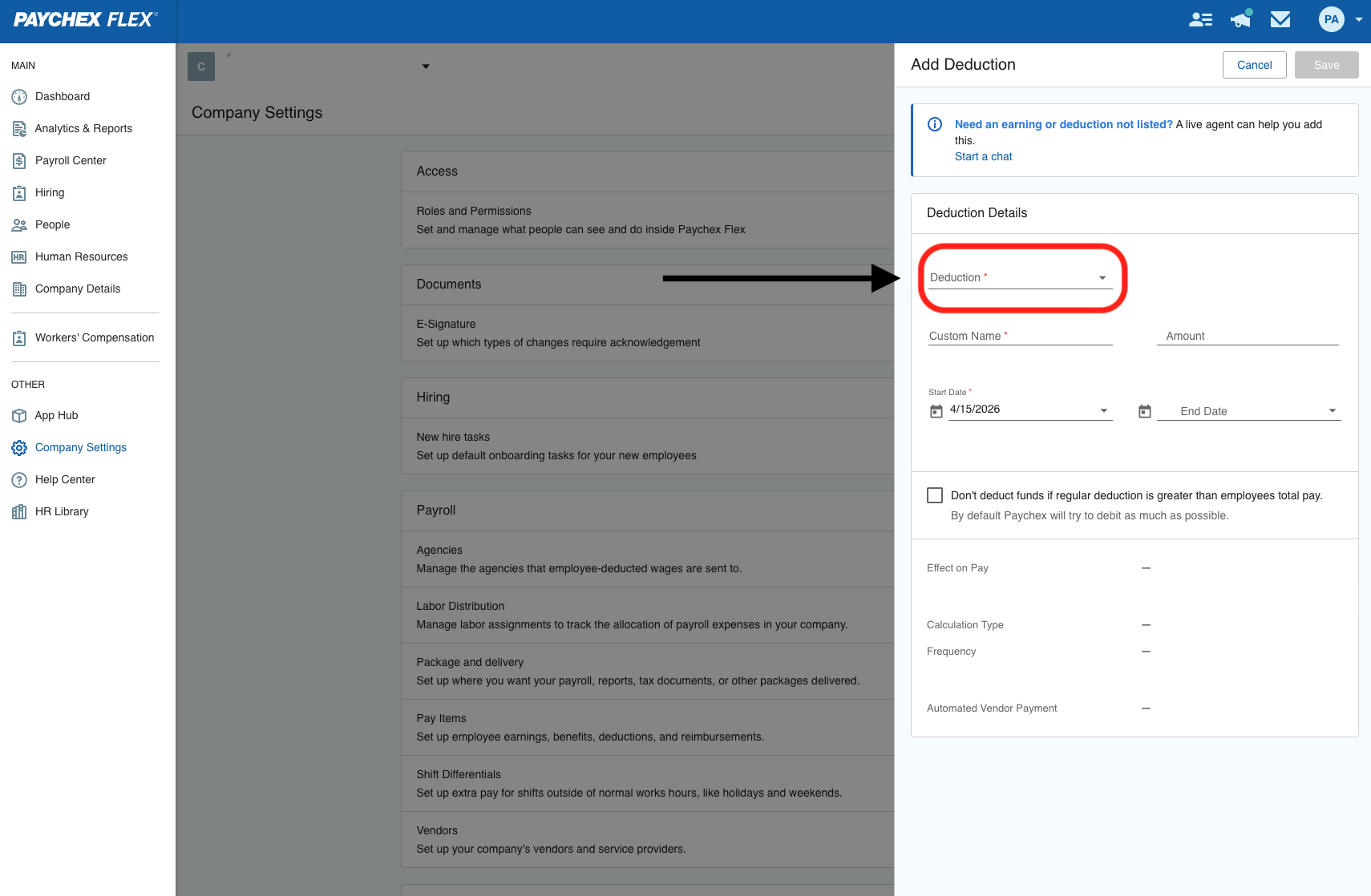
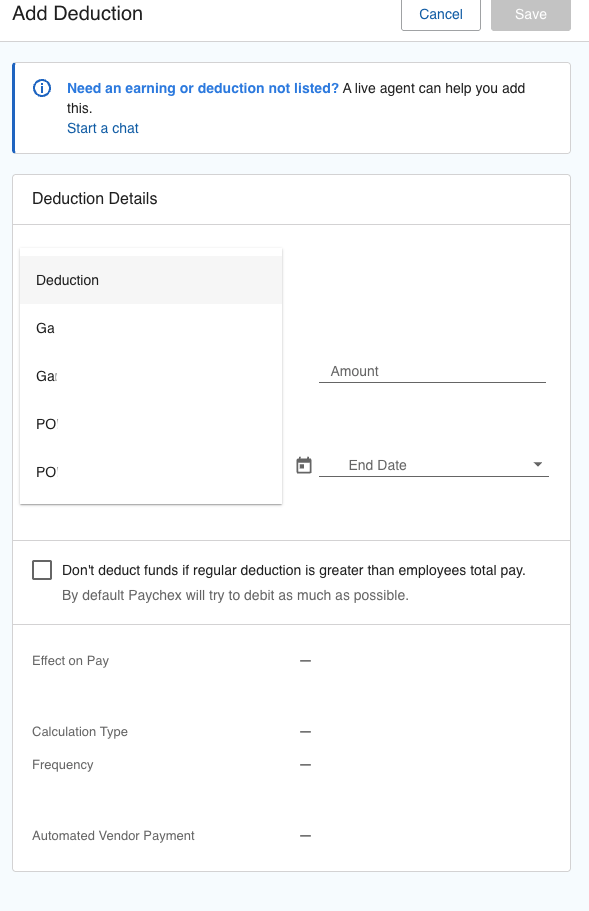
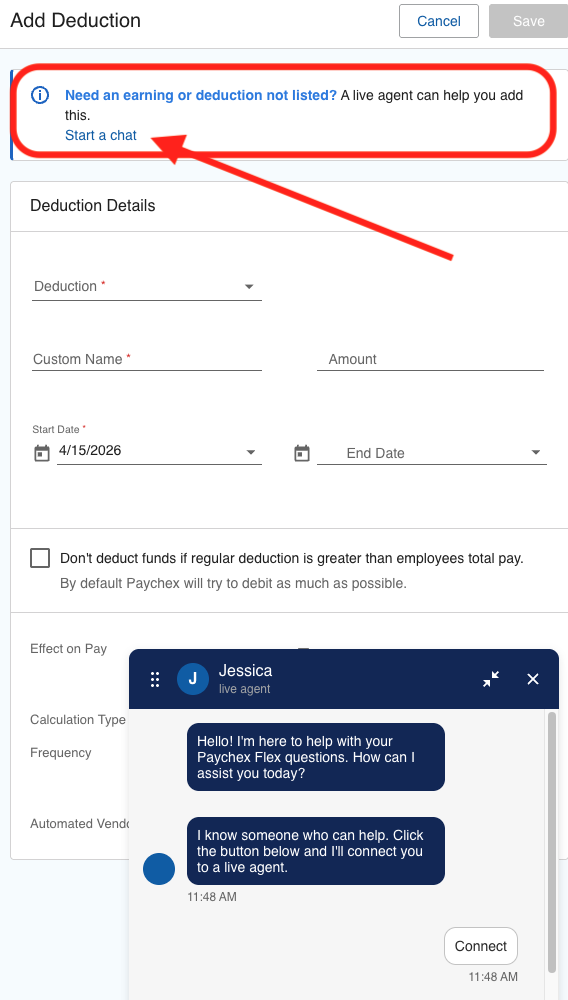
It's very likely you won't see the deduction Component Types listed in this guide in the dropdown. You will need to click 'start a chat' to chat with a Paychex Flex agent and ask them to add those. Please check which Component Types to add with your benefits administrator.
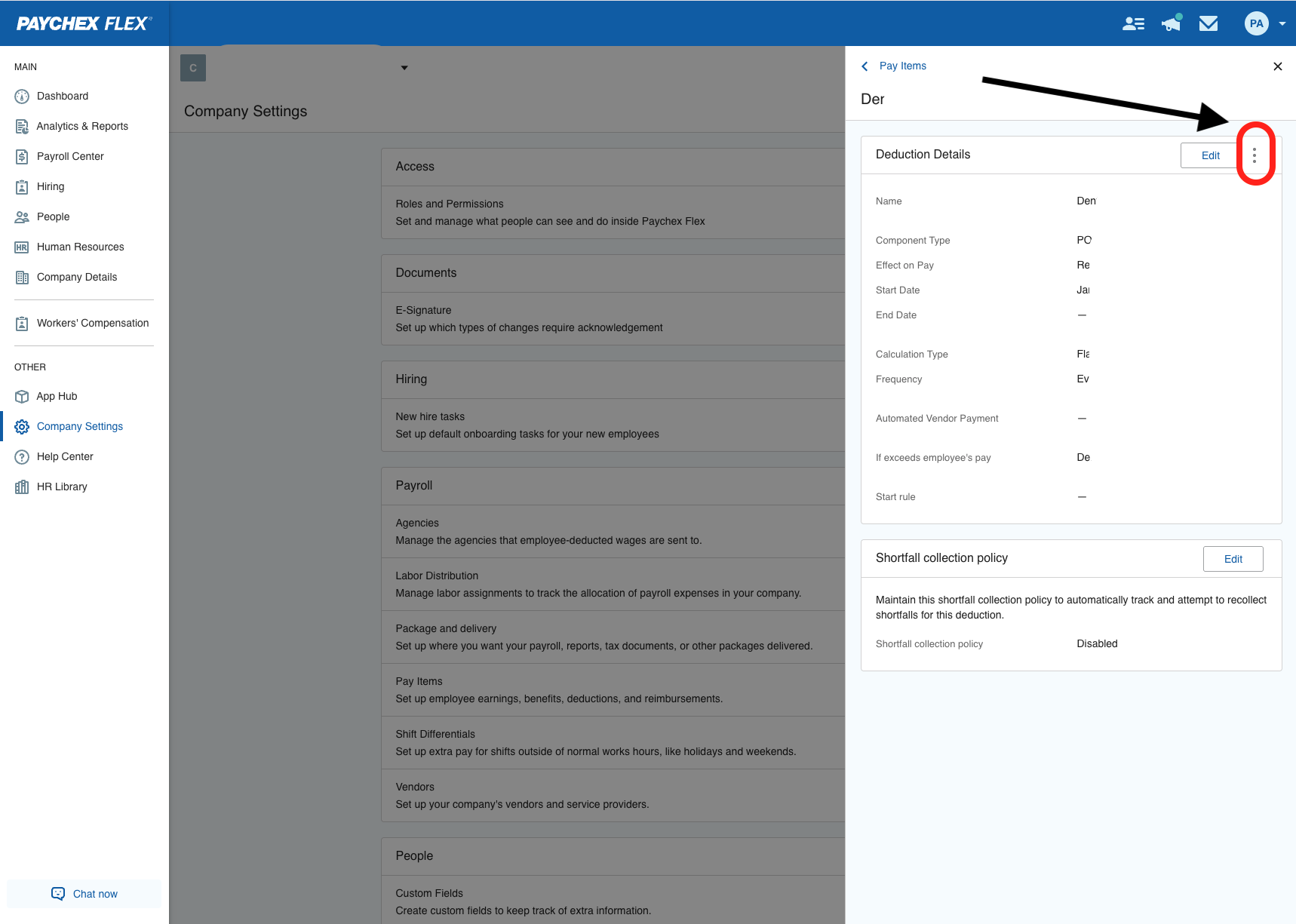
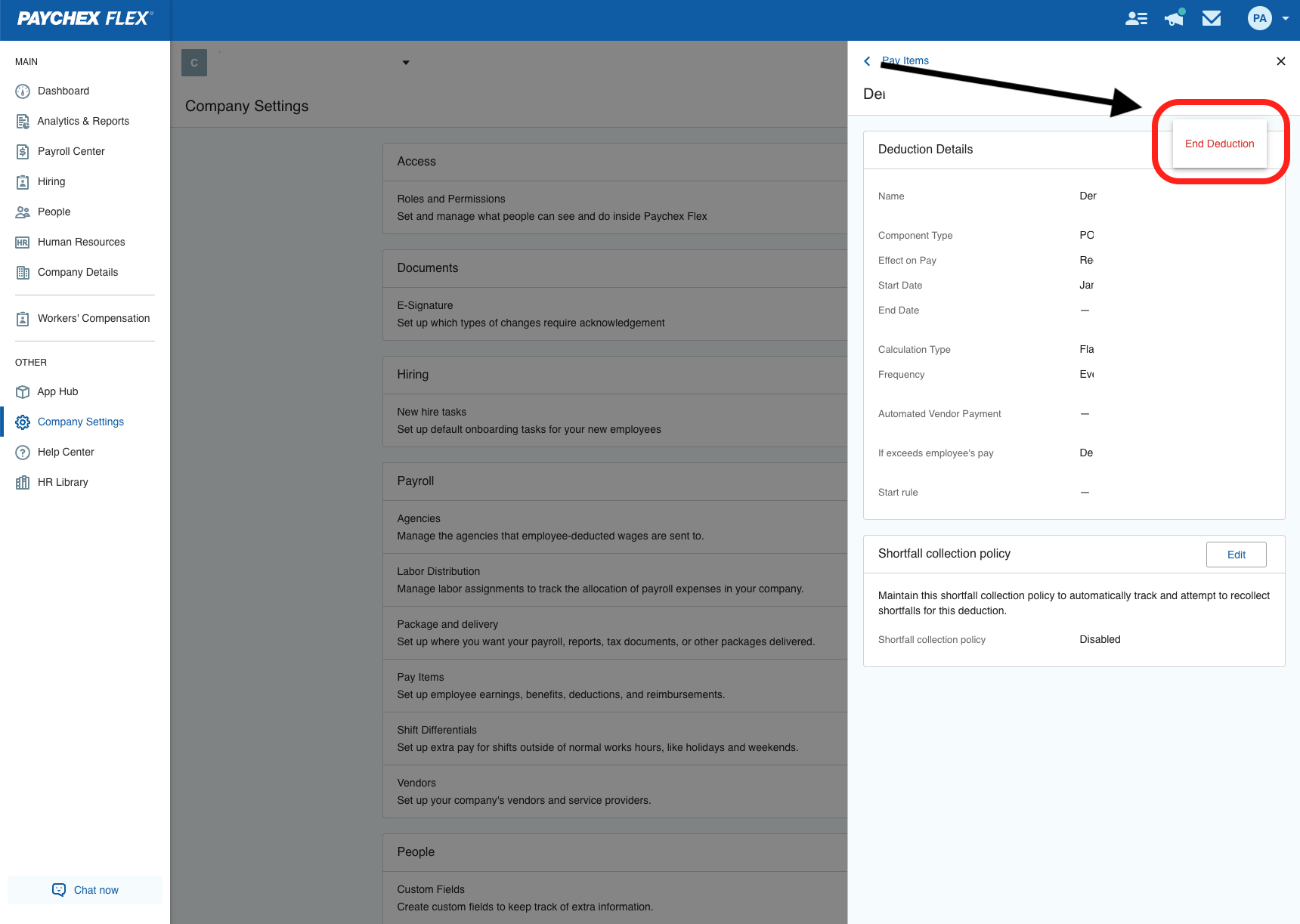
In case there is more than one instance of the Component Type, navigate back to the deductions list to remove the duplicate Component Types. Keep the most up-to-date one that is applicable to your current retirement recordkeeper. If the component type still appears in your list, reach out to a Paychex agent to remove the duplicate Component Types.