How-to: Finch Basics for Customer-Facing Teams (Org + Pay + Ded)
Last updated: April 21, 2026
What is Finch?
Background
Finch is a unified API that syncs payroll data into you. Instead of payroll admins having to manually send payroll information to you, and sending back updates to deductions, Finch manages the flow of data.
Three main products Finch uses to power this data flow:
Finch is the data connector. Your company manages what data is pulled and what data is sent back into payroll.
Process
Admin goes through Finch Connect to establish link
if more than just entering credentials, instructions will show in right pop-out
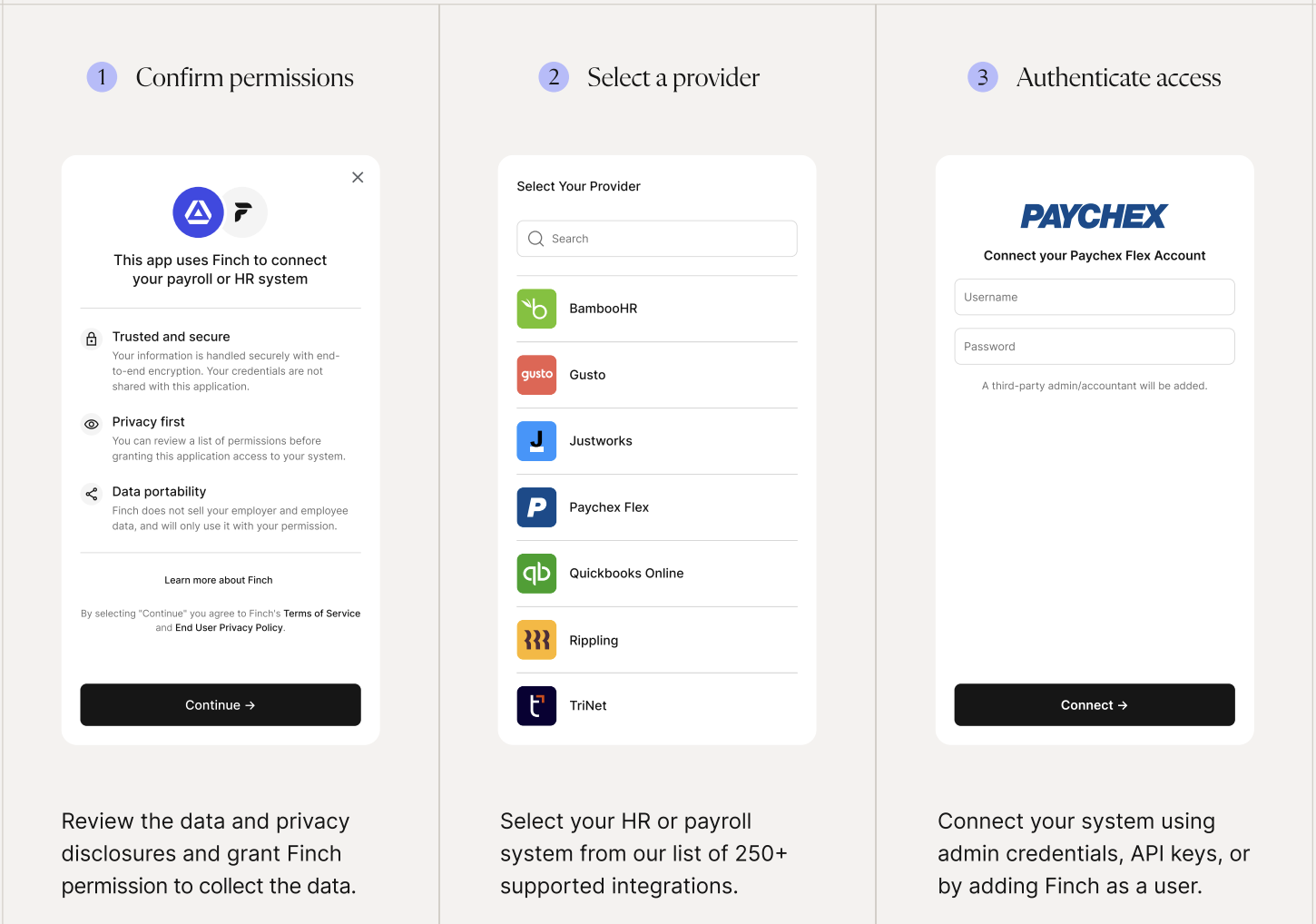
Connection will sync initial data, then on the scheduled cadence moving forward
Finch dashboard shows the ongoing status
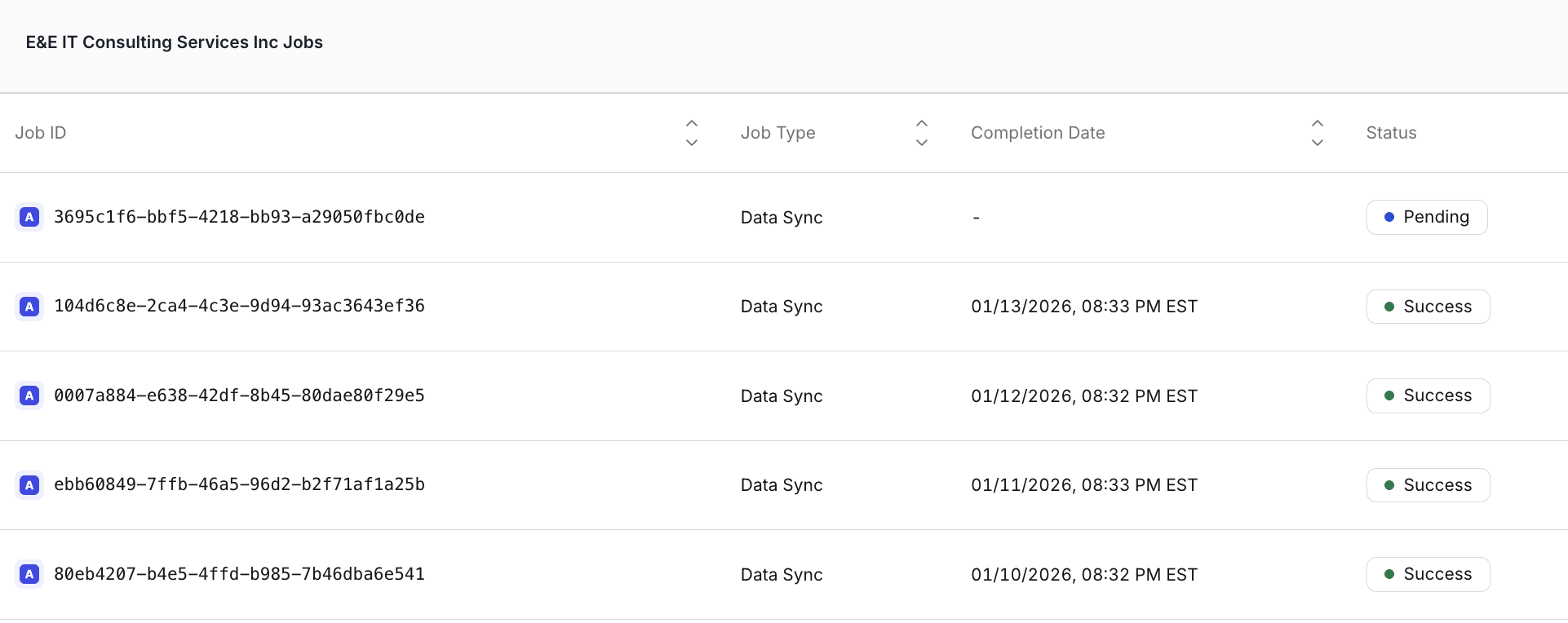
Updates from payroll are synced into Finch on a regular cadence, that are then used by you
Updates to enrollments/deductions are pushed from you to Finch, then into the payroll platform
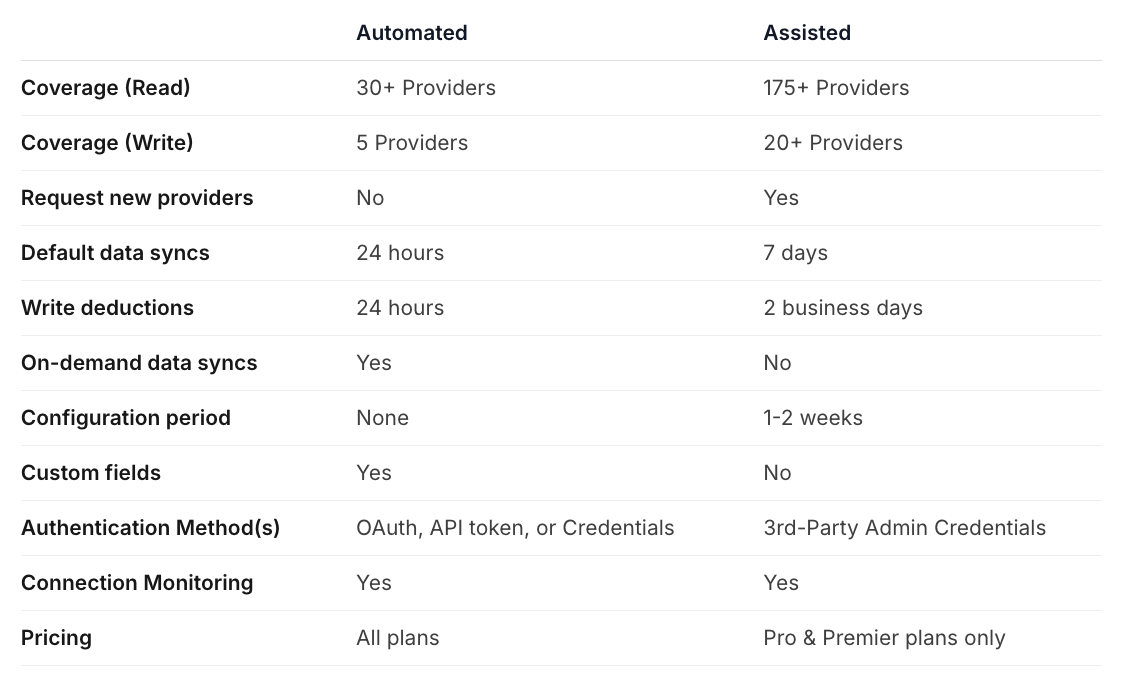
Types of Connections
Automated:
Data is pulled from payroll into Finch every 24 hours, deductions are updated every 12 hours
Connection should be established and synced within 24 hours

Assisted:
Some payroll providers either do not have APIs or we do not support yet, so our Assisted connections bridge that gap
connection status should update in 1 business day from Pending
Organization/Payroll data is synced every 7 days
Deductions take 2 business days to update
Usually requires the creation of an accountant account
Our team monitors automatically, can take a few days to be created
Use the dashboard/webhooks to monitor status updates (webhooks would be for engineering to monitor)


Overall timeline:
Connection is made
if Assisted, 1 business day to confirm set up
Initial Sync
Happens right after the connection is confirmed
Assisted - up to 14 day SLA (not business days, and usually sooner)
Send enrollments for new benefits
Make sure step 2 is done prior to this
Assisted - 2 business day SLA
See benefits in payroll
can be monitored by your engineering team when enrollment job is complete
Recommendation: make sure the person at the customer going through Finch Connect has admin permissions. Our user will also need admin permissions, which are detailed in the authentication guide for each payroll provider. If permissions are missing, Finch won't be able to read or write information from/to payroll.
Finch Dashboard
Connection page - per connection
Authentication progress
connection status
Connected: data syncing
Pending: setup in process
Error - No Accountant Setup: no external user made in payroll to support the data syncing. Requires update from customer to resolve.
Error - Permissions: external user made in payroll is missing required permission to data needed to sync. Requires update from customer to resolve.
Integrations tab - configure which payroll providers customers will see
Recommendation: Have a Finch Subject Matter Expert (Project Lead). This should be a person at your company that owns the success of Finch, who can be point person internally for questions of how Finch works in relation to your product, and who monitors (or delegates) connection statuses that need updating with customers.
Best Practices
How to get help
Check internal resources
Ask the Finch Project lead to clarify
Reach out to support
On Slack, tag @FinchSupport or use 🎫 (without this, our support team is not notified)
Email developers@tryfinch.com
When creating a ticket, please include the following when possible:
Issue:
Details about the issue, urgency, and what you would like Finch to solve.
Connection Details (if applicable):
Connection ID or Company ID
Customer Name
Additional Information that would be helpful if available/applicable:
Individual ID/Payment ID
Job ID
Request ID (API requests related issues)
Session ID (Finch Connect related issues)
Effective dates of enrollment requests
Screenshots
Note: We can join customer calls on a case by case basis, but prior coordination and context is required.
Best Practice: do not open multiple threads for the same question/account. This helps us streamline effort and resolution, and makes it easier for you to find the information you need to more efficiently resolve with your customer.
Permissions Best Practices
Have payroll admin connect with plenty of time for configuration period prior to first intended pay run
clearly communicate timeframe expectations from first sync and deduction updates moving forward
Use Finch dashboard as source of truth for connection status
Ensure admin at employer has admin rights
Follow all pieces of the instructions when setting up accounts. Stress the importance and consequences of missing permissions to admins so they pay careful attention and don't miss any steps, especially for the more specific providers
e.g. UKG Ready, UKG Pro:
API-based provider for organization and payroll. Requires 2 users for some use cases.
1) Service User (read) AND 2) external admin for deductions (write)
Pre-Launch Checklist
Step by step guide for confirming a new customer is ready to launch live with Finch enabled:
Connection status on Finch Dashboard
check with SLAs depending on type of connection
Admin Permissions
refer to Authentication Guides, especially for new providers
leverage connection status, if error reach out to employer
Field support for required fields is validated for the provider in the Field Support or Providers and Fields spreadsheet
Effective dates are set to be prior to the first pay date
Client Communication
These prompts are to help you think through how you want to communicate and plan for using Finch internally and externally.
Pre-sales:
Where in the sales process is Finch being positioned?
What expectations are set for timing and requirements for using the Finch integration?
Post-sales:
Who will use the Finch Dashboard to resolve connection issues?
How are new and existing customers onboarded to Finch?
How are expectations set for timing of data syncs?
How do clients know the cutoff for deduction updates prior to running payroll?
Collateral
What materials explain how employer data is handled?
What customer-facing assets are needed to promote and support the Finch integration?
What internal resources do you have to reference how Finch has been implemented (i.e. how your company interacts with Finch)?
Common Questions:
Is this connection ready and syncing?
Check the Finch Dashboard for the connection status and last synced date
Use the jobs endpoint to monitor statuses
When can we start sending in updates for enrollments and benefits?
Benefits requests should not be sent until:
Connection status shows as connected on Finch Dashboard
for Assisted connections, the accountant account must be set up
Initial data sync is complete
this can be seen from the Last Sync column on the Finch Dashboard
What do customers need to do to set up with Finch?
Go through Finch Connect, follow set up instructions
How does iSolved work with Finch?
Finch provides instructions to set up an external user in the iSolved account. This is the equivalent of adding a bookkeeper or accountant, but requires an iSolved representative to create the user for Finch to use.
Why aren't the deductions showing in payroll?
Confirm when the changes were made, was it prior to payroll being processed and the update time SLA (i.e. should have a cut off at least 2 days prior to payroll being run for deductions to show)
Check the effective date - Finch will add deductions based on the effective date set by your engineering team. If that is in the future, the effective date will prevent the deduction from showing on payroll.
X data looks different than expected
does Finch have the right access to payroll? If data is missing from our user, we will not be able to pull for your team to access
If numbers do not match, reach out to Finch support
Recommendation: Set a regular cadence to internally review connection statuses on the Finch Dashboard. Be able to flag to customers if they didn't set up their accountant correctly or send in a ticket if data hasn't synced prior to coming up on a payroll deadline.
Resources to Reference:
Finch Points of Contact:
Finch Support - day to day help (see Get Support article below) support team to help troubleshoot
Get Support - includes methods for reaching support, fields to include in requests, and support hours
Provider Network - reference guide for provider sync times (and which providers are Automated/Assisted connections)
Authentication Guides - documents per payroll provider for what is needed to set up with Finch
Recommended Next Steps:
Designate Finch Lead
Confirm internally how issues will be clarified with this person
Refresh internal resources
Fill out Providers and Fields spreadsheet to reference internally
Discuss the Client Communication prompts to clarify process/best practices
Establish pre-launch checklist