Authentication Progress
Last updated: December 22, 2025
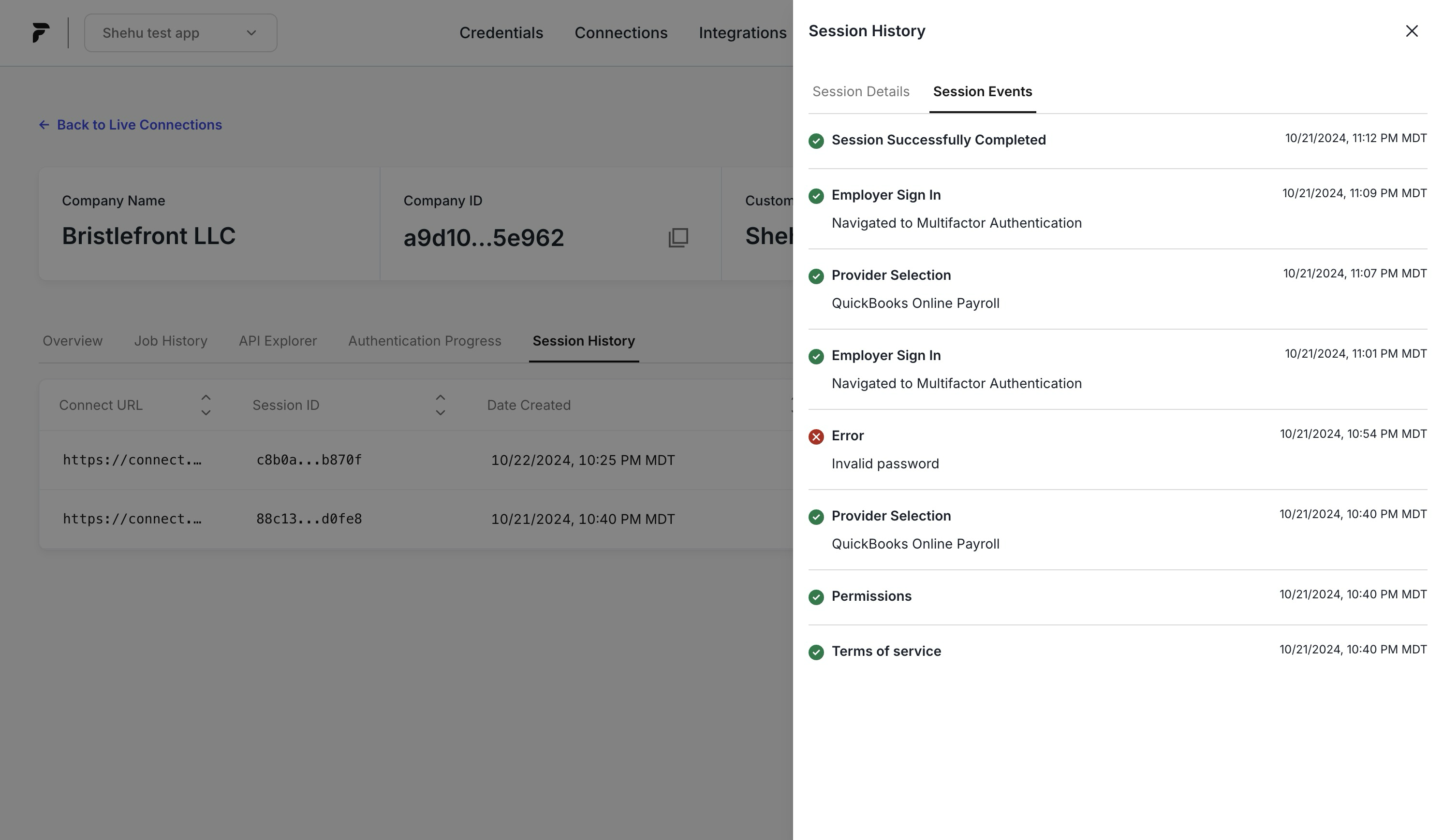
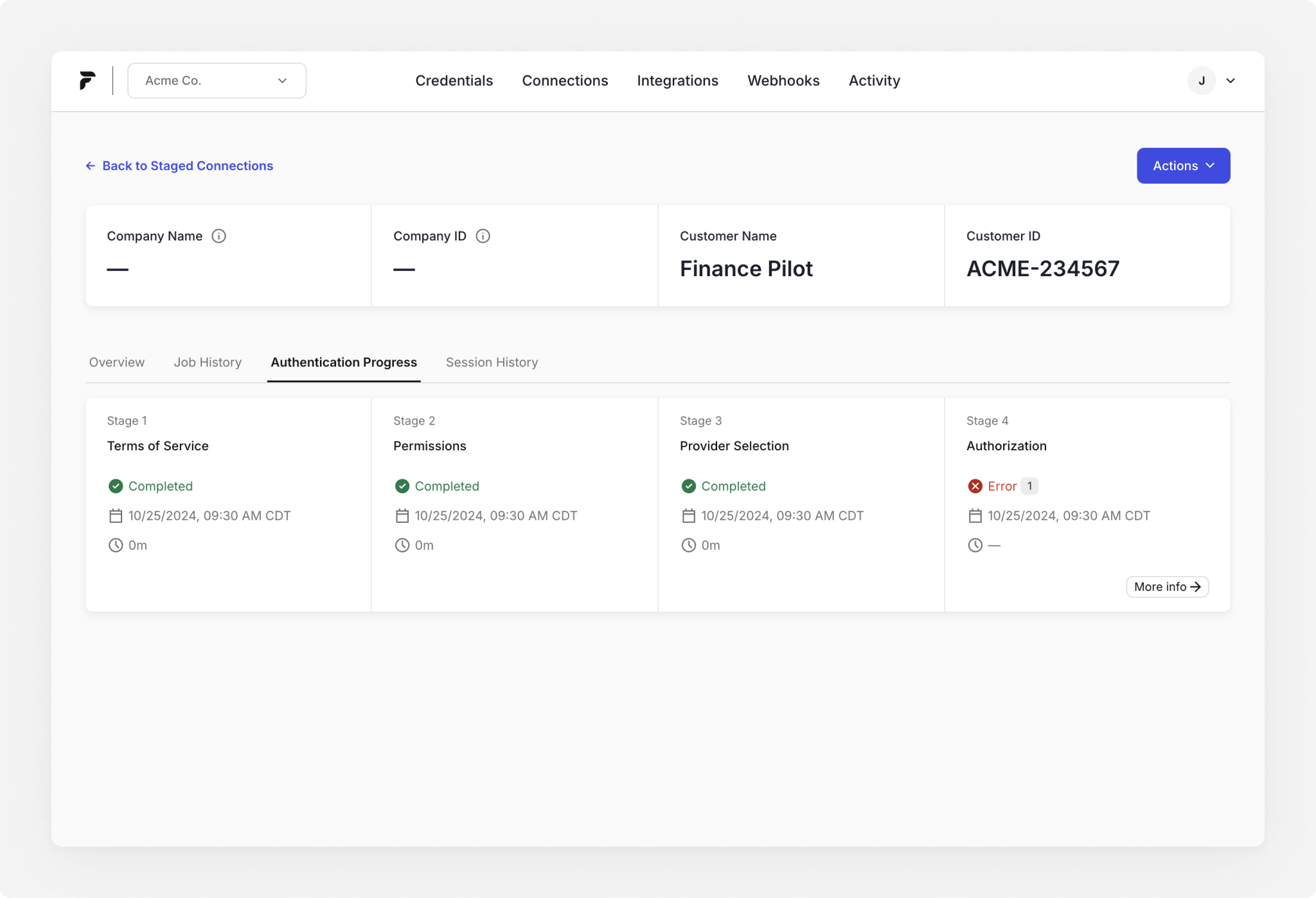
The Authentication Progress tab helps you monitor an employer’s progress through Finch Connect and troubleshoot issues if they get stuck or encounter an error.
When to use this view
Use Authentication Progress when you want to:
Confirm whether an employer has started or completed Finch Connect
See where an employer dropped off in the flow
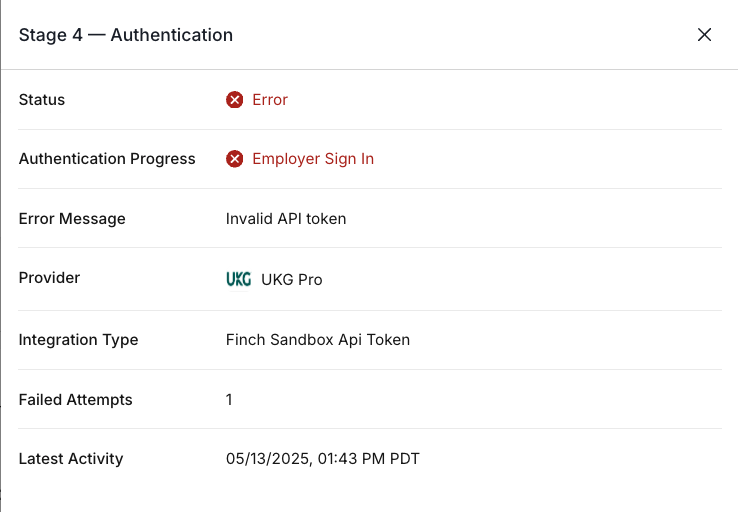
View the exact error message shown to the employer (if authentication fails)
How to access Authentication Progress
Go to Connections.
Select the Staged tab.
Click the connection you want to review.
Open the Authentication Progress tab.
How it works
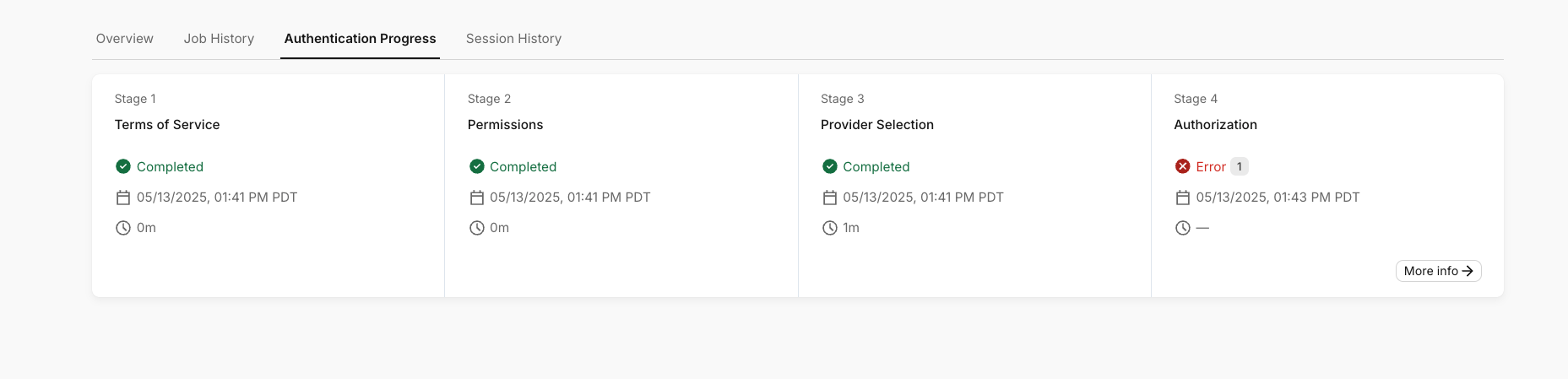
Once an employer begins their session in Finch Connect, Authentication Progress shows each stage of the flow and the employer’s status at each step. You can see:
Which step the employer is currently on
How long the employer spent at each step
Whether the employer completed the step or encountered an error

View authentication errors
If the employer encounters an authentication error, you’ll see it on this screen.
To view the full details:
Click More Info on the stage with the error.
Review the side panel, which displays the exact error message the employer saw in Finch Connect.
What to do next
If the employer is stuck mid-flow, ask them to retry the Finch Connect link.
If you need help from Finch Support, include the error message shown in More Info.
For a detailed timeline of events related to each session, see Session History.