UKG Pro Automation: Employer Setup for New Permissions & Benefit Change Reasons
Last updated: November 6, 2026
Overview
For UKG Pro deduction automation to work correctly, employers need to complete two additional setup steps in UKG Pro.
Step 1: Grant "Add" permission on Personnel Integration
Go to System Configuration > Security > Service Account Administration.
Select Add/Change Service Account.
In the web-service permission grid, find the Personnel Integration row.
Check the Add checkbox (in addition to whatever is already checked for View).
Click Save.
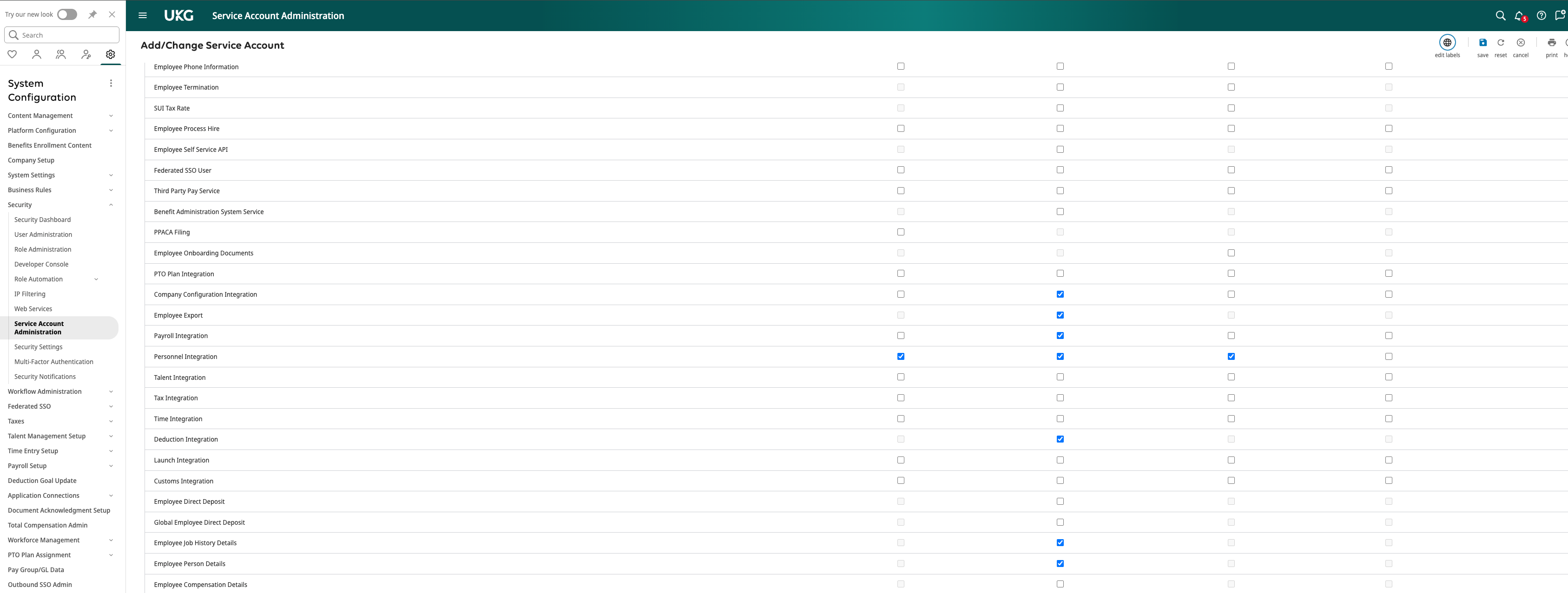
Service Account Administration: Personnel Integration permissions
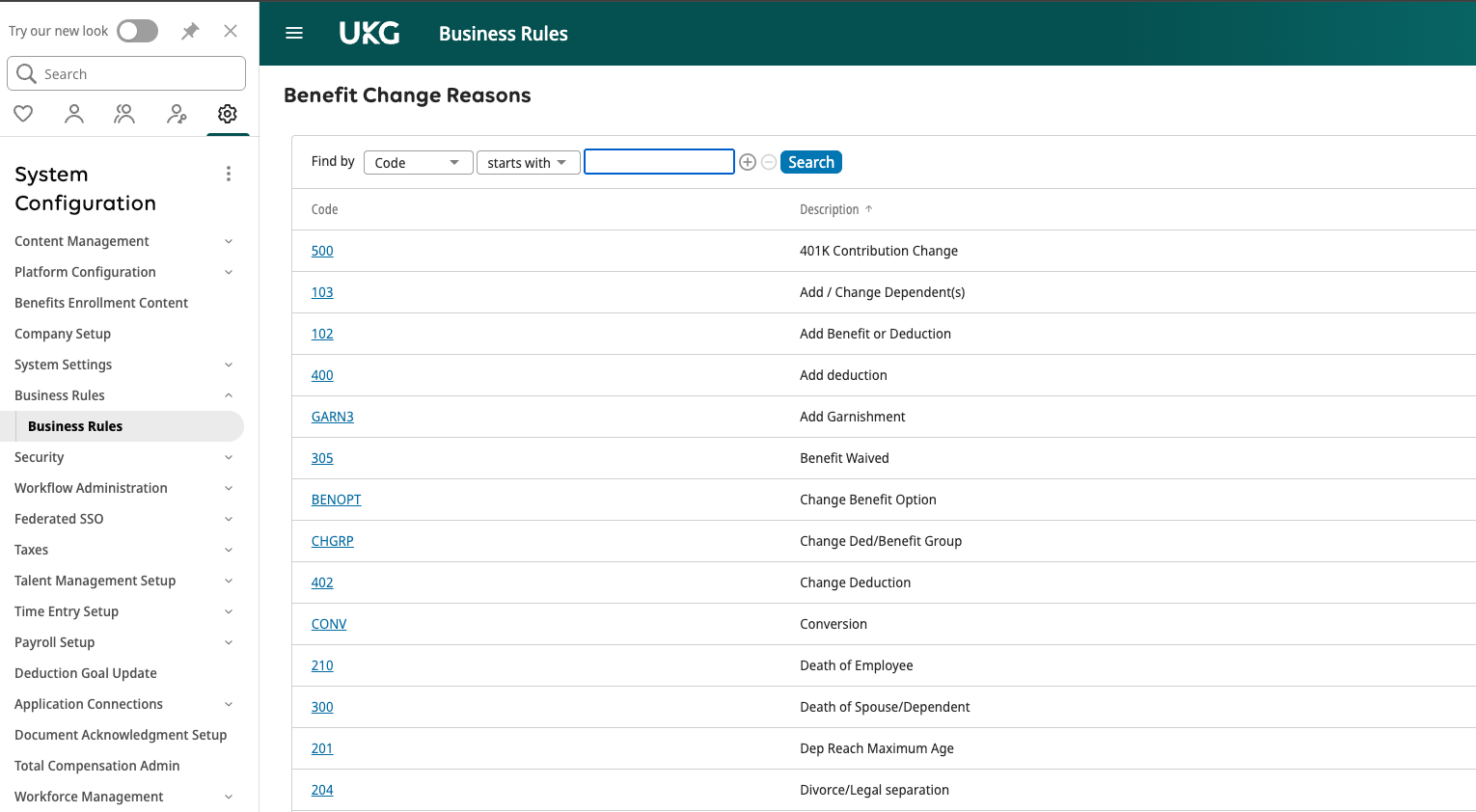
Step 2: Add Benefit Change Reasons
Go to Business Rules > Benefit Change Reasons.
Add the following change reasons:
Add Deduction
Change Deduction
None