UKG Pro — Deduction Mapping Guide
Last updated: November 4, 2026
This guide covers how to map deduction codes in Finch for UKG Pro.
Complete this for every net new connection. Deduction mapping is done on a per-client (per-connection) basis. Each UKG Pro connection has its own employer-defined deduction codes, so you'll repeat this mapping for each connection you set up.
Overview
In UKG Pro, employers define their own unique set of deduction codes. These codes are arbitrary and company-specific, so the same medical plan may be defined as MED1, MEDICAL, or 001MED for different clients / connections.
Related variants of the same benefit usually live under separate codes. A 401(k) commonly appears as a traditional code, a Roth code (often prefixed R, e.g. R401K), a catch-up code, and a loan repayment code — four codes, one logical benefit family.
Because of this, Finch has no reliable way to know which UKG Pro deduction code corresponds to which benefit without additional verification. The deduction mapping you provide bridges that gap: it tells Finch which code(s) make up each benefit, and how the amount should be interpreted (a dollar amount or a percentage).
Without this mapping Finch cannot return enrollment data for a UKG Pro benefit, and cannot create or update enrollments (deduction writes) for it. The mapping is what makes the automated connection usable.
Before you begin
Dashboard access. You'll complete the mapping in the Finch Dashboard, under the connection's benefits configuration. Make sure the person doing the mapping has access to that connection.
Know your codes. Only the employer truly knows how their deduction codes are grouped. Have the list of the employer's UKG Pro deduction codes and what each one represents on hand. If you're mapping on behalf of an employer customer, confirm any ambiguous groupings with them rather than guessing.
Don't know the codes? Send a Payroll Mapping Link. If you don't have the employer's code list, you can send them a Payroll Mapping Link from the dashboard so they can complete the mapping themselves (see Map each benefit below).
UKG Pro service-account permissions. The API user Finch connects with needs read access to payroll and personnel data, and — for enrollment writes — write access on the payroll integration service. If the connection was set up for read-only use, this may need to be upgraded before writes will work.
Scope. Mapping applies to benefits that already exist in UKG Pro for the employer. Benefits newly created through Finch do not require this mapping.
Responsibilities
Task | Owner |
|---|---|
Mapping each UKG Pro deduction code to the right Finch benefit | You |
Grouping related codes and marking dollar vs. percentage | You |
Confirming groupings when the correct grouping is ambiguous | You — Finch will reach out if unsure |
Creating new deduction codes in UKG Pro (not available over the API) | The employer, in the UKG Pro admin UI |
Enabling automated processing and the technical setup | Finch |
Keeping existing benefit IDs stable | Finch |
How to map your deduction codes
Complete this for every new connection. Each UKG Pro connection has its own deduction codes, so mapping is done per connection. Within a connection, each benefit only needs to be mapped once.
One-time setup
Step A — Set up your labels
In the Finch Dashboard, go to Settings and create a label for each benefit you want Finch to read and write (for example
401K,Roth,Loan).Each label shows up as its own row in the connection's Payroll Mapping tab (the Label column). The label is the name that benefit carries in Finch; it does not rename anything in UKG Pro.
Step B — Call Get All Deductions once
Open the connection and go to the API Explorer tab.

Call
Get All Deductions.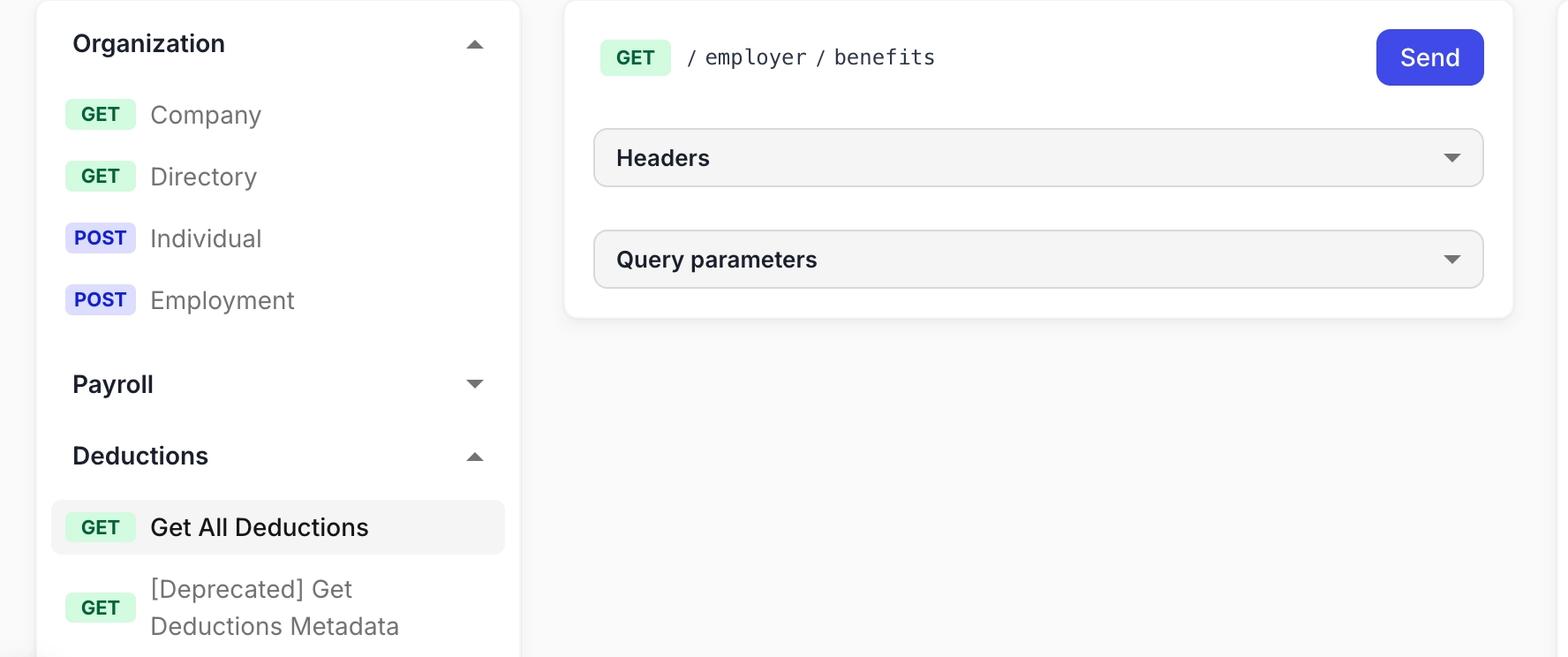
You'll get back an empty array (
[]). This is expected. It doesn't mean you missed a step or that the employer has no deductions. Finch only returns benefits once they're mapped, and you haven't mapped anything yet. Behind the scenes, this call pulls the employer's deduction codes from UKG Pro so they can show up in the Payroll Mapping dropdowns. The call itself can take a while to respond.Check that the codes loaded. Go to the Payroll Mapping tab, click + Add Payroll Code on any row, and open the code dropdown.
You see the employer's UKG Pro codes: you're ready to map.
The dropdown is empty: wait a few minutes, refresh the page, and check again. Loading codes from UKG Pro isn't always instant.
Still empty after waiting and refreshing: contact your Finch contact. Don't keep calling
Get All Deductions.
Grouping rules and examples
Multiple UKG Pro codes can map to a single Finch benefit. A common case is a 401(k) offered both as a percentage-of-pay election and a flat-dollar election. Both are grouped into one 401(k) benefit.
Roth and catch-up are usually separate codes. UKG Pro typically carries
401KandR401K(Roth) as distinct codes, plus separate catch-up codes. Group them under the benefit they belong to, and set the contribution type on each.401(k) loan repayment is its own benefit, not part of the 401(k). UKG Pro loan codes (
deductionType = LON) map to a loan benefit, not to the retirement plan itself.Codes are company-specific. Don't assume a code from one employer means the same thing at another. Map each connection against that employer's actual codes.
When in doubt, confirm. If it's unclear whether two codes belong to the same benefit, check with the employer before grouping them. A wrong grouping produces wrong or missing enrollment data.
Real example from a UKG Pro employee record (Pay → Deductions):
UKG Pro type | Code | Plan description | Maps to |
|---|---|---|---|
Deferred Comp (USA) |
| 401K Percentage | 401(k) benefit — percentage of pay |
Deferred Comp (USA) |
| 401K Match | Same 401(k) benefit — employer-side amount only |
Loan |
| 401k Loan | Separate 401(k) loan benefit |
Dental |
| Dental Base PreTax | Dental benefit (employee + employer amounts) |
Group Term Life |
| GTL - Life | Life benefit (employer-paid) |
Note that codes here are short and employer-specific (401P, not 401K), and the employer match lives on its own code. Always map from the employer's actual code list.
Map each benefit
Go to the connection's Payroll Mapping tab. Each row is one of your labels.

Leave the "Payroll Items" column empty. It isn't used for deduction mapping. All deduction mapping happens in the Payroll Code column.
For each label row:
Pick the benefit type. In the Payroll Code column, open Select benefit type and choose the Finch benefit type for this label (for example
401k,401k_roth, or401k_loan).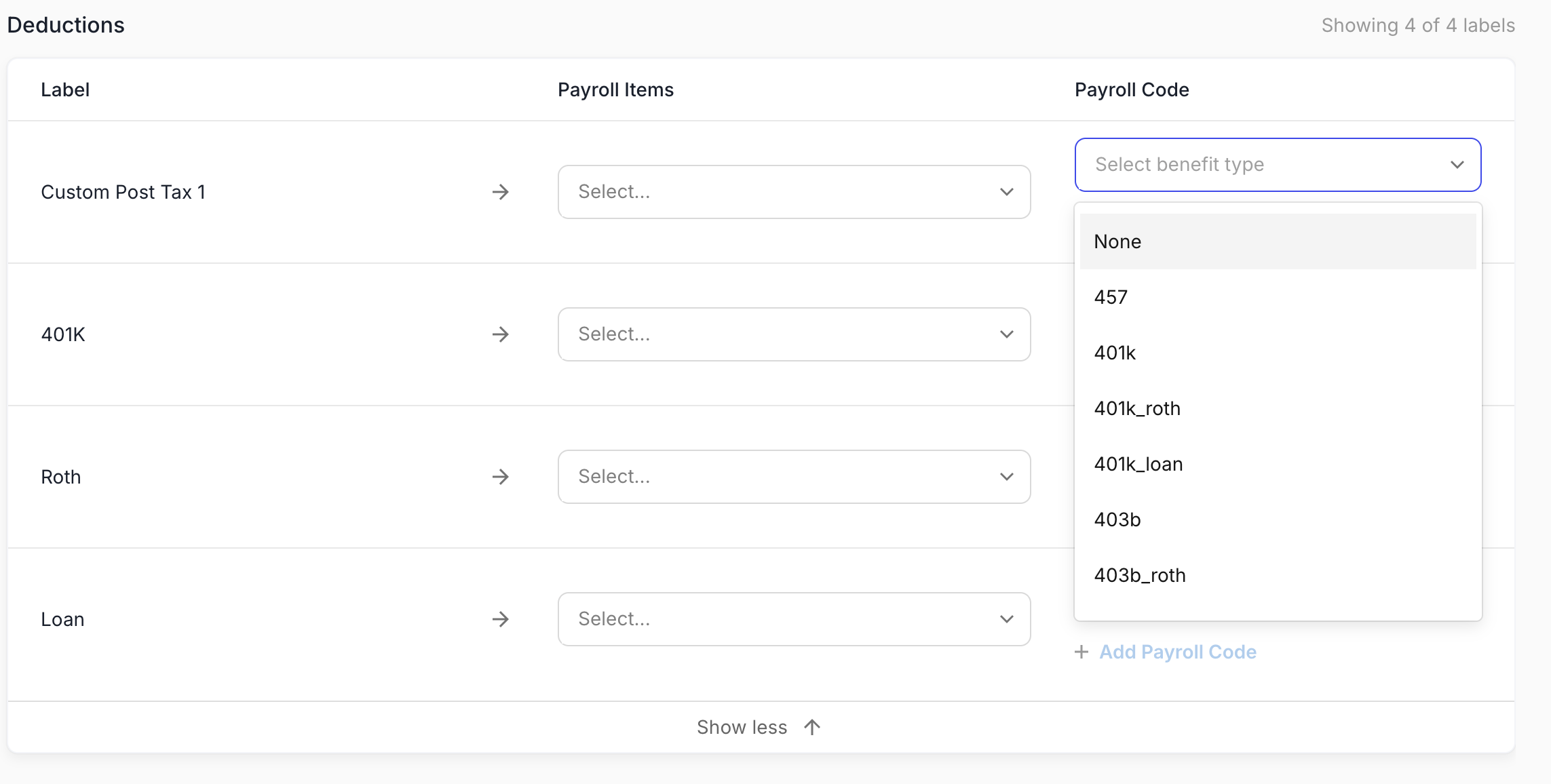
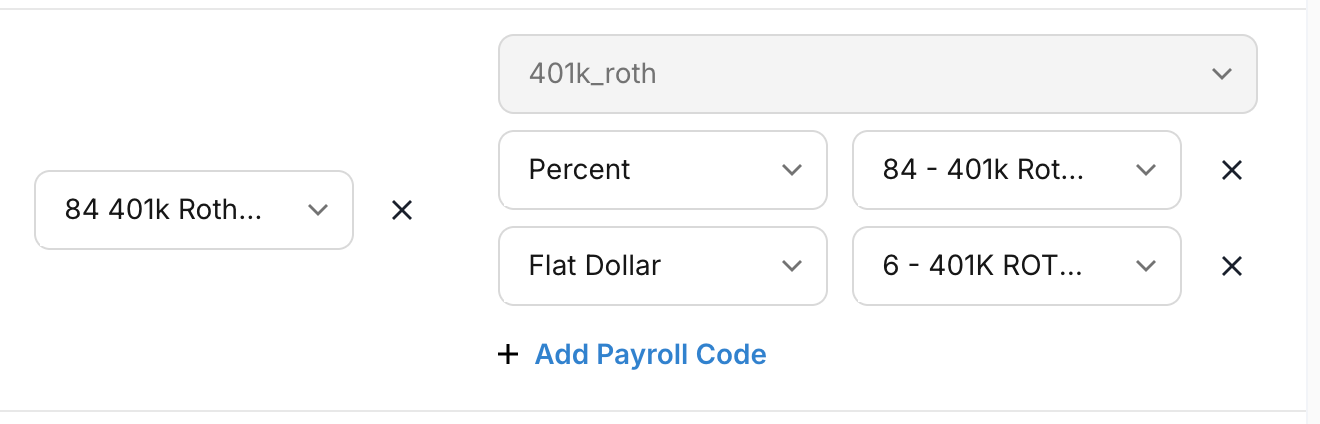
Add the UKG Pro deduction code. Click + Add Payroll Code. Choose how the amount is expressed (Flat Dollar, Percent, or a catch-up type where it applies), then pick the UKG Pro deduction code from the dropdown.
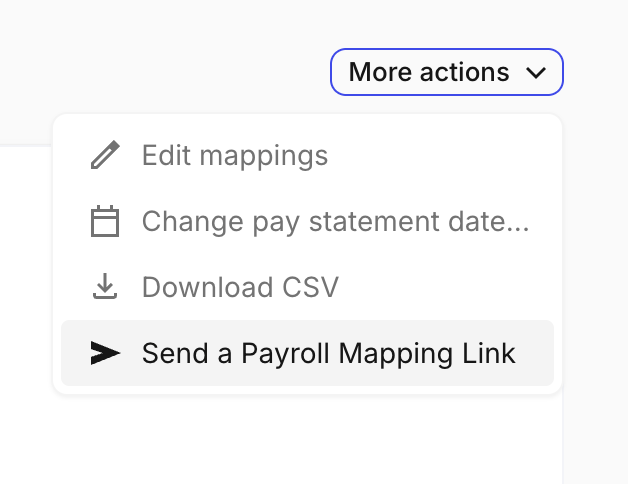
If you don't know what the benefit codes are, you can "Send a Payroll Mapping Link" to your client so they can map it themselves. The link will route them to the client version of the dashboard!
Add any related codes. If one benefit uses more than one UKG Pro code (for example a percentage code and a flat-dollar code for the same 401(k)), click + Add Payroll Code again under the same row for each one.
Save the mapping. This is a one-time setup per benefit; once a benefit is mapped, you don't need to redo it.
Confirm the mapping
Go back to API Explorer and call
Get All Deductionsagain.Your mapped benefits should now appear. This is not always immediate. If a benefit is missing, wait a bit and call again before changing the mapping.
After mapping: how to validate and what changes
Validation
Pull benefits and enrollments for a connection you've mapped, and confirm the enrolled individuals and amounts match what you know to be true in UKG Pro.
Important — empty does not always mean zero. If a benefit is left unmapped, or a code is mapped incorrectly, its enrollment data comes back empty rather than as an error. So an empty enrollment response is not proof that nobody is enrolled — it can also signal a mapping gap.
Check terminated vs. active. UKG Pro carries a benefit status on each employee deduction record. Employees whose coverage ended should not appear as actively enrolled; if they do, flag it.
If a benefit you expect to be populated comes back empty, revisit its mapping first. If the mapping looks correct but data is still missing, contact Finch.
What changes
Your benefit IDs do not change. Finch keeps your existing benefit IDs intact. Any integration logic keyed on a benefit's ID will keep working, you don't need to remap anything on your end.
Benefit descriptions may change. Once automated processing begins, Finch derives each benefit's description from the underlying UKG Pro deduction codes. A benefit that previously displayed as, say, "Medical" may show as a code-derived string. If you surface benefit descriptions to your end users, expect this change — and prefer the benefit's type or ID over the description string for any display or routing logic.
Known limitations
Enrollment writes require the deduction to already be assigned to the employee in UKG Pro. UKG Pro will reject an enrollment for a deduction code that isn't on the employee's record or in their deduction group. If you get an eligibility error back, the employer needs to mark the employee as eligible in UKG Pro first.
New deduction codes are created in UKG Pro, not through Finch. UKG Pro does not expose code creation over its API, so a brand-new benefit starts in the UKG Pro admin UI and is then mapped here.
Getting help
If you hit an ambiguous grouping, an unexpected empty result after checking your mapping, or anything that doesn't match what you see in UKG Pro, reach out to your Finch contact. Where Finch itself is uncertain about how your codes should be grouped, we'll come to you rather than guessing.
Quick reference checklist
Confirm dashboard access to each connection being mapped
Confirm the UKG Pro service account has the permissions needed for reads and writes
Gather the employer's UKG Pro deduction codes and what each represents
Create a label in Settings for each benefit
Call
Get All Deductionsonce (an empty[]response is expected) and confirm UKG Pro codes appear in the Payroll Mapping dropdownFor each label: pick the benefit type in Payroll Code, then + Add Payroll Code for each UKG Pro code (dollar / percent / catch-up), grouping related codes (traditional / Roth / catch-up / loan). Leave Payroll Items empty
Save each mapping (one-time per benefit)
Call
Get All Deductionsagain to confirm the mapping went through (may take a little time)Verify enrollments against UKG Pro for a sample of benefits, including terminated vs. active
Treat any unexpected empty enrollment result as a possible mapping issue
Note that benefit descriptions may now display as code-derived strings; benefit IDs are unchanged