Humi - Add an administrator
Last updated: July 23, 2025
To connect your Humi account to this application you must set up a new admin user. Please follow the instructions below.
Before you start
Please note only Admins can complete this process. If you are not an Admin, please find someone in your organization who is one before following the instructions below.
Instructions
1. Log into Humi using your Admin account.
2. Navigate to the lefthand sidebar and select People.
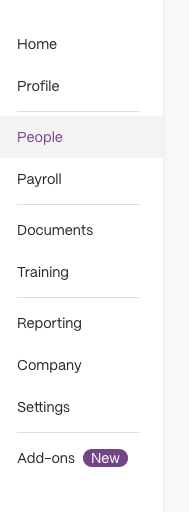
3. Navigate to the righthand side of the screen and click + Employee

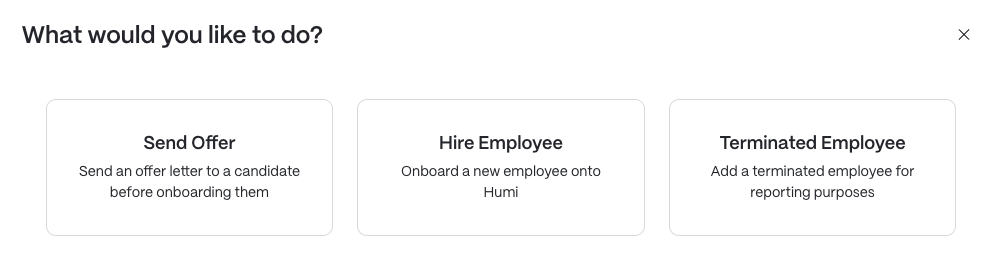
4. You'll be presented with the screen below. Select Hire Employee
5. You'll be presented with the screen below. Here, you'll want to enter the required information as follows - all other fields can be left blank:
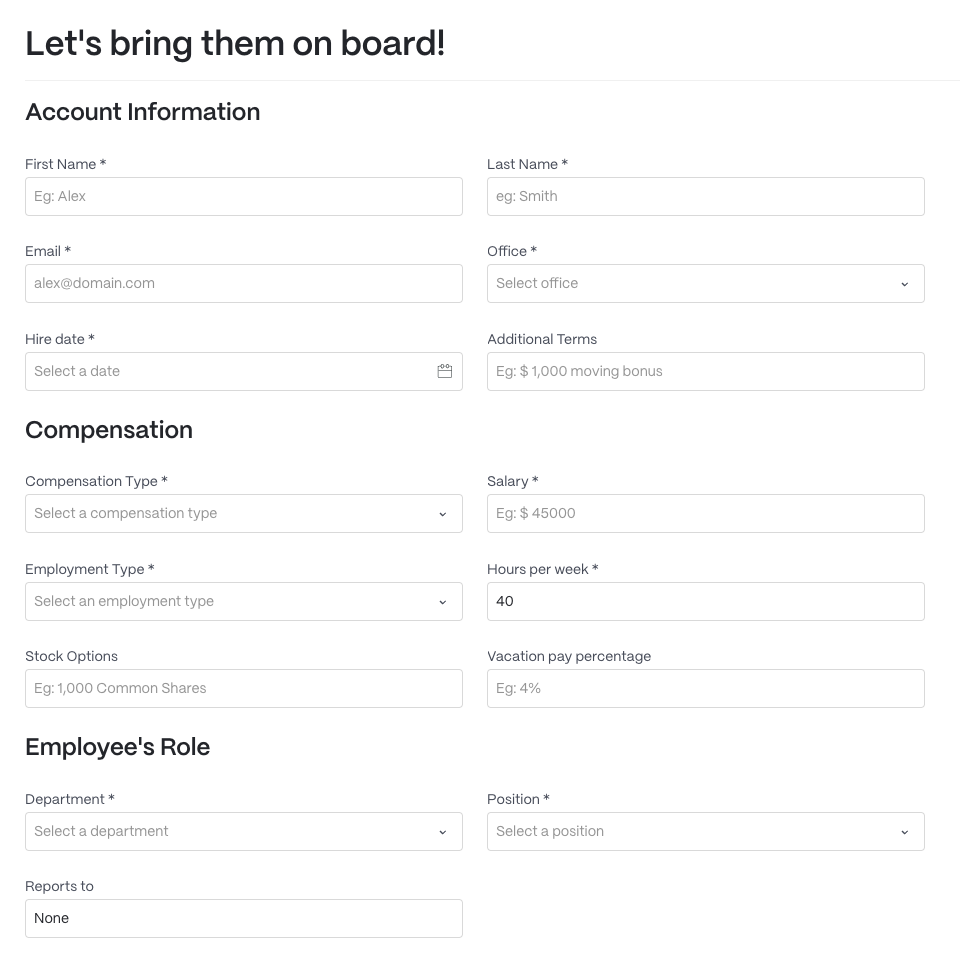
Account Information
- First Name and Last Name: Use the Username found in the Finch Connect modal.
- Email: Use the Email found in the Finch Connect modal.
- Hire Date: Today's date
- Office: Select any arbitrary value
Compensation
- Compensation Type: Select any arbitrary value
- Salary: $0
- Employment Type: Other
- Hours per week: 0
Employee's Role
- Department: Select any arbitrary value
- Position: Select any arbitrary value OR create a new position titled 'Integration'
6. At the bottom of the page, ensure the toggles are set to OFF for both 'Automatically sync employee information with Humi Payroll' and 'This employee is required to provide their SIN during onboarding'

7. Click Next. You'll be directed to the Onboarding Documents page. Skip this module by clicking Next again.
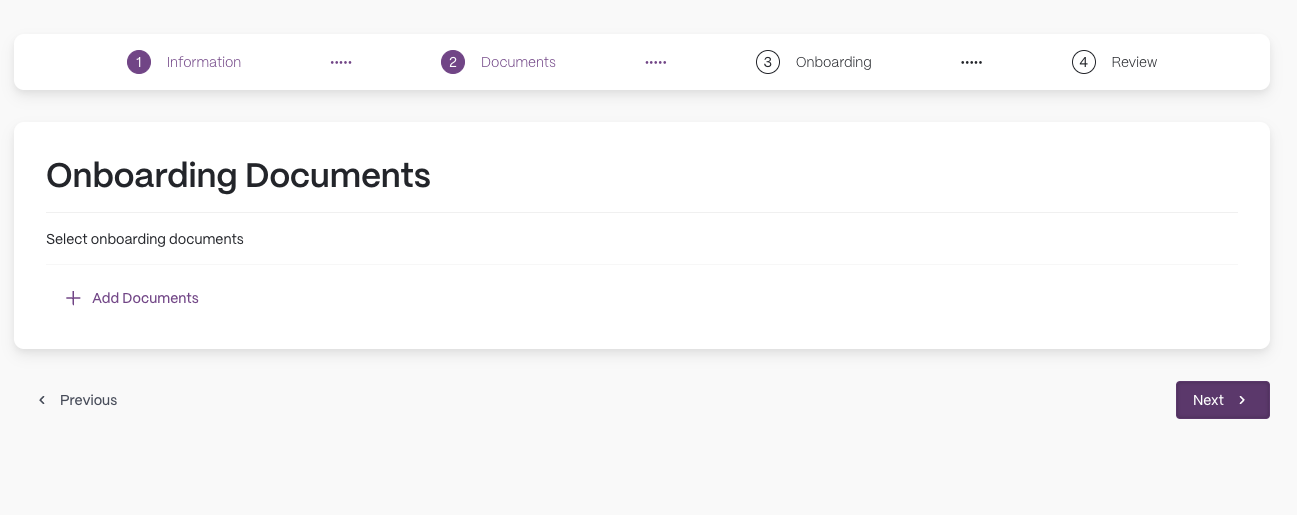
8. You'll be directed to the Onboarding page. Skip this module by clicking Next again.
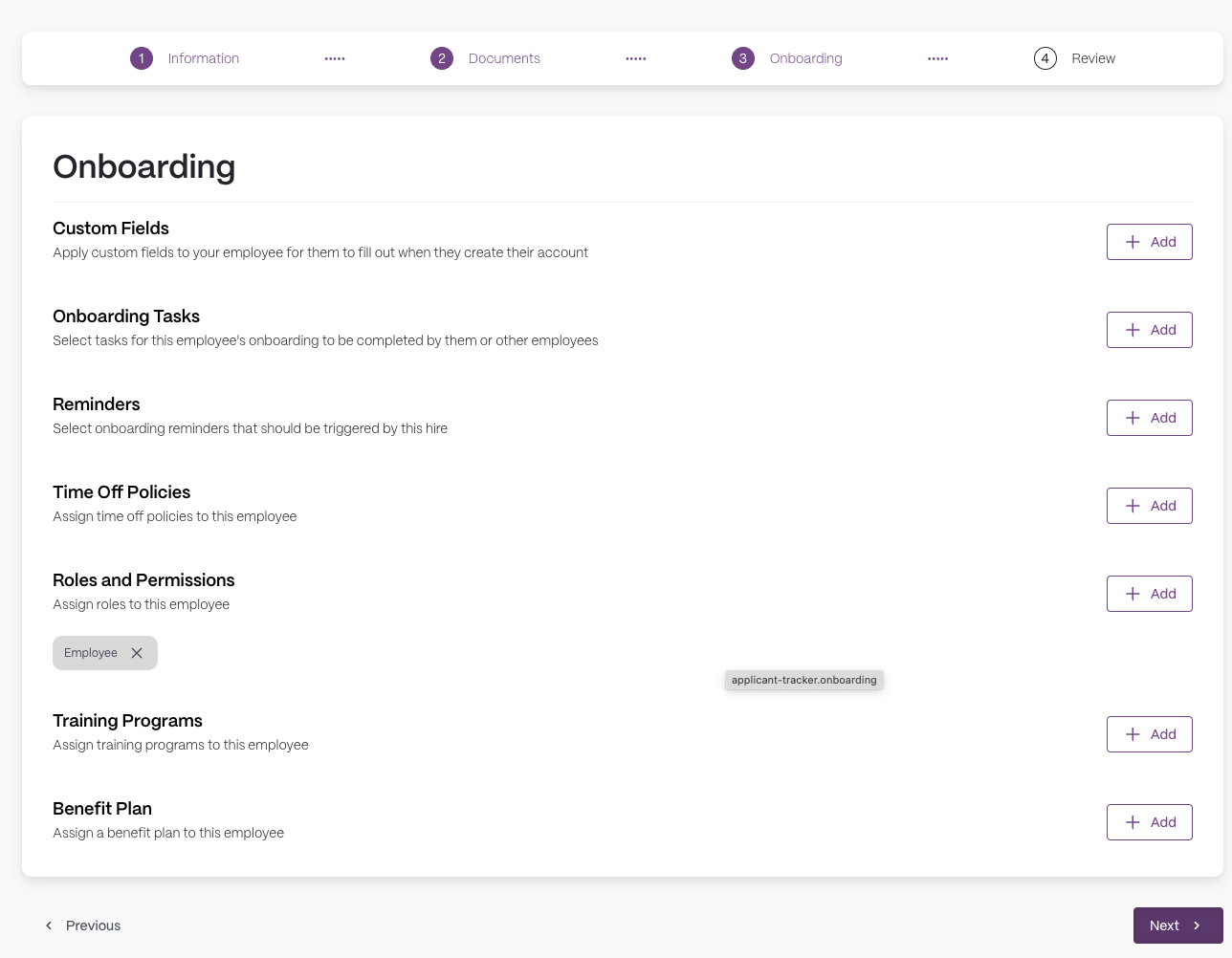
9. You'll be directed to the Review page. Click Save.
10. Now, you'll need to assign the new user you created with the appropriate role. In order to do so, navigate to the lefthand sidebar and select Settings.
11. Click on the Roles & Permissions tab.
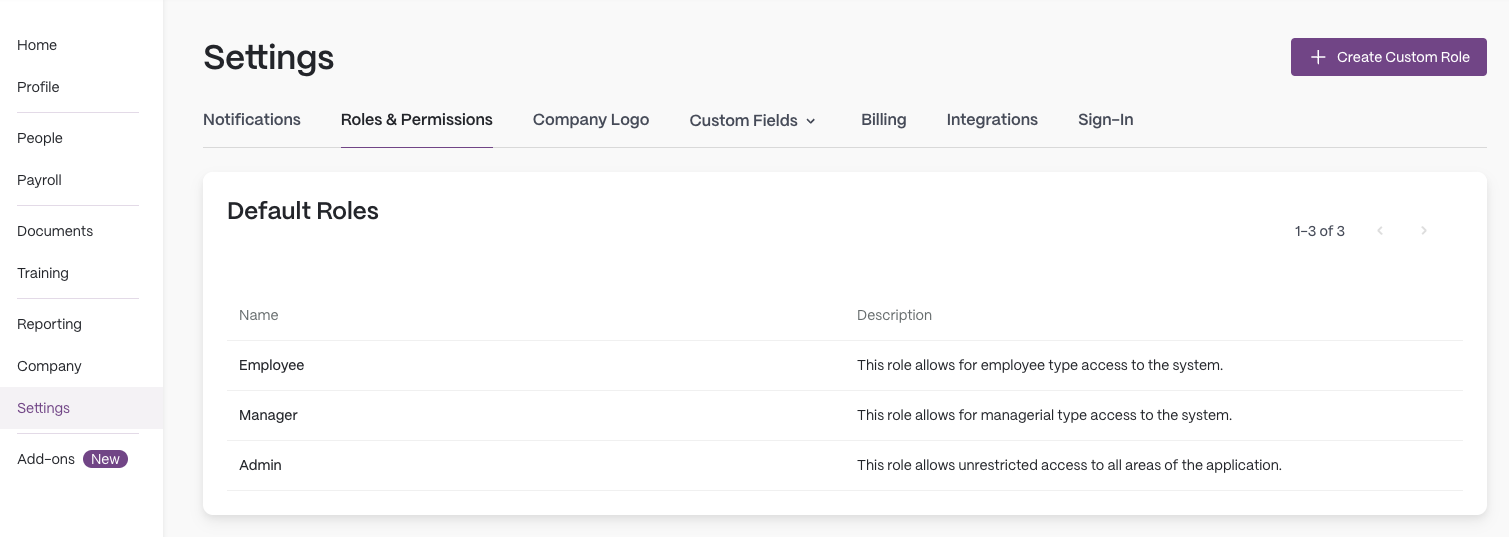
12. Click on the Admin role.
13. Select the Employees tab.
14. Click + Assign / Revoke Employees.

15. Search for and select the user you created earlier and click Save.