CharlieHR - Add an administrator
Last updated: July 23, 2025
To connect your CharlieHR account to this application you must set up a new admin user. Please follow the instructions below.
Before you start
Please note only Super Admins can complete this process. If you are not a Super Admin, please find someone in your organization who is one before following the instructions below.
Instructions
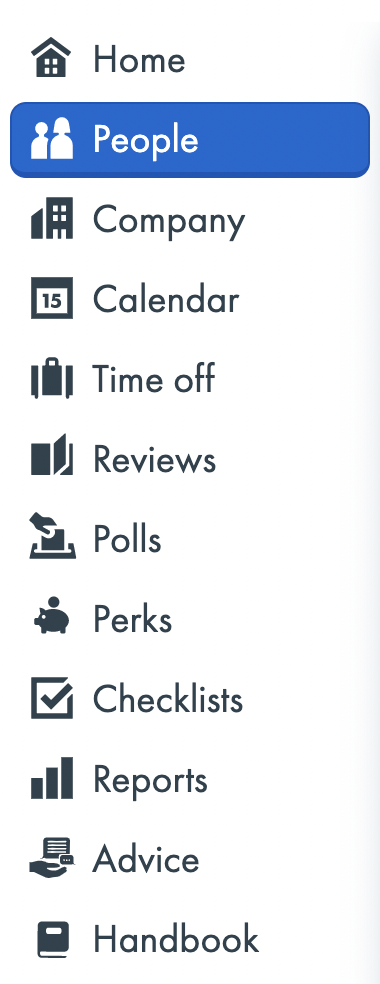
1. Select People in the side navigation panel (left-hand side).
2. Select Add a Person.

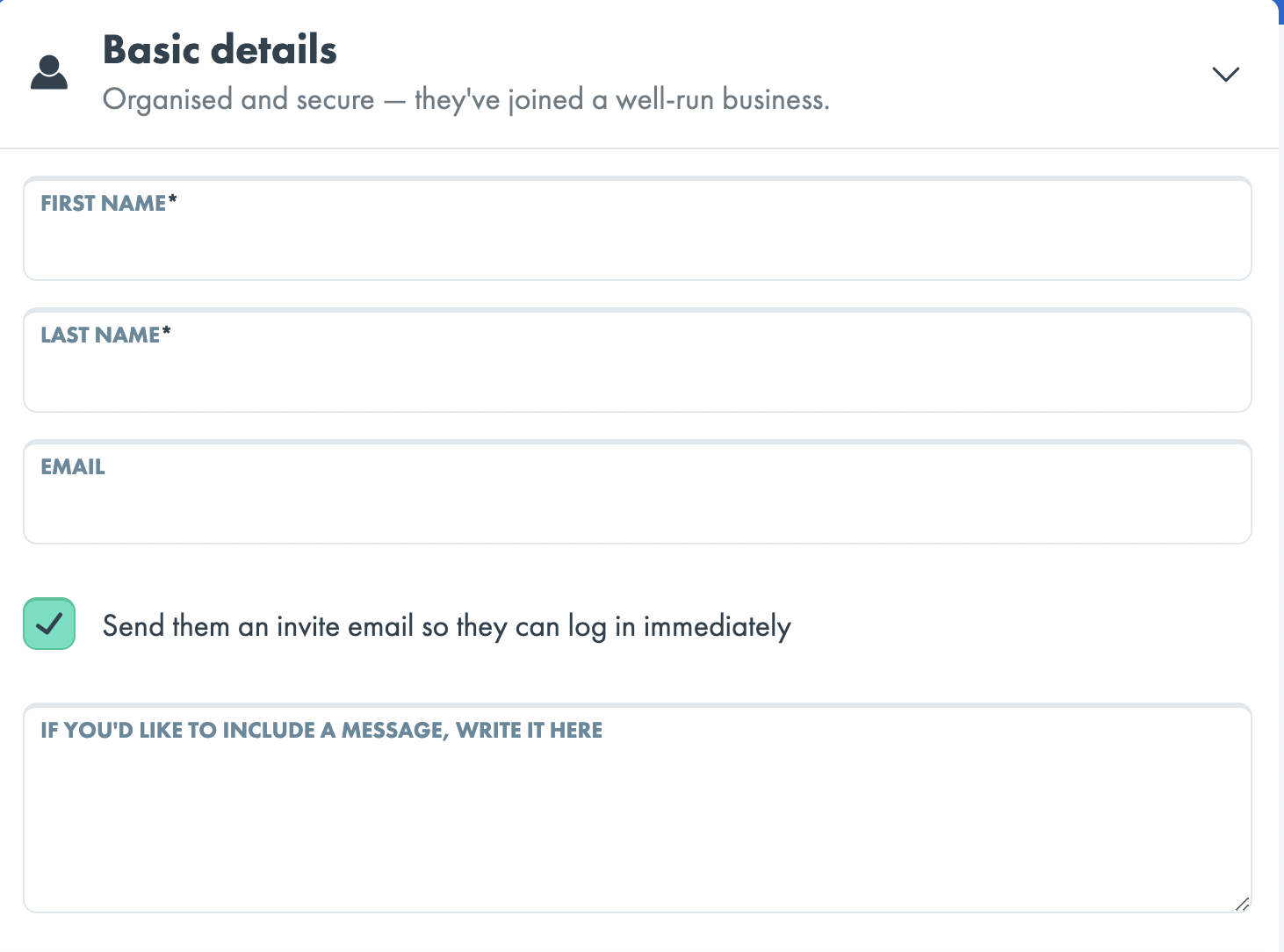
3. Enter in the First Name, Last Name, and E-mail Address displayed in the Finch Connect modal. Then, select Send them an invite email, and select Add at the very bottom of the page.
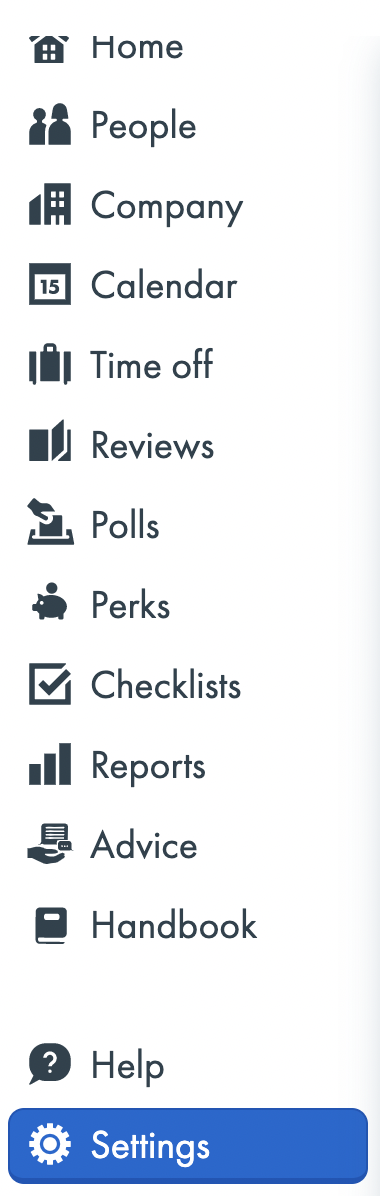
4. Head to Settings side navigation panel (left-hand side).
5. Select the Permissions section. More details on roles and permissions in Charlie HR can be found HERE.
If your team uses this application to sync Organization data only
- Select the permission level Payroll Admin
If your team uses this application to sync Organization and Payroll data
- Select the permission level Payroll Admin
If your team uses this application to update deductions and contributions
- Select the permission level Super Admin
6. Select Give someone this role, assign the user account you just created, and select Update their role.
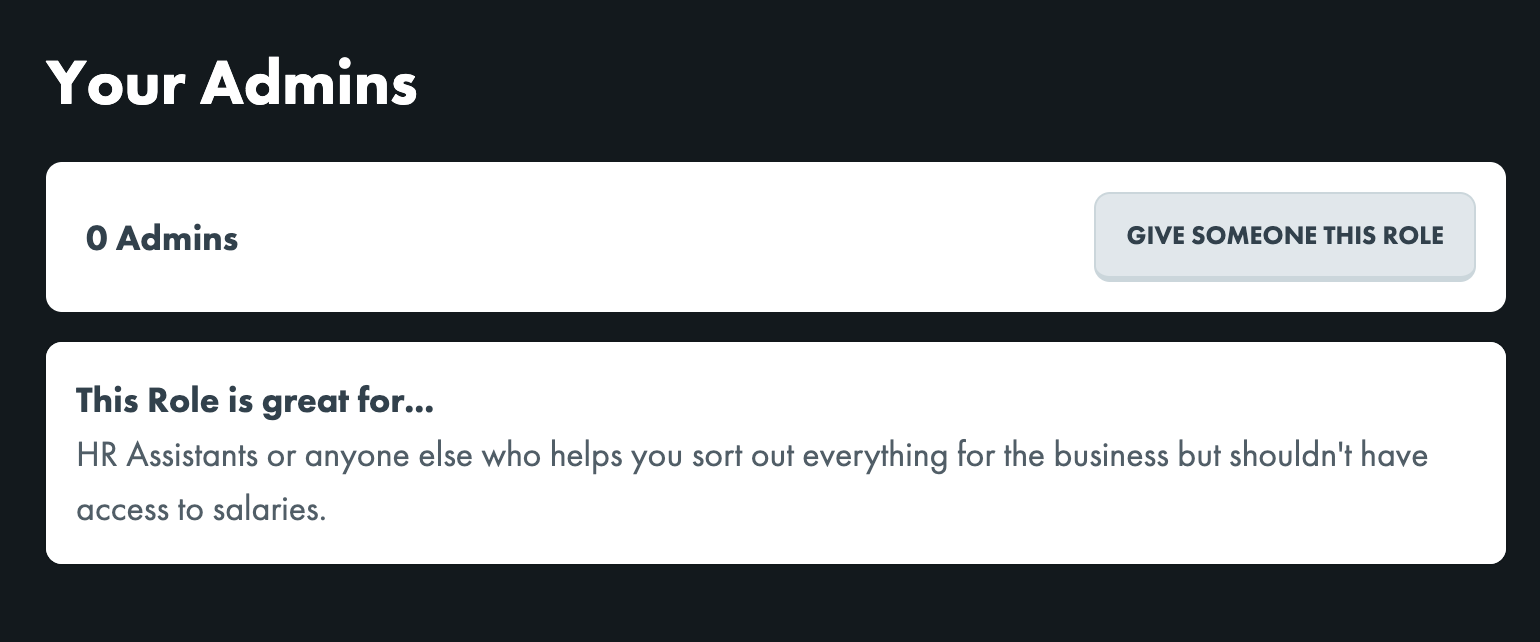
To upgrade or downgrade CharlieHR member permissions
1. Go to People.
2. Select the user account in question and go to Settings.
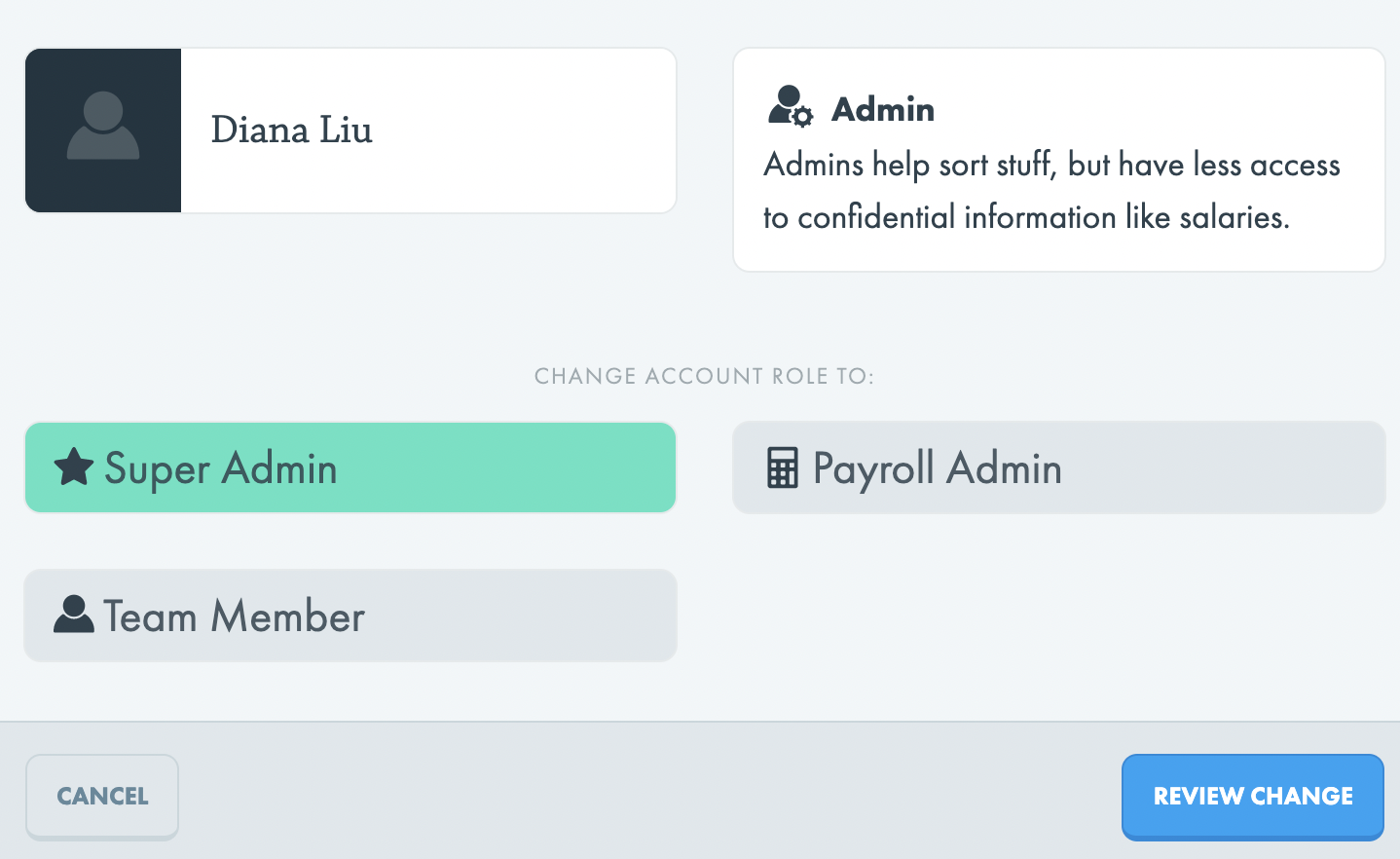
3. Select Edit Account Role.
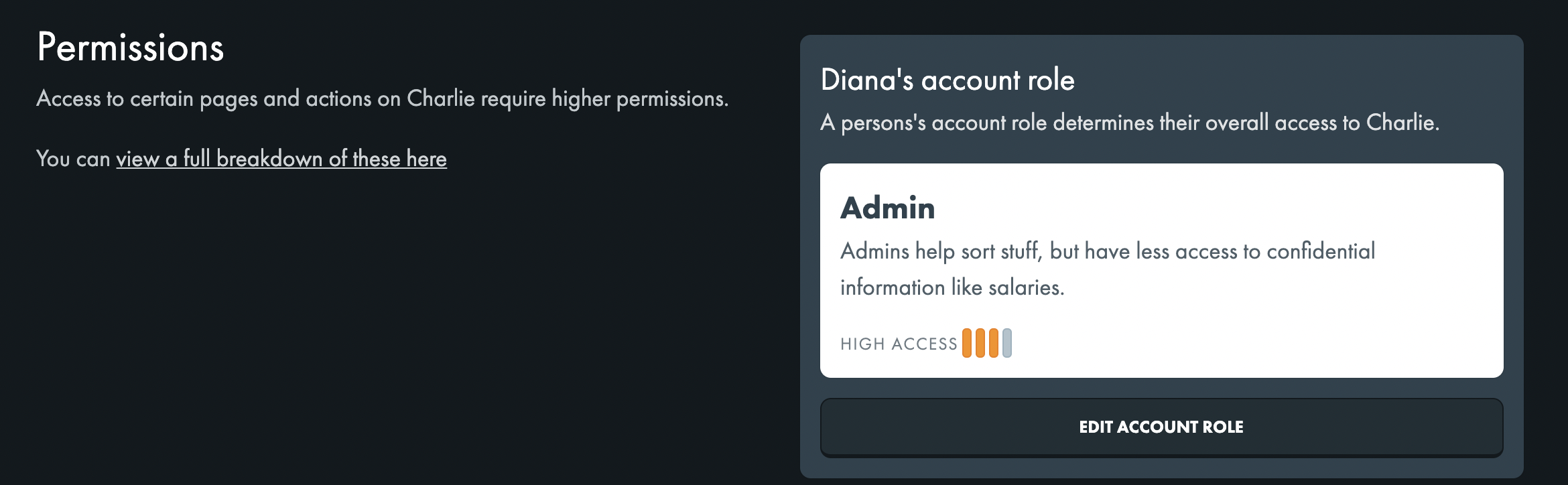
4. Select the new Permission Role and click through Review Change and Save Changes.