Workday - Add an Integration System User (Org Only)
Last updated: August 27, 2026
Before You Start
Please ensure that you have Administrator privileges in Workday before continuing with the instructions below.
Overview: What You’ll Need
Please set aside 20 minutes to complete this one-time setup process. We’ll walk you through 8 steps to collect a set of required values from Workday.
Retrieve your Workday Tenant ID
Create an Integration System User
Configure a Security Group
Configure the Domain Security Policy Permissions for the Security Group
Activate the Security Policy Changes
Configure the Authentication Policy
Activate the Authentication Policy Changes
Retrieve your Web Services Endpoint URL
Step 1: Retrieve the Workday Tenant ID
Log into your Workday account
Retrieve your Tenant ID from the URL of your web browser
If the URL looks like
*<https://impl.workday.com/somecompany*> then your tenant ID is somecompanyIf the URL looks like
*<https://somecompany.workday.com>*then your tenant ID is somecompany
Paste your Tenant ID into Finch Connect
Step 2: Create an Integration System User
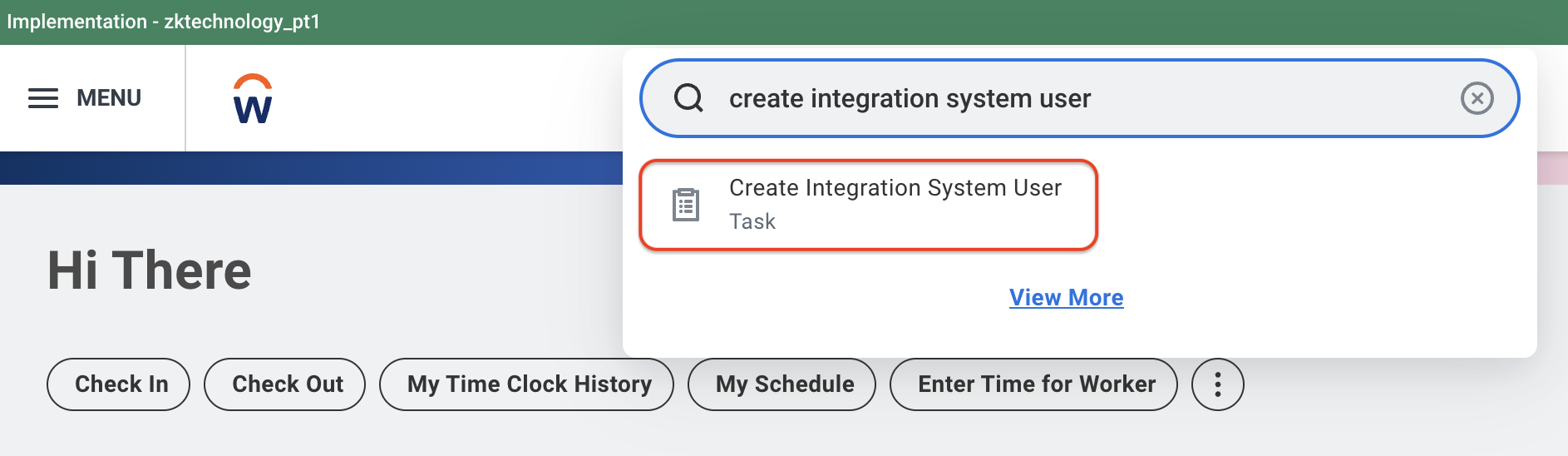
In the search bar at the top of the page, search for “Create Integration System User” and click on the resulting task.
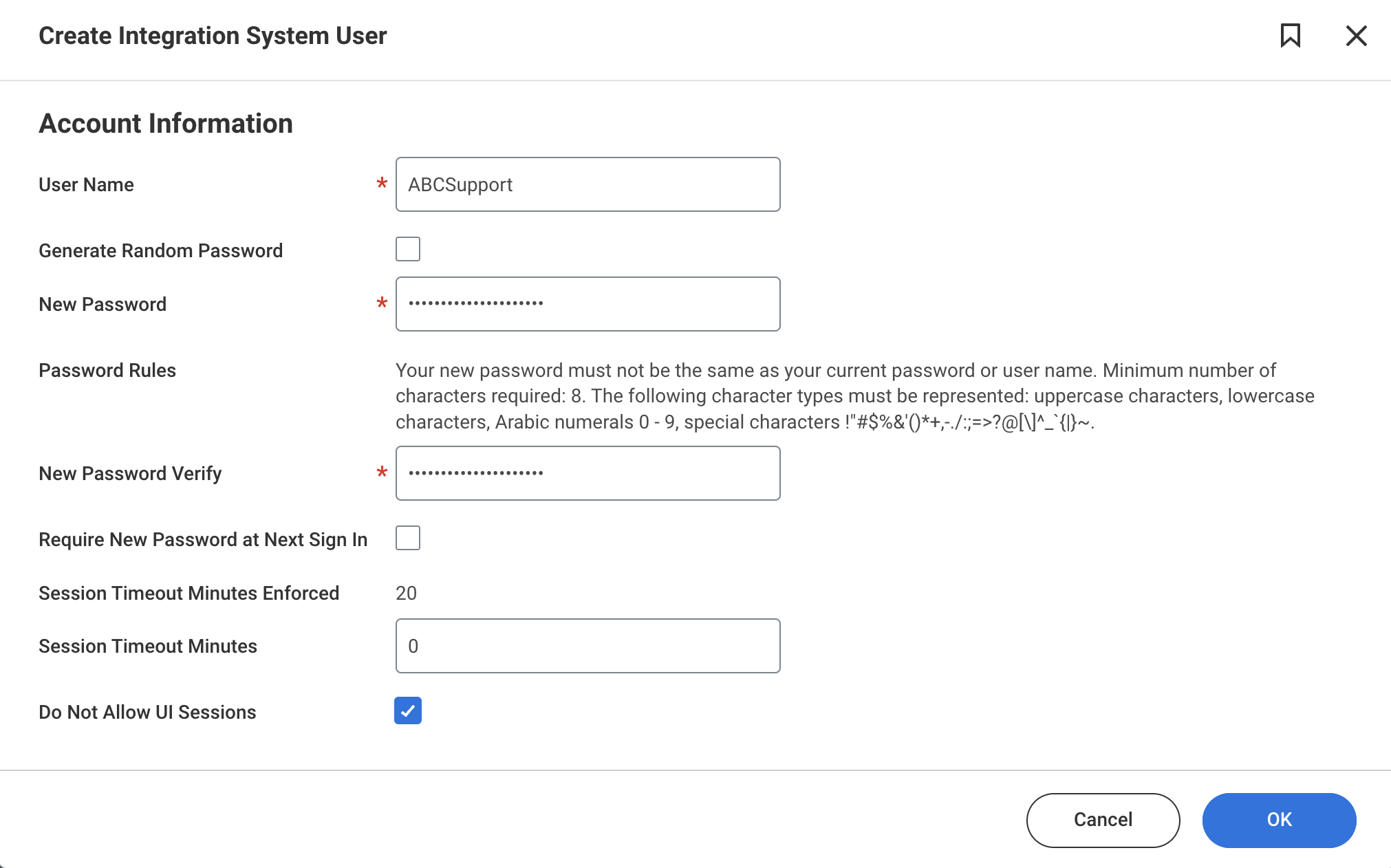
Fill in the following information to create an account:
User Name: Use the first 3 letters of your company name followed by “Support” (Example: ABCD Company → ABCSupport)
Copy this value into Finch Connect
New Password: Create a password that meets the security requirements. Make sure the password does not contain any of the following characters:
&,",>Copy this value into Finch Connect
Please ensure that Require New Password at Next Sign In is not checked
Session Timeout Minutes:
0Please ensure that Do Not Allow UI Sessions is checked
Click OK to create the Integration System User
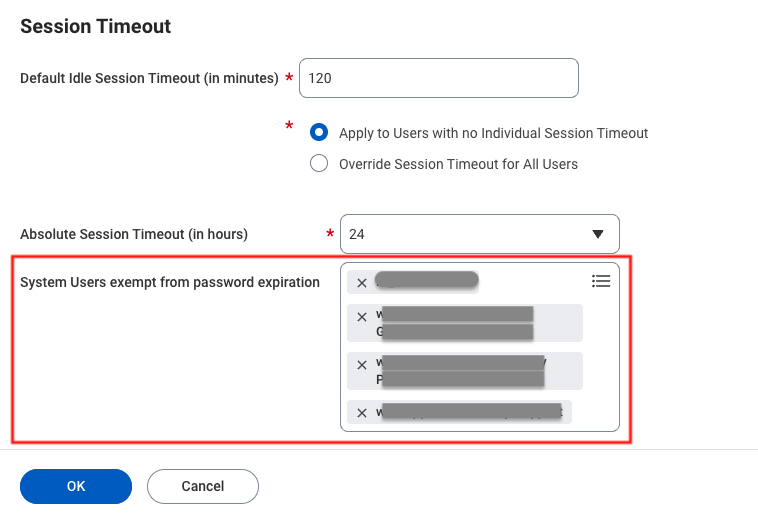
Exempt the system user from password expiration:
In the search bar at the top of the page, search for "Maintain Password Rules"

Add the system user you just created to System Users exempt from password expiration
Step 3: Configure a Security Group
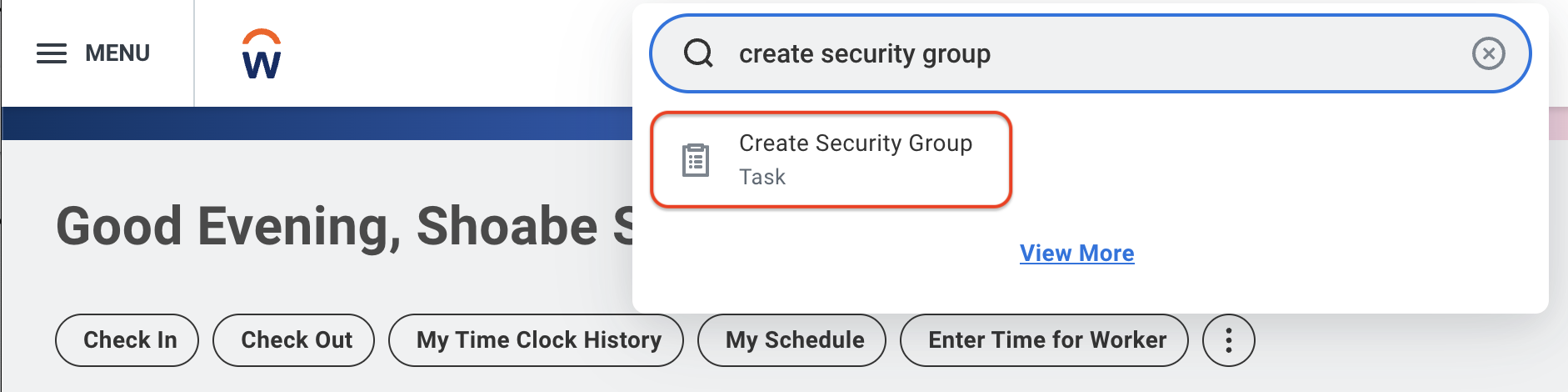
In the search bar at the top of the page, search for “Create Security Group” and click on the resulting task.
Fill in the following information to configure a security group:
Type of Tenanted Security Group: From the dropdown menu, select Integration System Security Group (Unconstrained)
Name: Finch
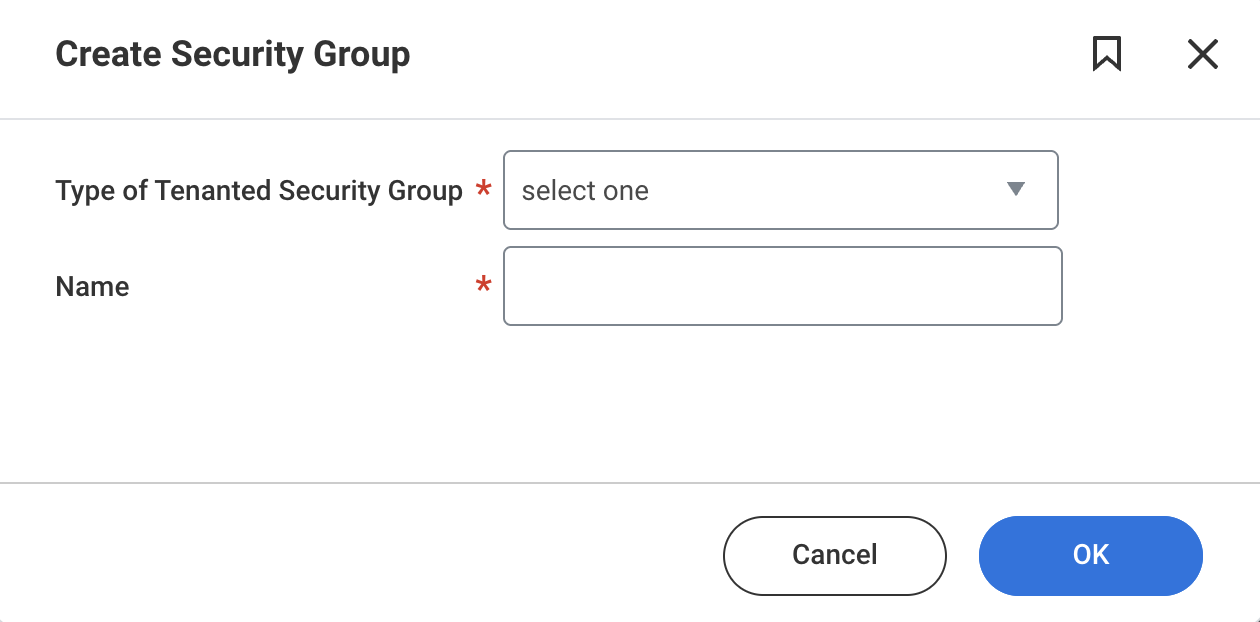
Click OK to create the security group. This opens the Edit Integration System Security Group (Unconstrained) page
Fill in the following information:
Name: This should auto-populate as “Finch”.
Integration System Users: Select the name of the Integration System User you created in Step 2
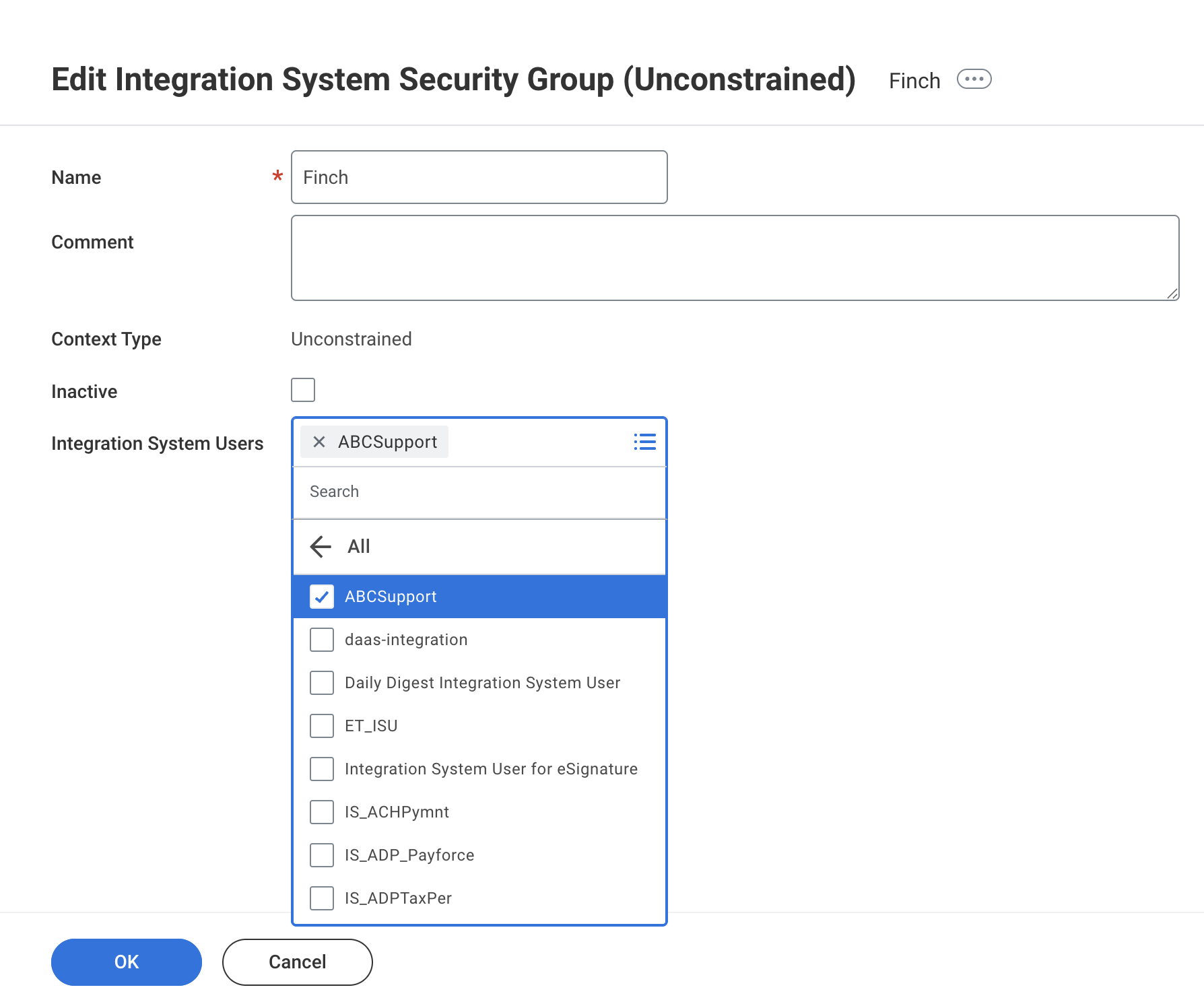
Click OK then Done to assign the Integration System User to the Security Group
In Finch Connect, click the Checkbox to confirm you’ve completed these instructions
Step 4: Configure the Domain Security Policy Permissions
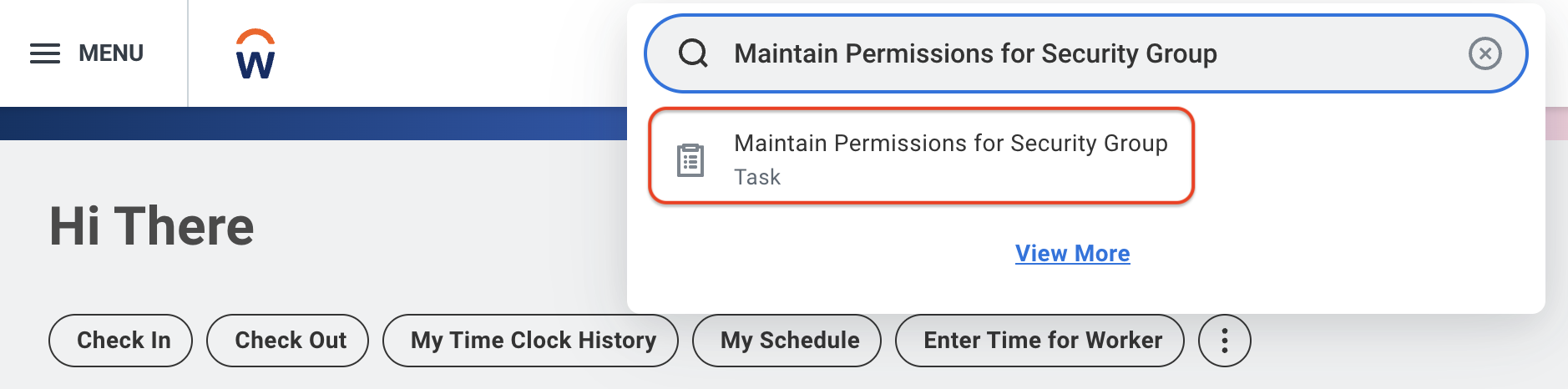
In the search bar at the top of the page, search for “Maintain Permissions for Security Group” and click on the resulting task.
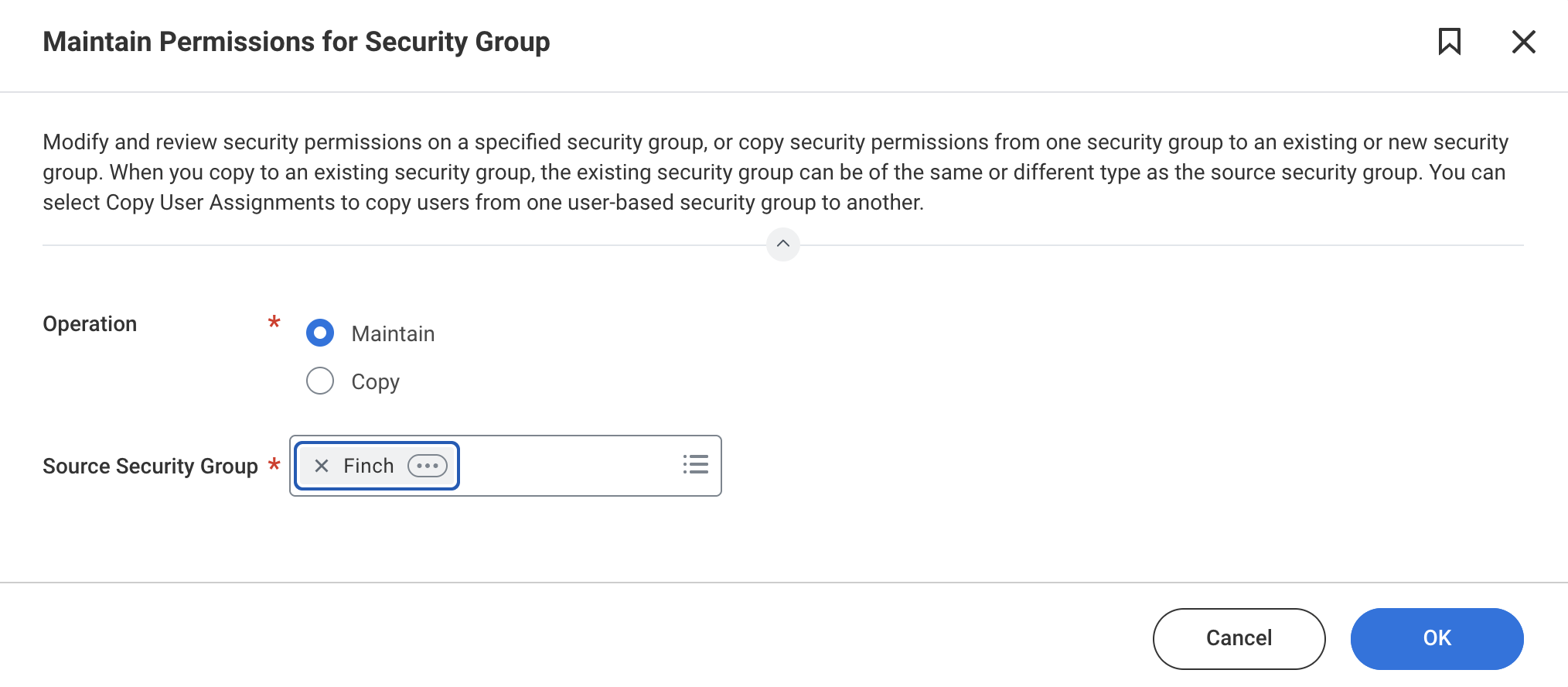
Fill in the following information:
Operation: Maintain
Source Security Group: Select the Security Group “Finch”
Click OK
Configure the Domain Security Policy Permissions
Click the + and add the following 3 security policy permissions:
View/Modify Access | Domain Security Policy | Notes |
Get Only | Set Up: Company General | Required for authentication |
Get Only | Worker Data: Public Worker Reports | Required to fetch basic employee data that is typically made publicly accessible by other employees |
Get Only | Worker Data: Current Staffing Information | Required to fetch basic employee job role data |
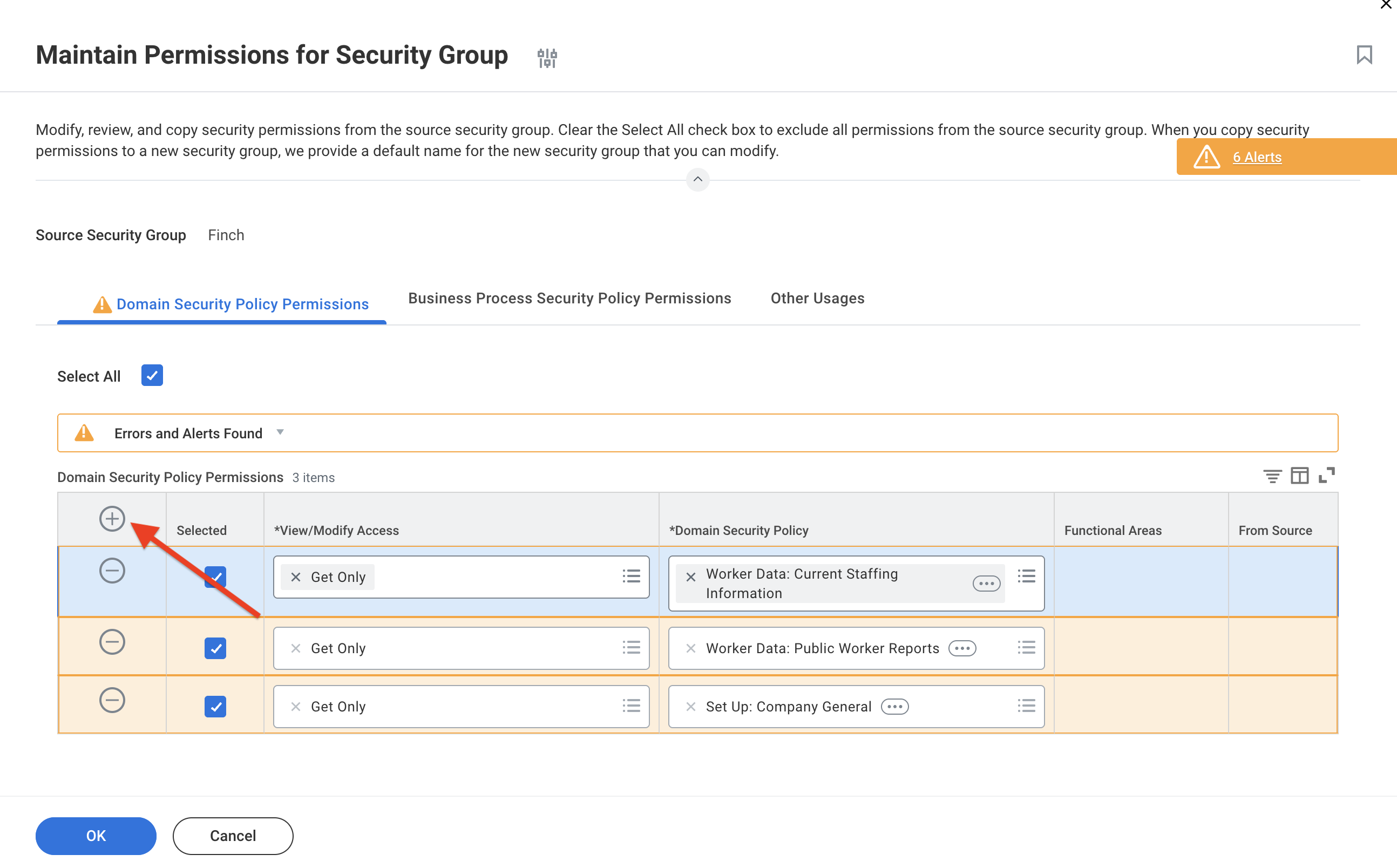
NOTE: View Only will not work**.** You must select Get Only.
Click OK to save the permissions
Click Done
Additional Permissions (Optional)
Please enable the additional Domain Security Policy(s) if the application you’re connecting to requires any of the data fields below.
View/Modify Access | Domain Security Policy | Notes |
Get Only | Person Data: ID Information | Enables fetching employee social security numbers (SSN) on the /individual endpoint |
Get Only | Person Data: Date of Birth | Enables fetching employee date of birth (DOB) on the /individual endpoint |
Get Only | Person Data: Gender | Enables fetching employee gender on the /individual endpoint |
Get Only | Person Data: Ethnicity | Enables fetching employee ethnicity on the /individual endpoint |
Get Only | Person Data: Work Contact Information | Enables fetching employee work emails and phone numbers |
Get Only | Person Data: Home Contact Information | Enables fetching employee personal emails and phone numbers |
Get Only | Integration Build: Get References | Enables fetching readable descriptions for reference IDs used by custom fields. These IDs are related to custom organization types and bonus plan types |
Step 5: Activate Security Policy Changes
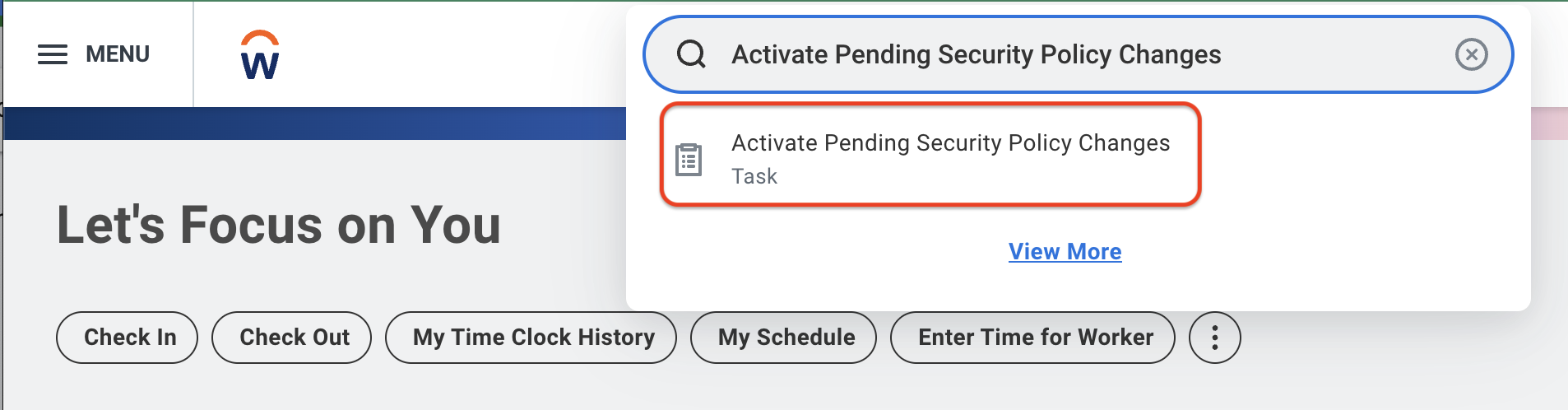
In the search bar at the top of the page, search for “Activate Pending Security Policy Changes” and click on the resulting task.
In the Comment box, write “Activate pending security policy changes”
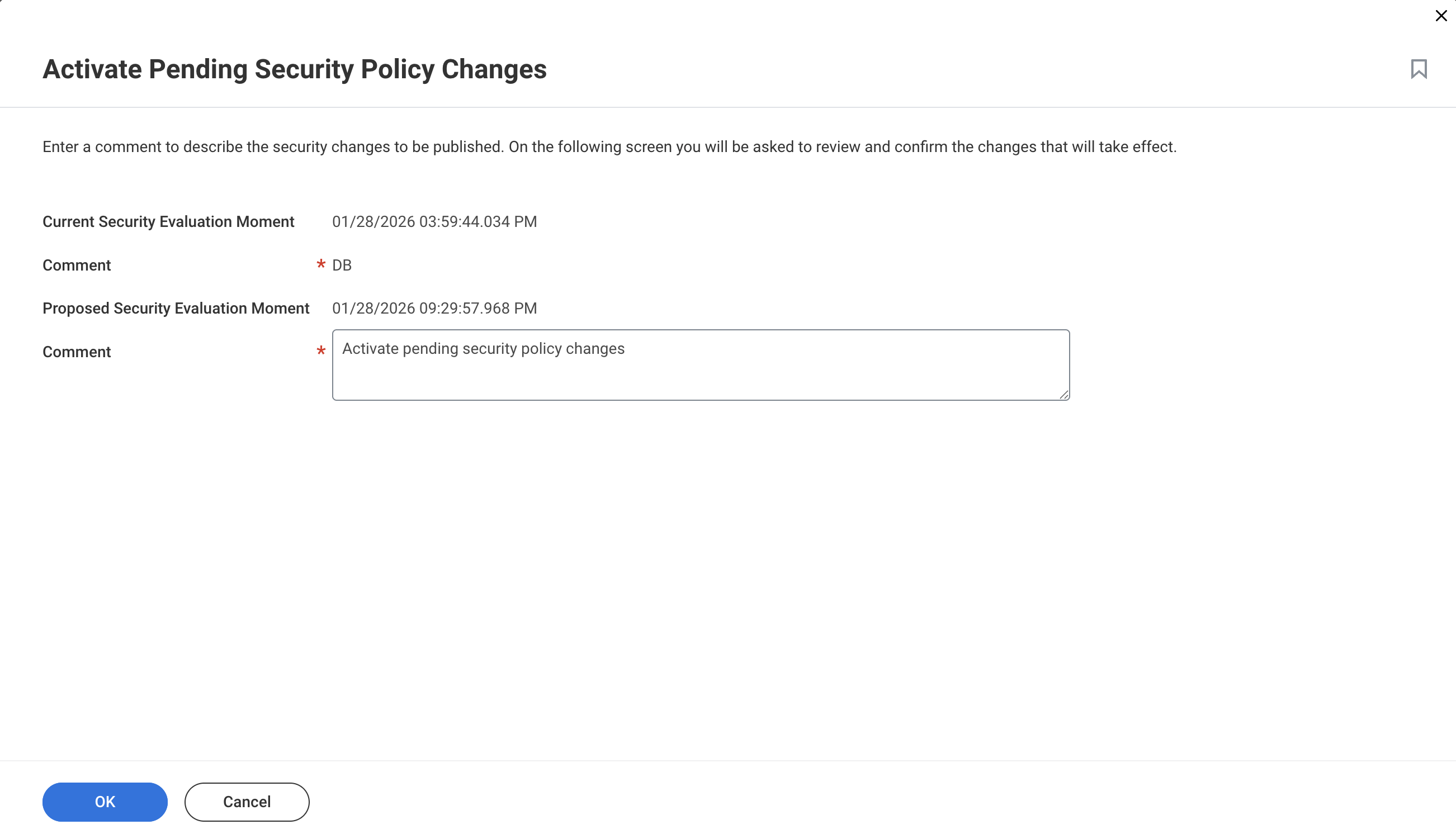
Click OK
View the summary of changes waiting to be approved and check the Confirm checkbox
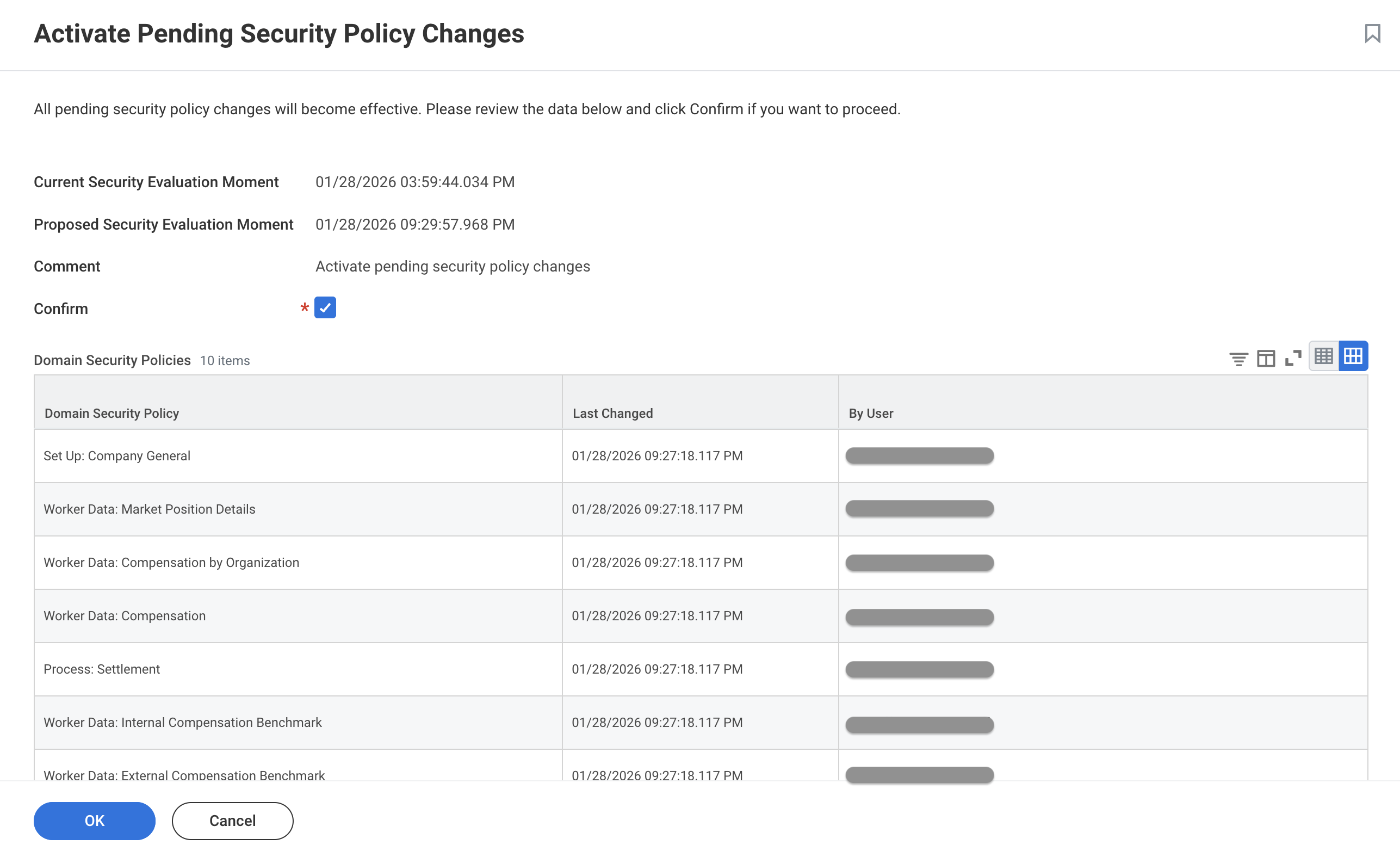
Click OK
In Finch Connect, click the Checkbox to confirm you’ve completed these instructions
Step 6: Configure Authentication Policy
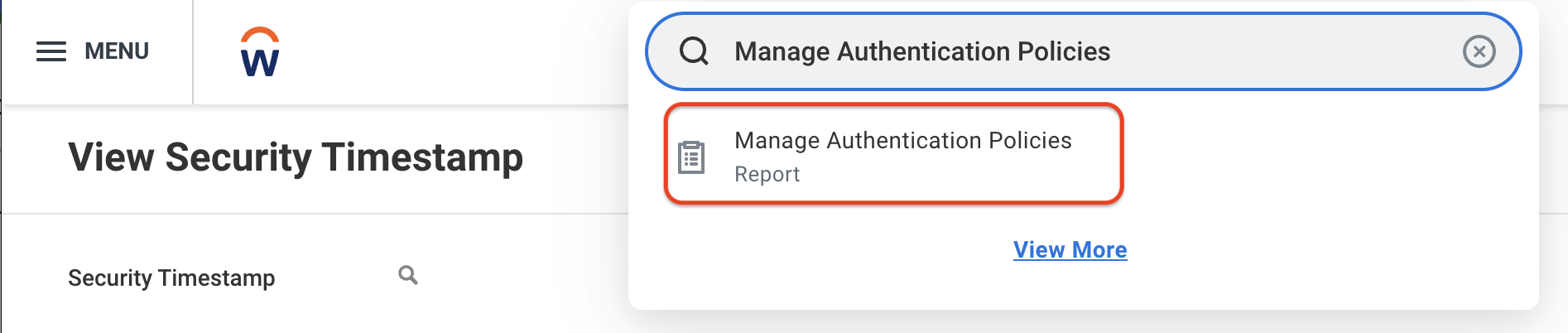
In the search bar at the top of the page, search for “Manage Authentication Policies” and click on the resulting task.
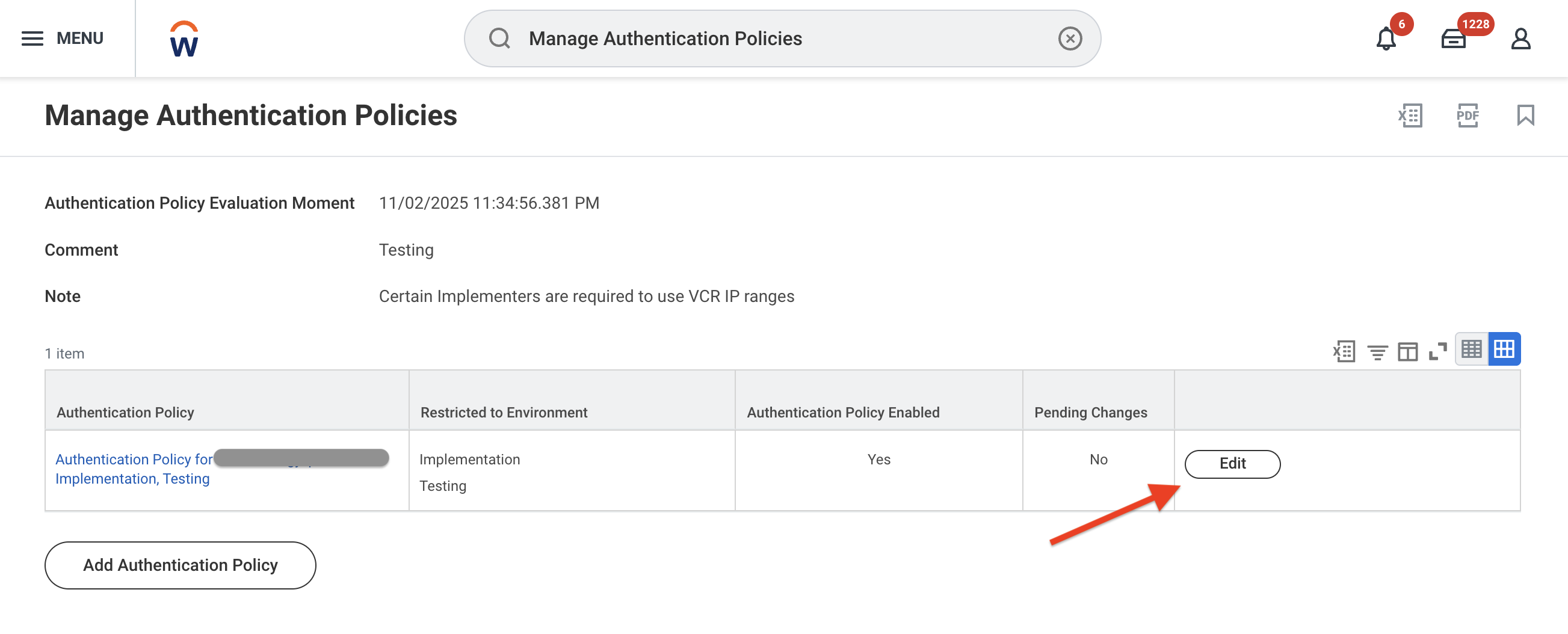
Verify that the Security Group (Finch) is assigned to a policy that has an Allowed Authentication Type of User Name Password or Any.
Click Edit
Click the
+button under Authentication Ruleset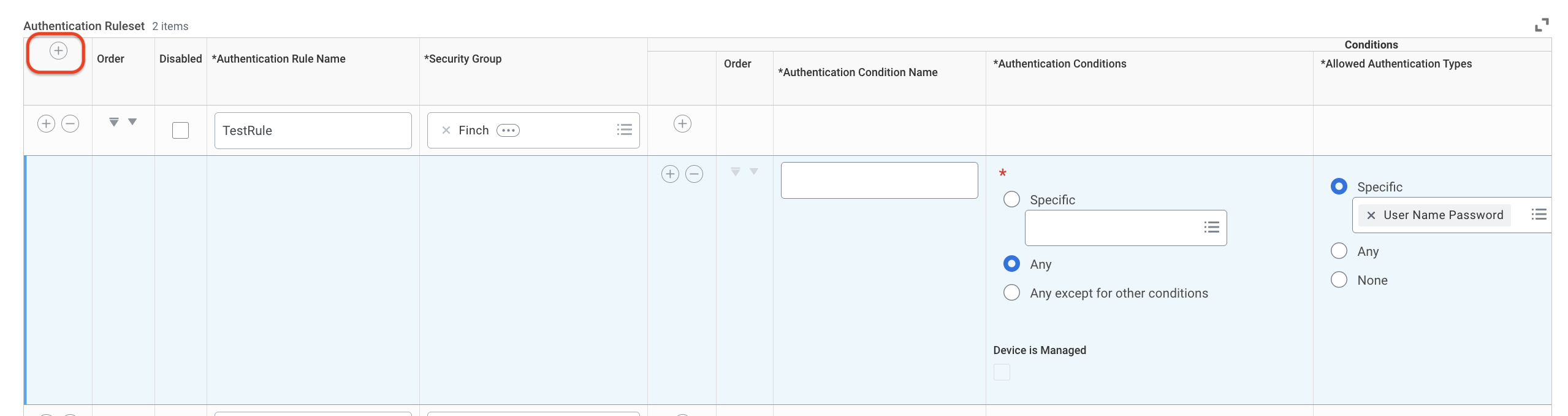
Fill in the following information:
Set the Authentication Rule Name to “FinchRule”
Set the Security Group to “Finch”
Set the Authentication Condition Name to “FinchCondition”
Set the Authentication Conditions to Any
Set the Allowed Authentication Types to Specific > User Name Password.
Click OK to save
Step 7: Activate Authentication Policy Changes
In the search bar at the top of the page, search for “Activate Pending Authentication Policy Changes” and click on the resulting task.
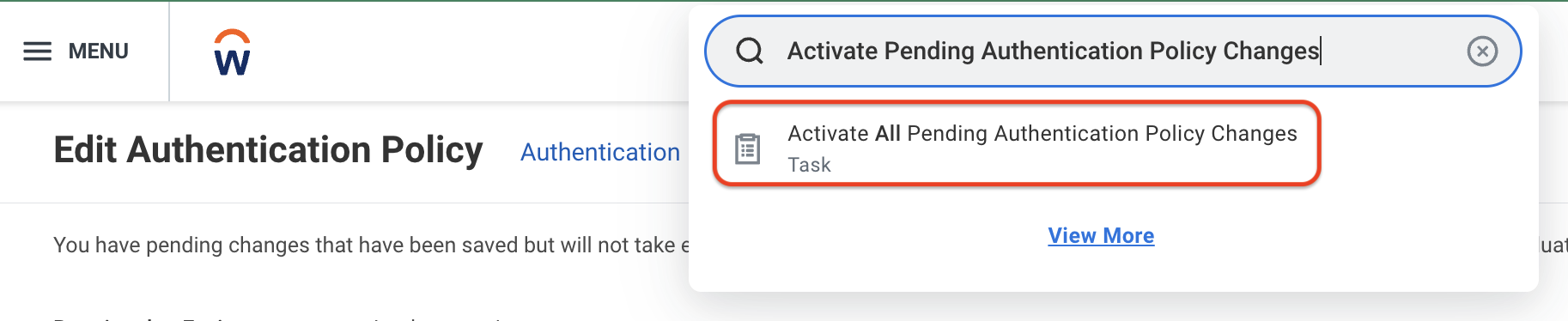
Select the Authentication Policy Change you made in Step 6 and type Confirm in the comment box
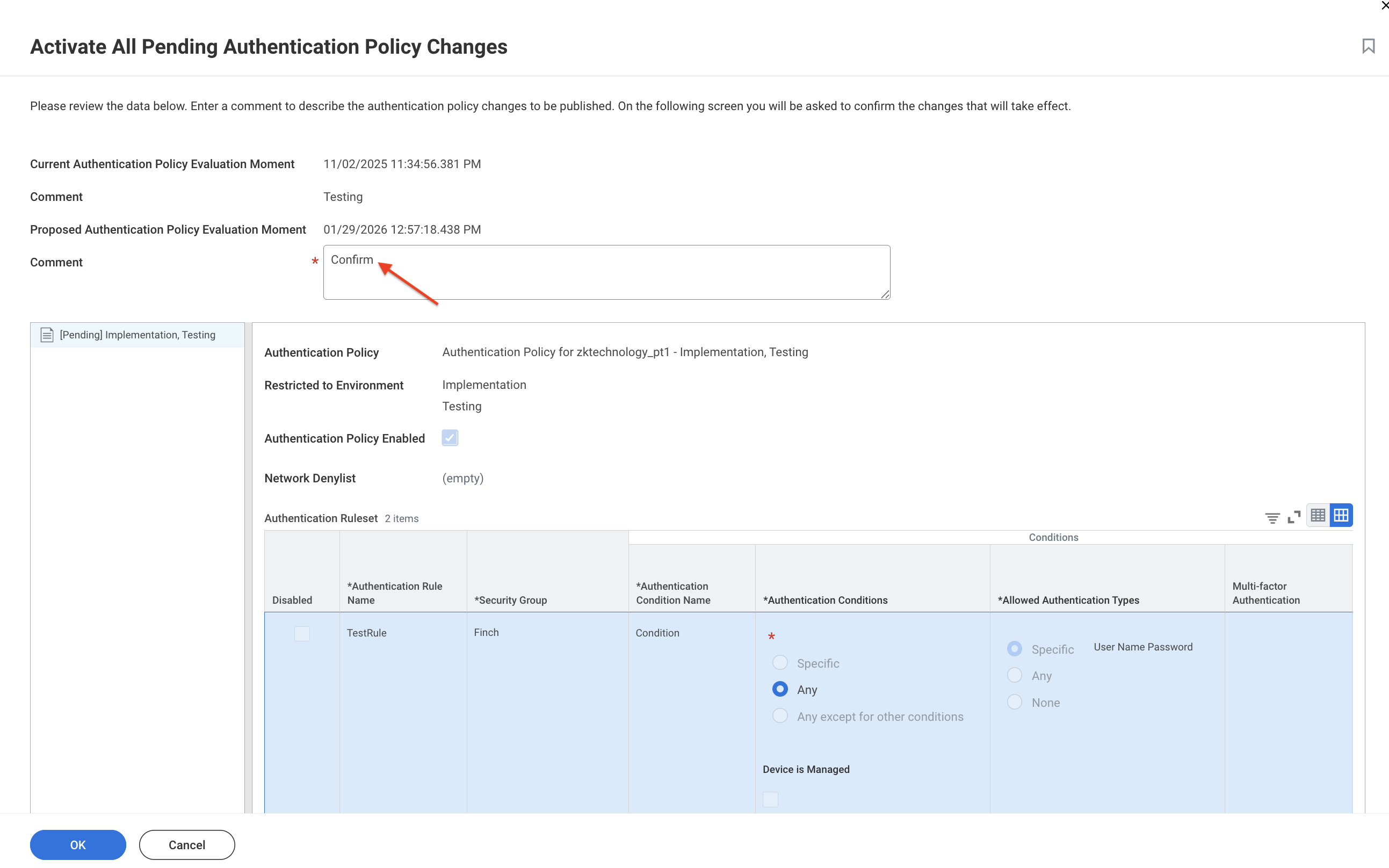
Click OK
Check the checkbox to confirm

Click OK
Click Done
In Finch Connect, click the Checkbox to confirm you’ve completed these instructions
Step 8: Retrieve the Web Services Endpoint URL
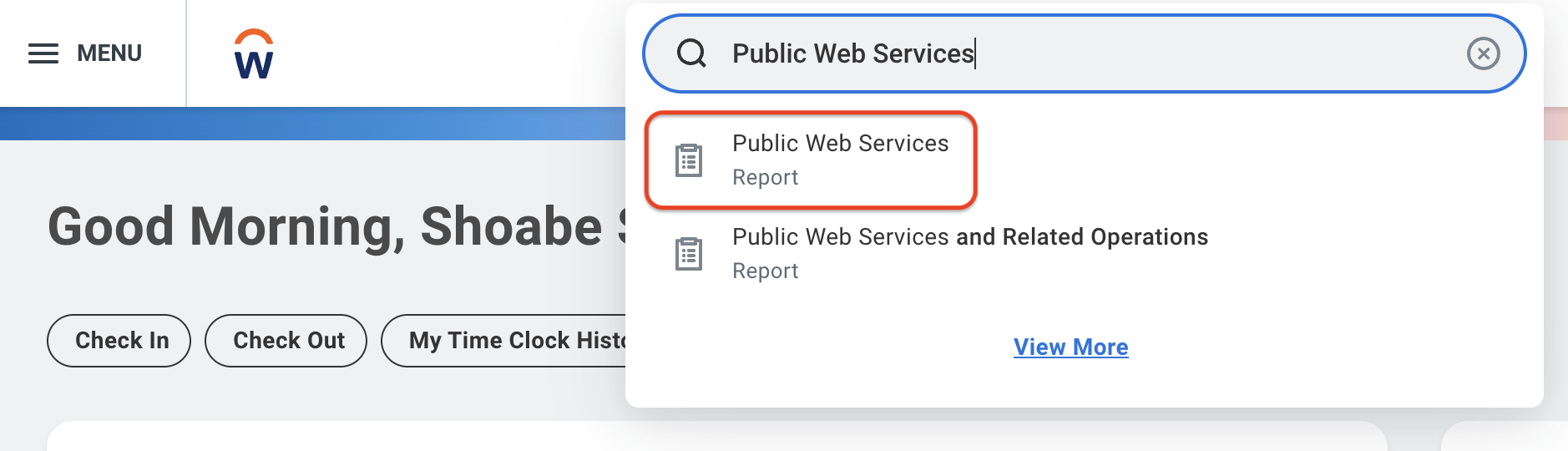
In the search bar at the top of the page, search for “Public Web Services” and click on the resulting task.
Scroll down to find the Human Resources (Public) item in the Web Service column and hover over it so you can click the
...menu that appearsIn the
...menu click Web Service > View WSDL. A new page will open containing the technical specifications for the Workday Human Resources Web Service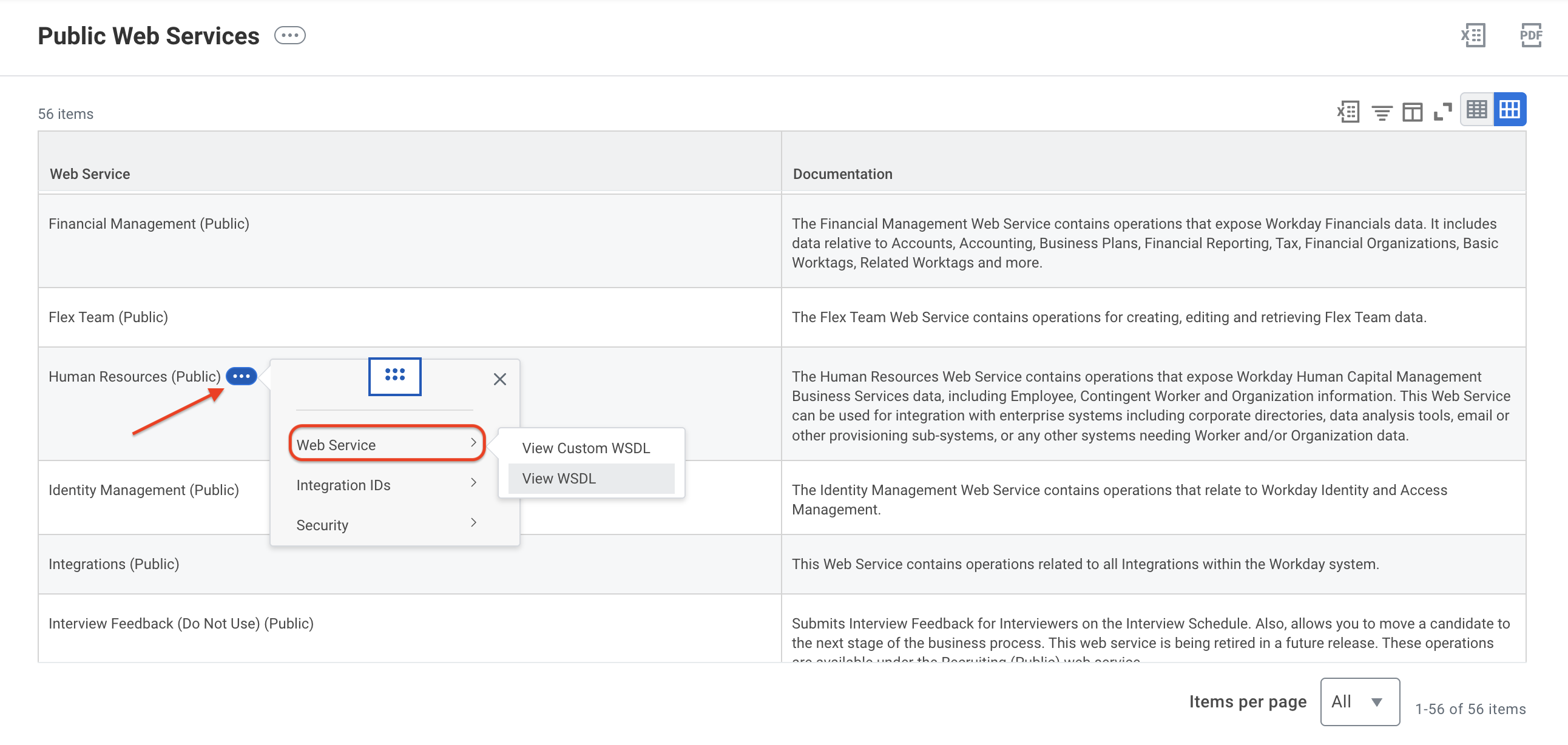
Scroll all the way to the bottom of the page and locate the line containing
soapbind:address location=. You can also search within the page using Ctrl+F or Cmd+F for the textsoapbind:address location=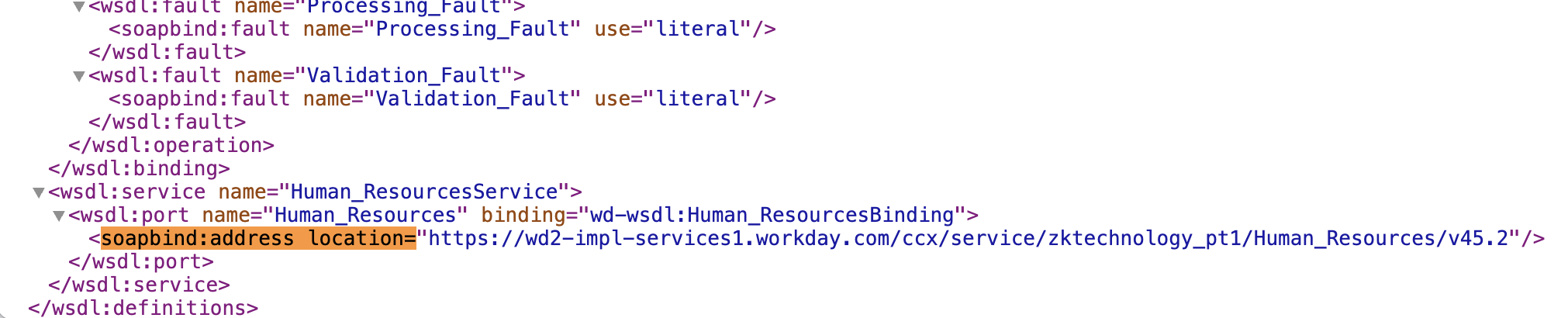
Copy the URL up until /service. Your resulting Web Services Endpoint URL should look something like
*<https://wd5-services1.myworkday.com/ccx
Paste the value into Finch Connect and click Connect