Get Started with the Finch Dashboard
Last updated: December 16, 2025
Sign up for the Finch Dashboard (1 person)
If you have not already, have one person from your team sign up for the Finch Dashboard. This will create an account for your organization.
Make sure to create the account with your business email address
Give the organization a name your customers will recognize (you can customize this later)
Invite other team members
Once you have signed up, log in and invite other team members to your organization.
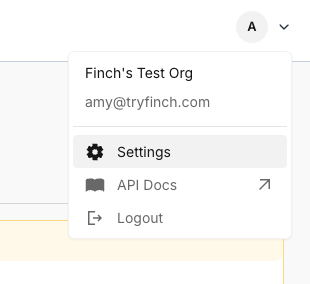
Navigate to your profile icon in the top right corner of the screen and select "Settings"
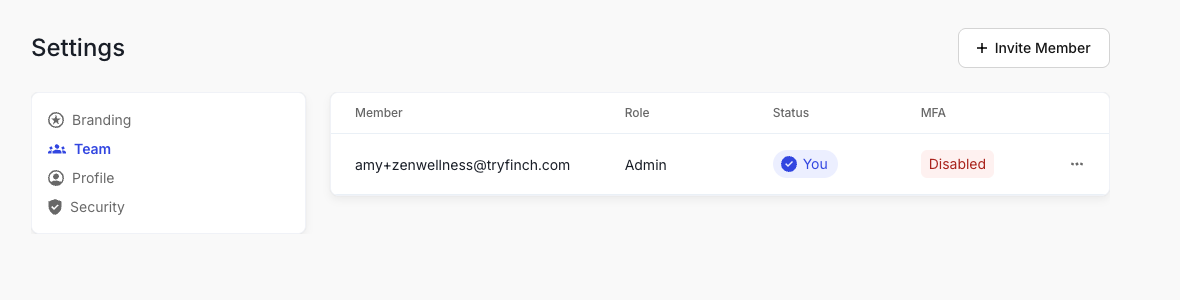
Select "Team" in the lefthand navigation to see your team. This is also where you can invite more team members. As the creator of the organization, you should be set as the Admin role.
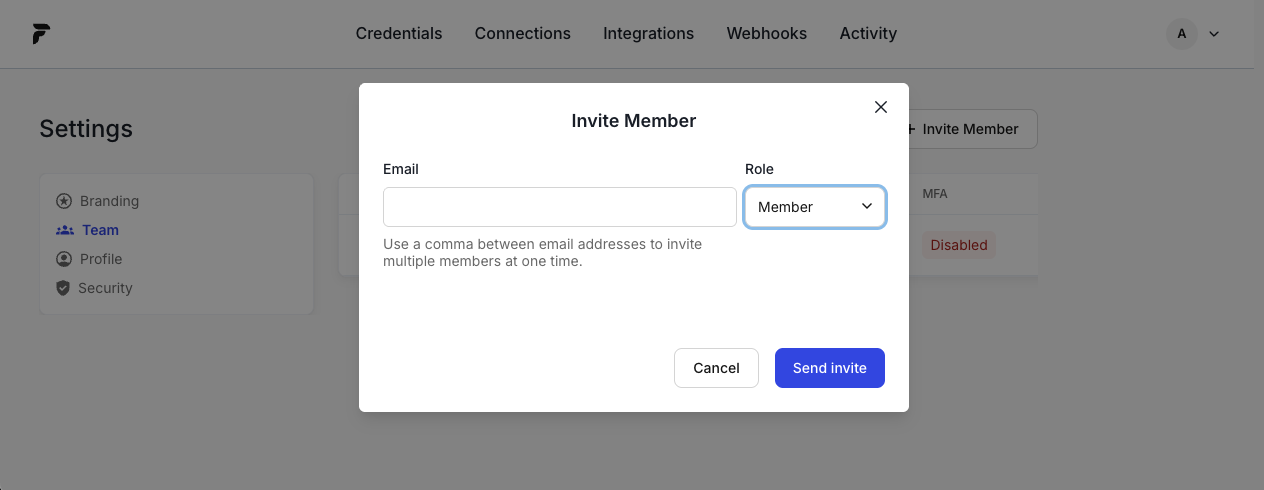
Select "Invite Member" to add the email address of other users. Make sure to select the appropriate role for each team member as you invite them.
Explore the Finch Dashboard
Connections
The Connections page is where you will generate invitations to Finch Connect for sponsors, track authentication progress, and view the status of all connections. Learn more about how to use the Connections page below.
Create a Finch Connect invitation - link automatically expires after 90 days
Explore the Integrations tab
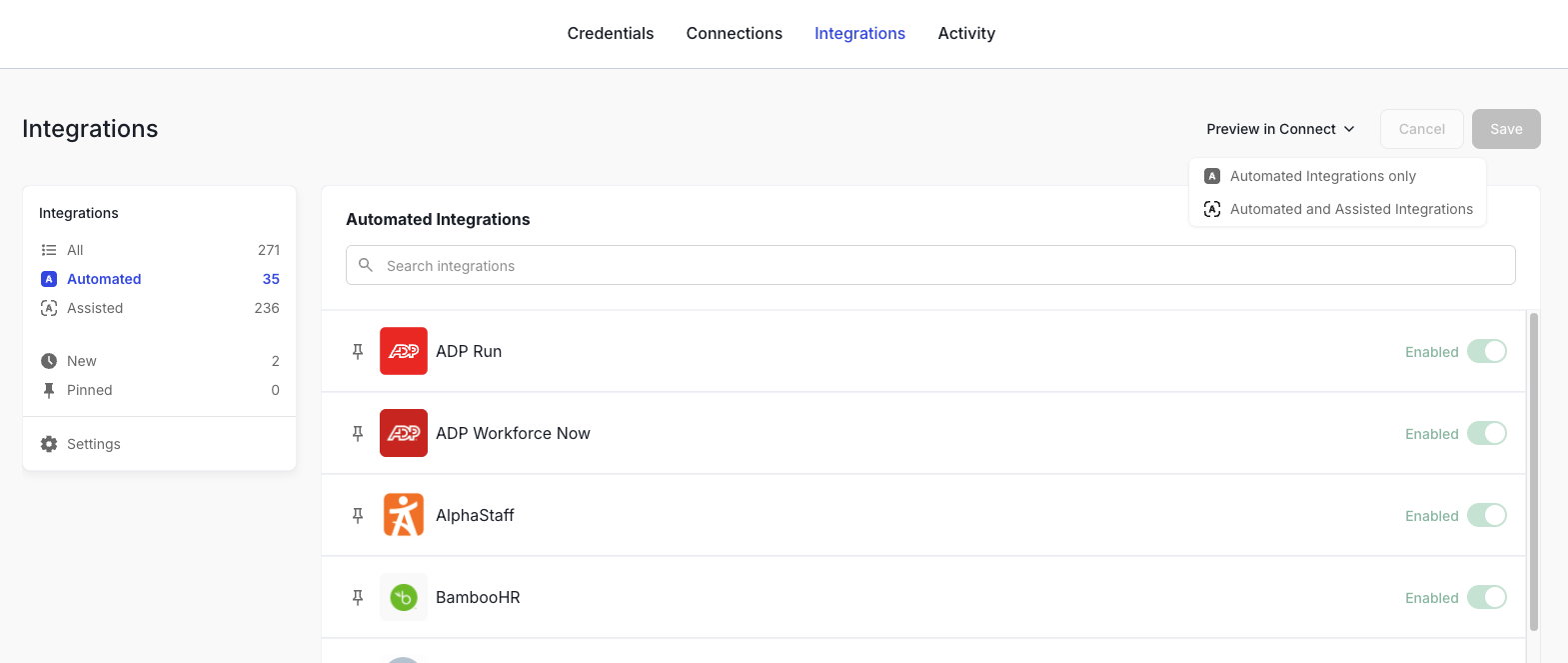
The Integrations page is where you can see which payroll integrations are enabled.
For PensionPro and Relius users, this list is configured automatically.
Please do not enable additional integrations. If you believe your configuration is incorrect, please check with implementation-team@tryfinch.com
You can use the "Preview in Connect" dropdown to demo the Finch Connect experience for each provider. Make sure to select "Automated and Assisted integrations" to see the complete list.